
How to Show or Hide Elementor Content by User Role or Login Status
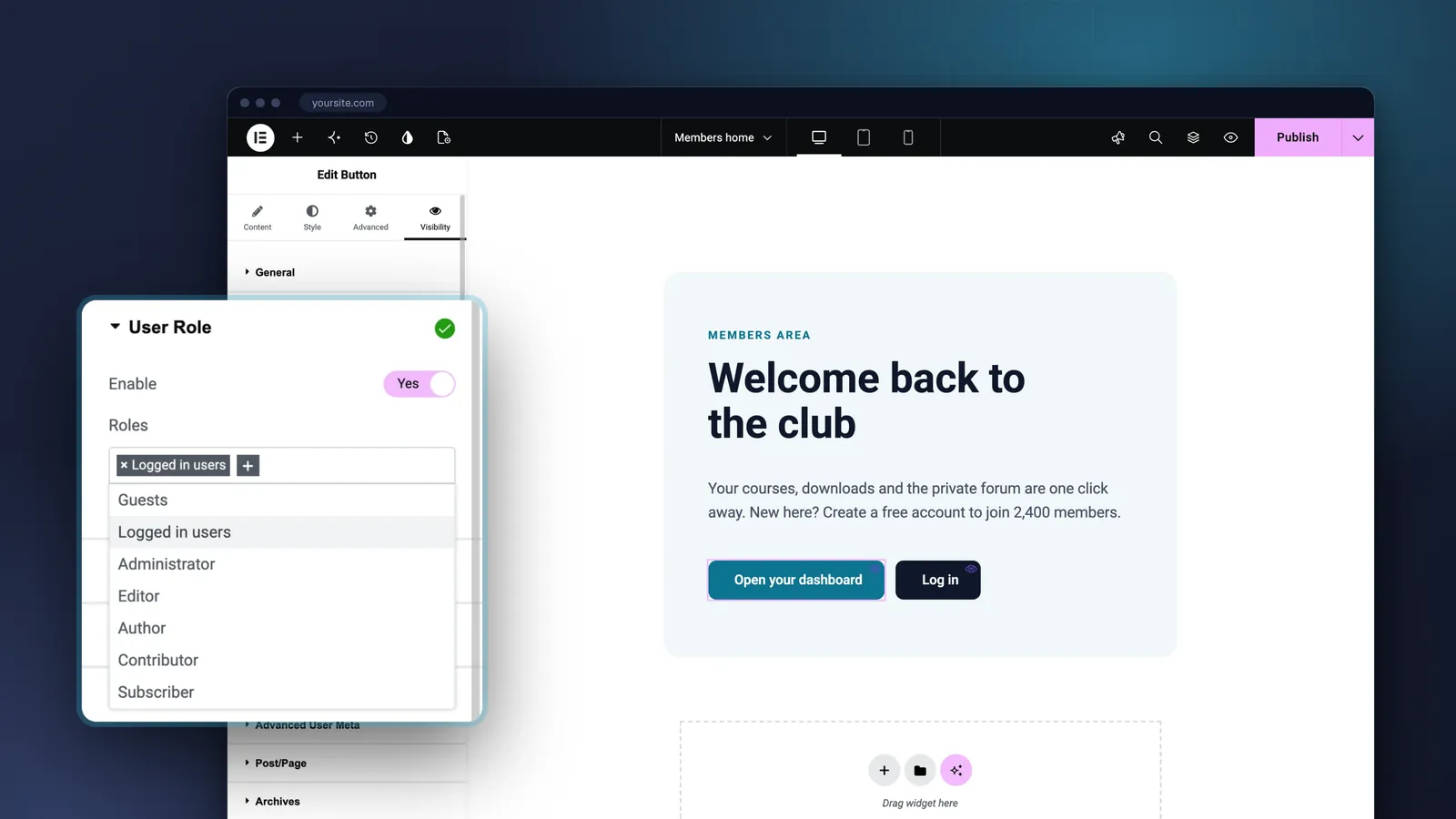
Table of contents
To show or hide Elementor content by user role or login status, install the free Visibility Logic for Elementor plugin, edit the page with Elementor, select the widget, section or container, open the Visibility tab, turn on Visibility Logic and enable the User Role condition. Pick logged-in users, guests or specific roles, set the action to Show or Hide, and save. No code and no Elementor Pro needed.
That is the whole procedure. Below are the same steps with the details that trip people up, a few recipes, and an honest look at the alternatives, Elementor Pro included.
What do you need?
- WordPress 5.0 or newer and PHP 7.4 or newer.
- Elementor. The free version is enough.
- Visibility Logic for Elementor, free on WordPress.org.
Step 1: Install Visibility Logic for Elementor
In WordPress admin go to Plugins > Add New, search for “Visibility Logic for Elementor”, then install and activate it. There is nothing to configure before you use it. The install guide, including the Pro add-on, is in Installing Visibility Logic for Elementor.
Step 2: Turn on Visibility Logic for an element
- Open the page or template with Edit with Elementor.
- Select the widget, section or flexbox container you want to control.
- In the panel, open the Visibility tab. Older versions, and some screenshots in our docs, label it Stax Visibility.
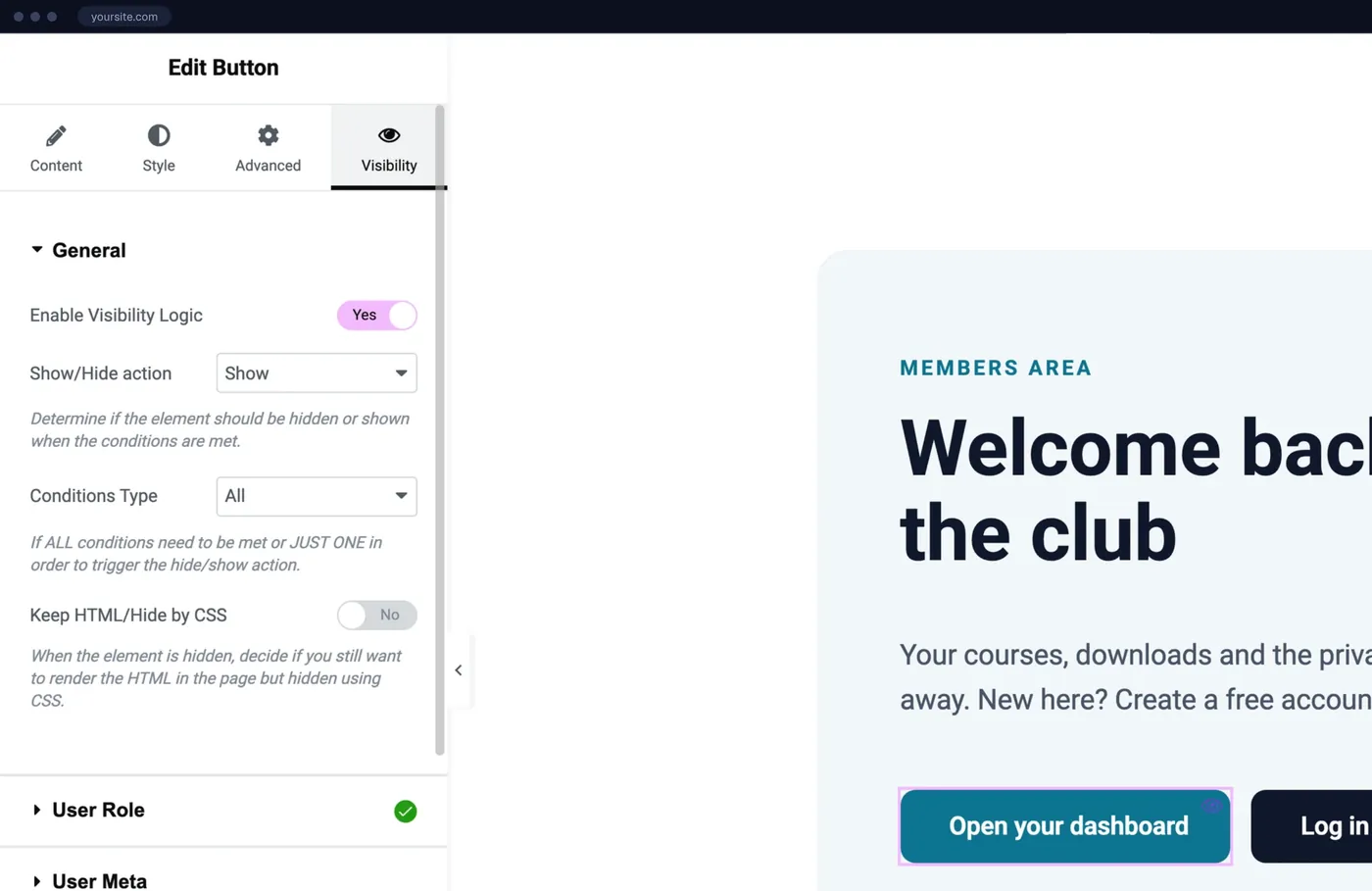
- Switch on Enable Visibility Logic.
The condition sections (User Role, User Meta, Date & Time and the others) appear only after that switch is on. See Enabling Visibility Logic settings on an element for the steps.
Step 3: Set the action, and mind the default
Two general settings decide how the rules behave.
Show/Hide action says what happens when the conditions are met: the element is shown, or it is hidden. The default is Hide. This is the number one thing to check. If you select “Logged in users” and leave the action alone, you have just hidden the element from your members, which is usually the opposite of what you wanted. For “only members see this”, switch the action to Show. (docs)
Conditions Type matters once you enable more than one condition: act when All conditions are met, or when At least one is. (docs)
Step 4: Enable the User Role condition
- Open the User Role section and switch on Enable.
- In the Roles field, choose who the rule is for. The list starts with two special entries, Guests (logged-out visitors) and Logged in users, followed by every role on your site: Administrator, Editor, Author, Subscriber, plus any custom roles added by a shop or membership plugin.
- Click Update to save the page.
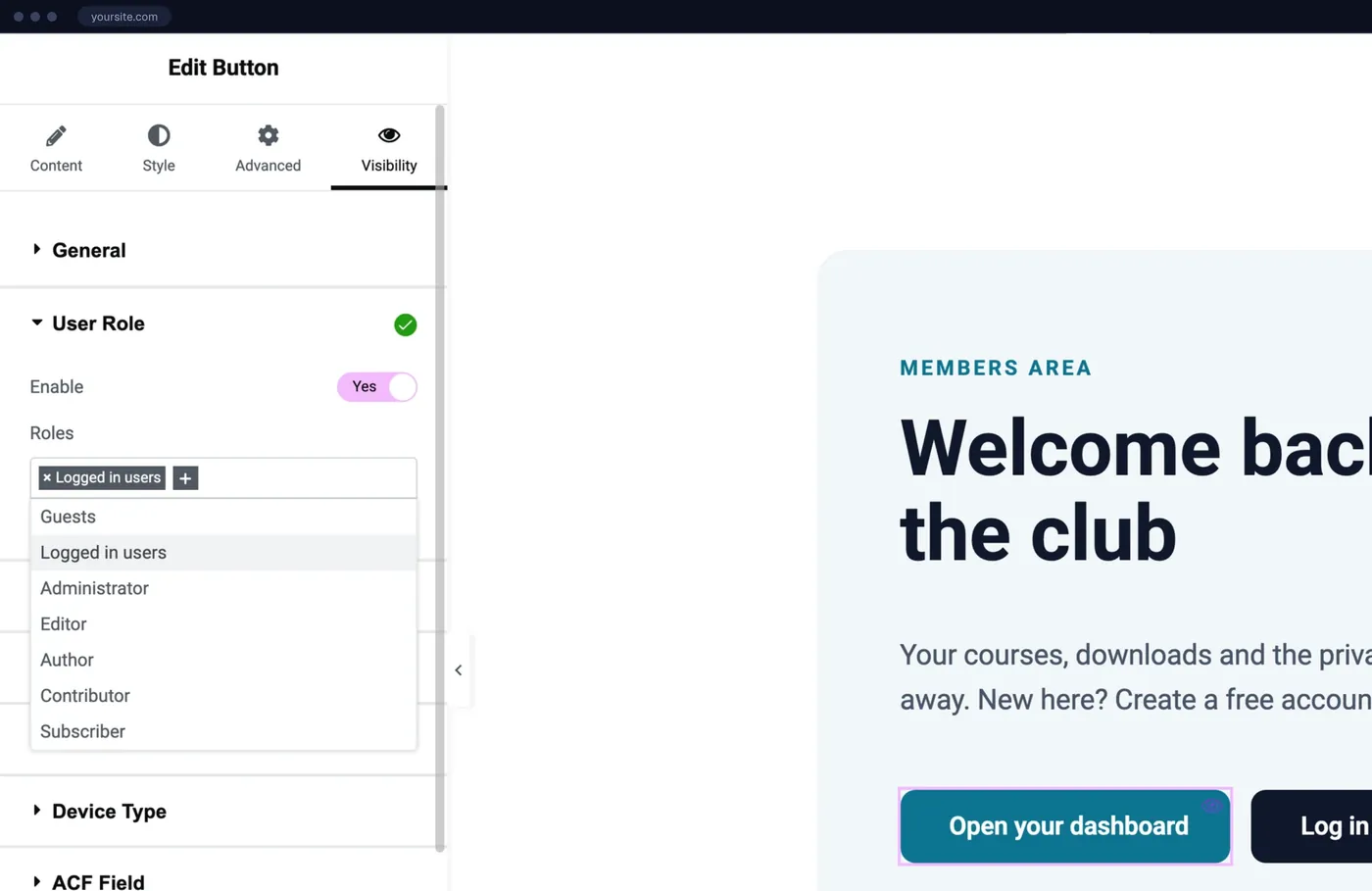
You can select several entries. They work as “any of these”, so Administrator plus Editor means the rule applies to a visitor with either role. The reference page is User Role.
Step 5: Test it properly
Do not test while logged in as an administrator and call it done. Open the page in a private browser window to see it as a guest. Then log in with a test account for each role you targeted.
If the result looks wrong for guests but right for you, suspect caching. Visibility Logic turns off Elementor’s own element cache on pages that use conditions, but it cannot control a full-page cache. A page cache that stores one copy of the page and serves it to everyone will show one group the other group’s version. Exclude pages with role-based content from the page cache, and make sure logged-in users are not served cached pages at all.
Recipes
| Goal | Action | Roles |
|---|---|---|
| A “Log in” button only for visitors | Show | Guests |
| An account or dashboard link only for members | Show | Logged in users |
| Hide the sign-up form from people who already have an account | Hide | Logged in users |
| An edit link or internal notice only for your team | Show | Administrator, Editor |
| Writing guidelines only for your authors | Show | Author |
| A different hero for members and for visitors | Two sections, both set to Show | One for Logged in users, one for Guests |
We are the same team that makes the SeventhQueen community themes, so many of the setups we see are membership and community sites. The last recipe is the classic one there: two versions of the same section, one per audience.
A tip for that pattern. If every widget inside a section is hidden, the empty section can still leave a gap. Sections and containers have a Hide when empty switch on the same tab that removes the wrapper when everything inside it is hidden by a condition.
What happens to the hidden content?
Visibility Logic checks the conditions on the server, in PHP, before the page is sent. A hidden element is left out of the HTML entirely, so a visitor who does not match never receives it, and “view source” shows nothing.
Sometimes you want the opposite, for example when a script on the page expects the element to exist. Then turn on Keep HTML/Hide by CSS: the element is printed and hidden with CSS. It is no longer private at that point, so do not use it for anything sensitive.
One limit to be clear about: a visibility rule controls what a page prints. It is not access control. If a hidden section links to a PDF or to another page, that file or page is still reachable by anyone who has the URL. Protect the target itself, with a membership plugin or with a rule on that page too.
How do you show a message instead?
In the free plugin a hidden element simply is not there. With Visibility Logic Pro you can put something in its place. Fallback content shows either a text or an Elementor template to the people who do not meet the conditions: “Log in to see this content” with a button is the usual one.
Which conditions are free and which are Pro?
The free plugin includes User Role, User Meta, Date & Time, Device Type (desktop, tablet, mobile), Browser Type, and ACF fields on the current post or page. For role and login rules you do not need more than that.
Visibility Logic Pro adds:
- Geolocation by country, and language (WPML, Polylang, TranslatePress)
- URL parameters, IP address and referrer
- WooCommerce and Easy Digital Downloads customer conditions
- Elementor Pro dynamic tags as conditions
- Post, page, taxonomy and archive rules, and WordPress conditional tags
- More operators for ACF and combined user meta conditions
- Copy and paste of visibility settings, and fallback content
Pro costs $29 per year for 1 site, $39 for 3 sites and $79 for 100 sites. There is a 30-day money-back guarantee. See the full comparison.
What are the alternatives?
Elementor Pro Display Conditions. Elementor Pro has had its own display conditions for elements since version 3.19, and login status and user role are among them. If you already pay for Elementor Pro and those are the only rules you need, try the built-in feature first. You do not need our plugin for that. Visibility Logic earns its place when you are on the free Elementor, or when you need a condition Elementor Pro does not have.
Other free plugins. WordPress.org has other plugins for the same job, for example Dynamic Visibility for Elementor. They differ mostly in which conditions are free, so compare the lists before you commit.
A membership plugin. For protecting whole pages, posts, files or paid content, a membership plugin is the right tool. Many sites use both: the membership plugin for access, a visibility plugin for what each page shows to whom.
Code. A developer can wrap output in is_user_logged_in() or current_user_can() inside a custom widget or shortcode. It is the most flexible option, and every later change goes through the developer.
The short version
Install Visibility Logic for Elementor, select an element, enable Visibility Logic on the Visibility tab, turn on User Role, pick Guests, Logged in users or the roles you want, and check that the action says Show when you mean Show. Test in a private window. Start with the free plugin; Visibility Logic Pro is there when you need fallback content or conditions for shops, languages and locations.
Frequently asked questions
Can I show an Elementor widget only to logged-in users for free?
Yes. The free Visibility Logic for Elementor plugin from WordPress.org has a User Role condition with options for logged-in users, guests and specific roles. You do not need Elementor Pro.
Does Elementor have display conditions built in?
The free Elementor plugin does not have per-element display conditions. Elementor Pro includes its own Display Conditions feature, with login status and role among the conditions. Visibility Logic adds conditions to the free Elementor and works next to Elementor Pro too.
Is hidden content still in the page source?
By default, no. Visibility Logic checks the conditions on the server and leaves a hidden element out of the HTML. If you turn on the Keep HTML/Hide by CSS option, the element stays in the HTML and is hidden with CSS.
Can I show a message instead of the hidden element?
Yes, with Visibility Logic Pro. Fallback content replaces a hidden element with a text or with an Elementor template, for example a sign-in prompt.
Can I combine user role with other conditions?
Yes. You can turn on several conditions on one element and choose whether all of them or at least one must be met. The free plugin includes user role, user meta, date and time, device type, browser type and ACF field conditions.