
Visibility Logic free conditions
The free Visibility Logic plugin has six conditions: User Role, User Meta, Date Time, Browser Type, Device Type and ACF Field. Each one is a section in the Elementor Visibility tab with its own Enable switch. Turn on Enable Visibility Logic in the General section first, then enable the conditions you need (see Set up a visibility rule).
A condition “matches” when its check is true for the current visitor. What happens then depends on the element’s Show/Hide action and Conditions Type.
For more conditions (IP, geolocation, posts, WooCommerce, URL parameters and more), see the Pro conditions.
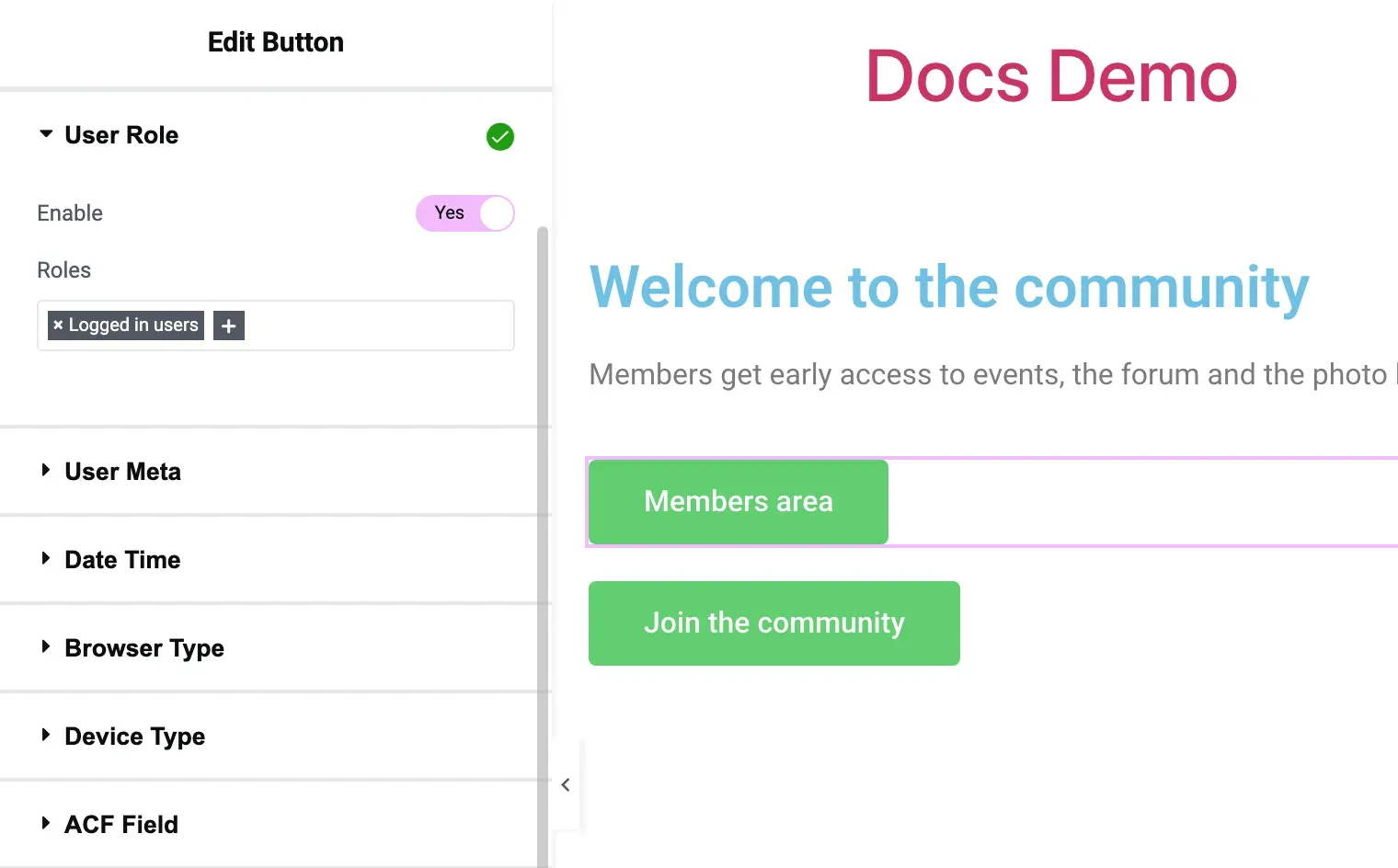
User Role
Section titled “User Role”Matches visitors by login state or WordPress role.
| Setting | What it does |
|---|---|
| Roles | Pick one or more of Guests (logged-out visitors), Logged in users (any role) or a specific role such as Administrator, Editor, Subscriber or a custom role. |
The condition matches when the visitor fits any of the selected items. Example: to show a “Sign up” banner only to visitors who are not logged in, set Show/Hide action to Show and pick Guests.
User Meta
Section titled “User Meta”Matches the logged-in user by the value of a user field (user meta), for example first_name, nickname, user_email or a field added by another plugin.
| Setting | What it does |
|---|---|
| Meta Name | Search and pick one or more user meta keys. |
| Meta Condition | The test to run on each selected key (see below). |
| Condition Value | The value to compare with. For Is equal to one of and Is array and contains, type comma-separated values. |
| Condition Value 2 | The upper bound for Between. |
Meta Condition options: None (no effect), Empty, Not empty, Is equal to, Is equal to one of, Not equal to, Contains, Does not contain, Between, Less than, Greater than, Is array, Is array and contains. Between, Less than and Greater than need numeric values.
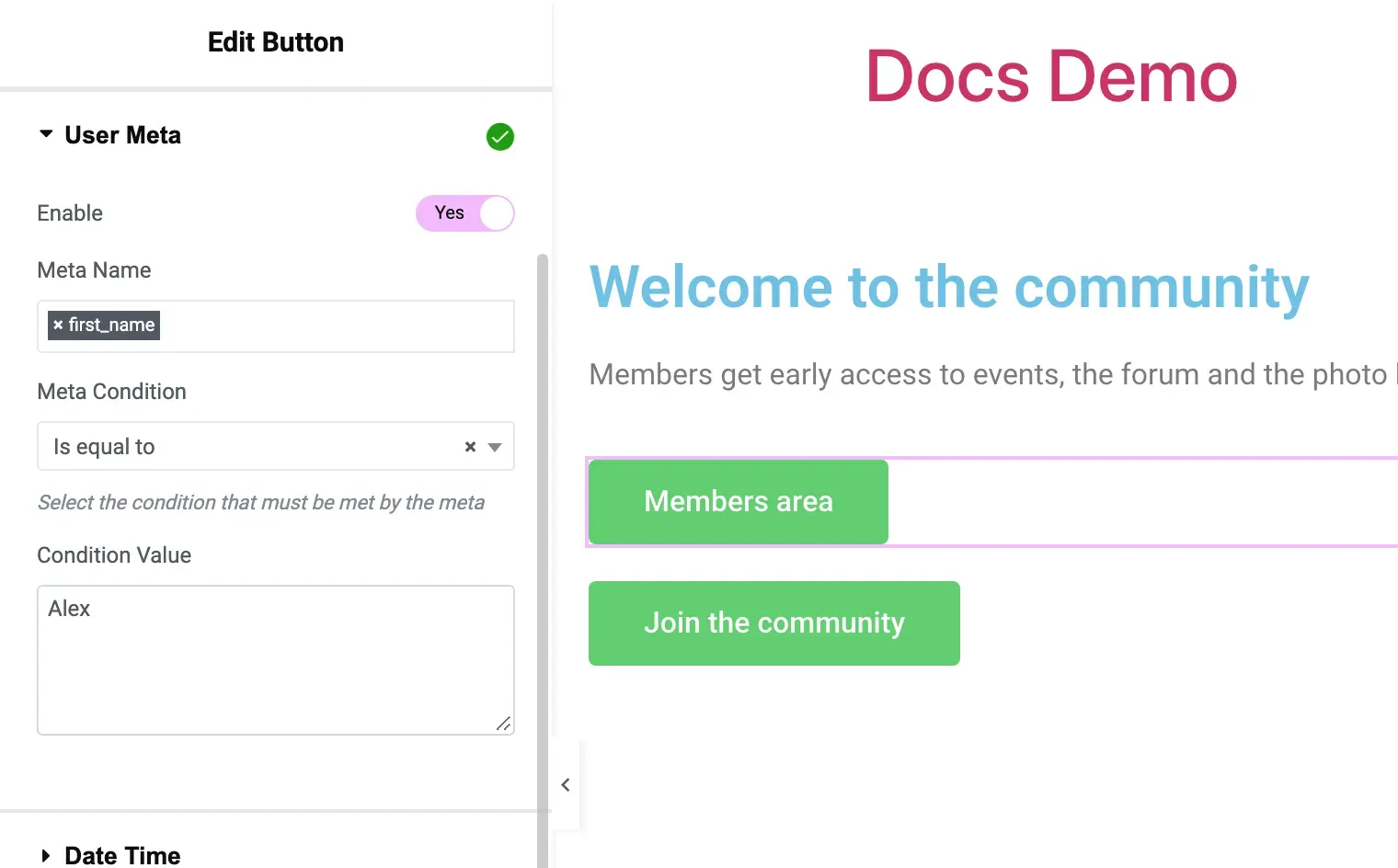
When you pick several meta keys, every key must pass the test. For several keys with different tests, or OR logic, use the Pro Advanced User Meta condition.
Date Time
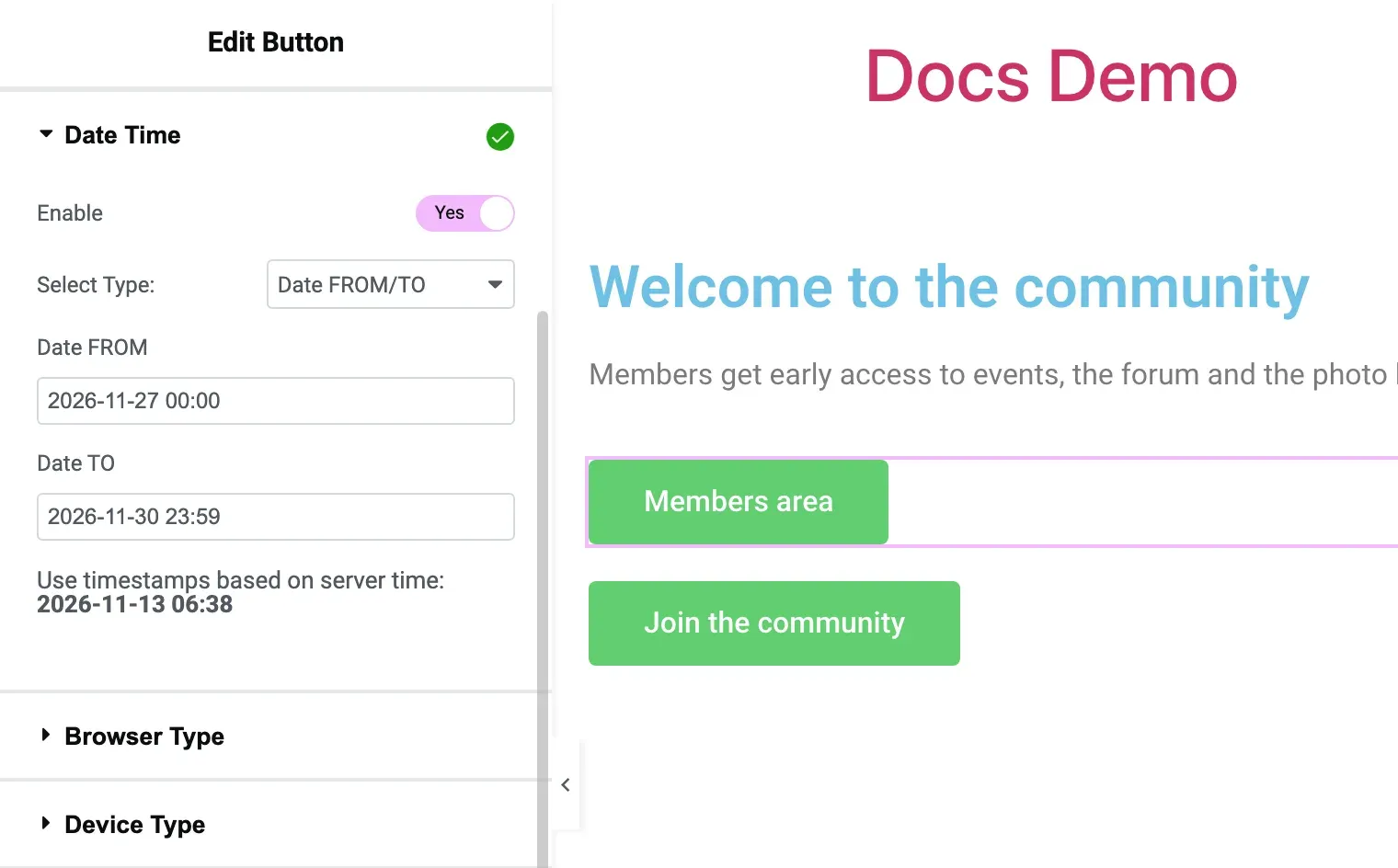
Section titled “Date Time”Shows or hides an element during a date range, a time of day or on certain weekdays.
| Setting | What it does |
|---|---|
| Select Type: | Date FROM/TO, Time FROM/TO, Week Days or Week Days + Time FROM/TO. |
| Date FROM, Date TO | Start and end date and time. Leave one empty for an open range (“from this date on” or “until this date”). |
| Days of the WEEK | One or more weekdays. |
| Time FROM, Time TO | Times in HH:mm format. A range like 22:00 to 02:00 runs over midnight. |
The panel shows the current site time. Date FROM/TO, Time FROM/TO and the weekdays all use the site time zone (Settings > General > Timezone).
Before Visibility Logic 2.5.2, Date FROM and Date TO were compared in UTC. If you shifted your dates to work around that, set them back to the site time after updating.
With Week Days + Time FROM/TO, a time range that crosses midnight applies only to the selected days. For example, Wednesday 23:00 to 01:00 matches Wednesday 00:00 to 01:00 and 23:00 to 24:00, not Thursday morning.
Example: to show a sale banner only during the sale, set Show/Hide action to Show, Select Type: to Date FROM/TO and fill in the start and end of the sale.
Browser Type
Section titled “Browser Type”Matches the visitor’s browser, detected from the browser’s User-Agent header.
| Setting | What it does |
|---|---|
| Browser | One or more of: Google Chrome, FireFox, Safari, Internet Explorer, Microsoft Edge, Netscape, Opera, Lynx, iPhone Safari, Android Browser. |
Browsers on iPhones and Android devices are usually detected as iPhone Safari and Android Browser, not by their own name (Chrome on Android counts as Android Browser). To target devices rather than browsers, use Device Type.
Device Type
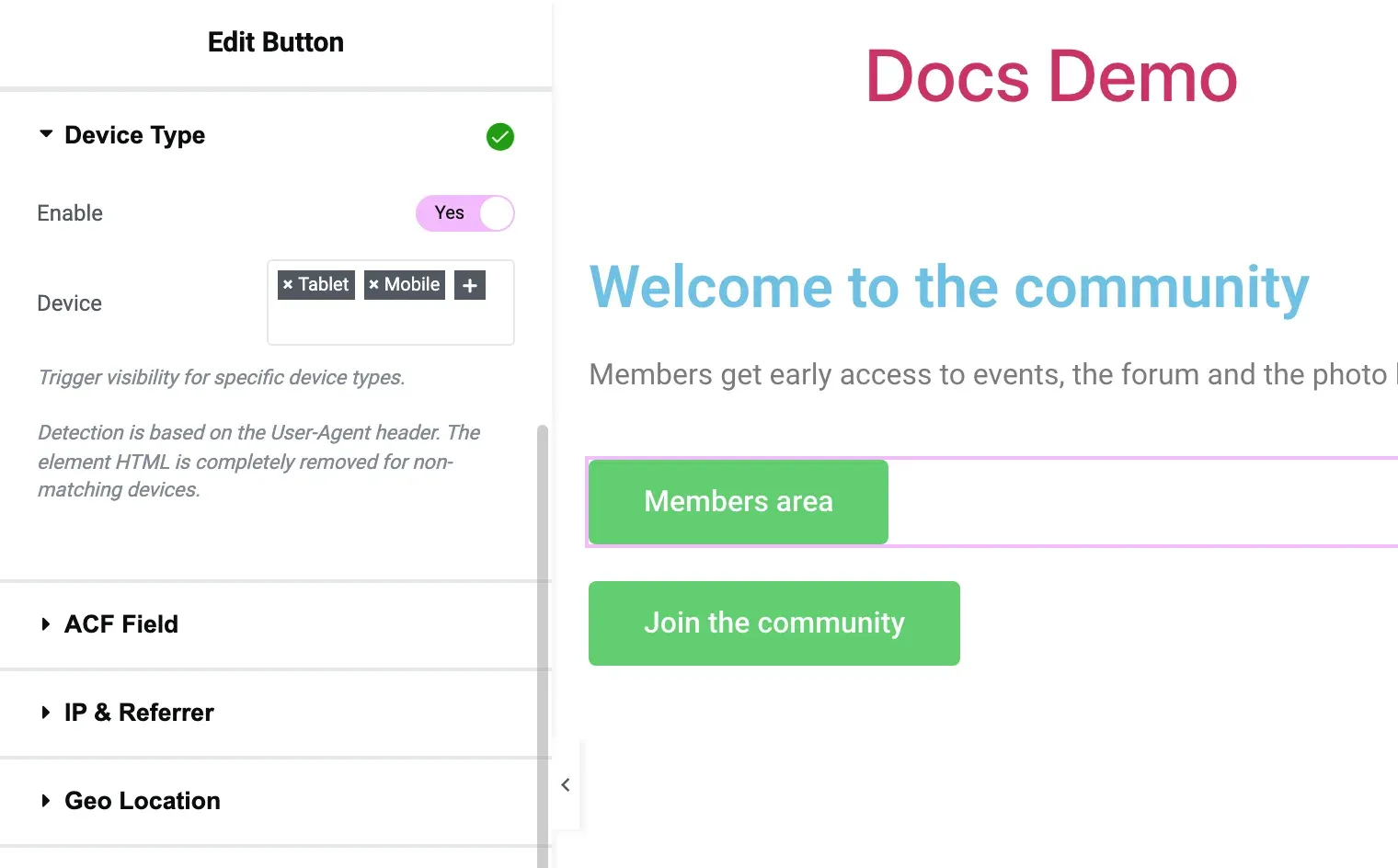
Section titled “Device Type”Matches desktop, tablet or mobile visitors, detected on the server from the User-Agent header.
| Setting | What it does |
|---|---|
| Device | One or more of Desktop, Tablet, Mobile. |
Unlike Elementor’s own responsive “hide on” options, which hide with CSS, Device Type removes the element’s HTML for non-matching devices (unless Keep HTML/Hide by CSS is on). If you use a page cache, make sure it keeps separate copies for mobile and desktop, or visitors can get the wrong version (see Troubleshooting).
ACF Field
Section titled “ACF Field”Matches the value of an Advanced Custom Fields (ACF) field on the current post or page. ACF must be active; otherwise the section shows a notice and the condition has no effect.
| Setting | What it does |
|---|---|
| Field Name | The ACF field name or key, for example my_custom_field. |
| Condition | Is empty, Is not empty (default), Equals, Not equals, Contains, Is true, Is false. |
| Value | The value to compare with, for Equals, Not equals and Contains. |
For fields that hold several values (checkboxes, multi-selects), Equals and Contains match when the value is one of the selected items.
Example: to show a “Featured” badge only on posts where the true/false field is_featured is on, set Show/Hide action to Show, Field Name to is_featured and Condition to Is true.
The free condition reads one field of the current post. For user fields, options pages, term fields, a specific post, repeaters or several fields with AND/OR logic, use the Pro Advanced ACF condition.