
Overview
At times you may encounter errors while developing your website. Errors can range from compatibility issues to fatal errors. In such cases, carrying out debugging to your website comes in handy.
Within this guide, we will cove some of the basic troubleshooting you can carry out, based on the nature of the error you are encountering.
Deactivating Plugins
In most cases when you encounter errors rendered on your website or theme components not working as expected, these are most likely to be attributed to plugins installed within the website.
If for example an error message indicates that the source of the error is from a specific plugin, then you need to first disable that plugin. In a case where you are unsure on the plugin causing the error, you will need to carry out the following:
- Deactivate all third party plugins you have installed. These are plugins that are not bundled with the theme. Plugins that are bundled within the theme are as highlighted here
- Check whether the issue is resolved
- If so, reactivate the plugins one by one while clearing the site cache and checking whether the issue is resolved to identify the conflicting plugin.
In cases where the error causes you not to access the dashboard, you can disable plugins via FTP by carrying out the following:
- Access your site files via FTP using a software such as Filezilla
- Navigate to the Wp-content > Plugins and rename the Plugins in them by adding the suffix “-old” to them.
Below is a sample screenshot illustration upon renaming:
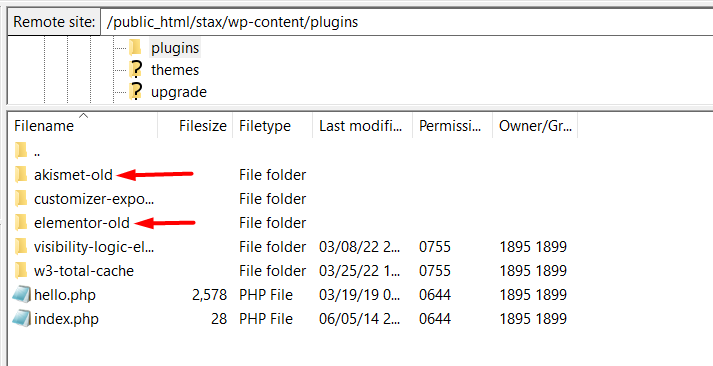
Doing so automatically deactivates the plugin(s).
Switching Themes
As for this troubleshooting option, it is mainly utilized in identifying if the issue is being caused by the theme , or not.
To carry this out, you will need to:
- Activate a default WordPress theme such as the “Twenty Twenty One” theme
- Clear the site cache and check whether the issue persists
- If so, reactivate the “Stax” theme. This would indicate that it is not a theme issue.
If the issue doesn’t persist, then chances are that, it is a theme issue that needs reporting.
Similar to plugins, in cases where the error causes you not to access the dashboard, you can disable the currently active “stax” theme via FTP by carrying out the following:
- Access your site files via FTP using a software such as Filezilla
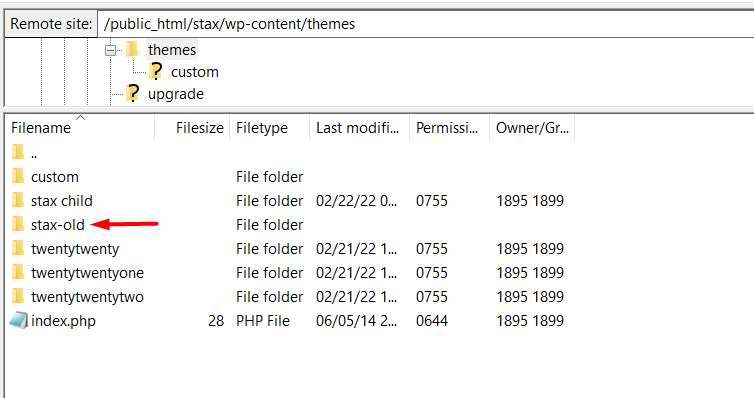
- Next, proceed to the Wp-Content > Themes directory and rename the “stax” theme to “stax-old”
Below is a sample illustration upon renaming:
Enabling Debug
Enabling error reporting / debugging is also quite helpful especially in instances where you have a Fatal error and you are not in a position to access the WordPress dashboard.
In order to enable it, you will need to:
- Connect to your server via FTP. You can use a Software such as Filezilla for this
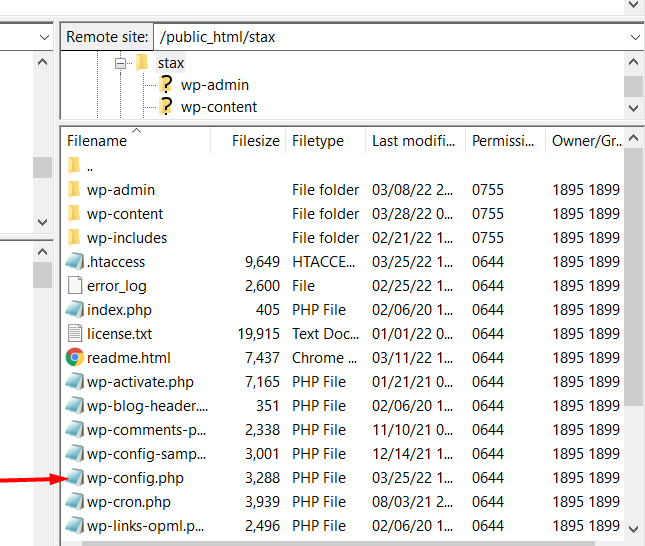
- Access your WordPress files and within the root of the files, you will find a wp.config.php file. Below is a screenshot on this:
- Open the file and search for:
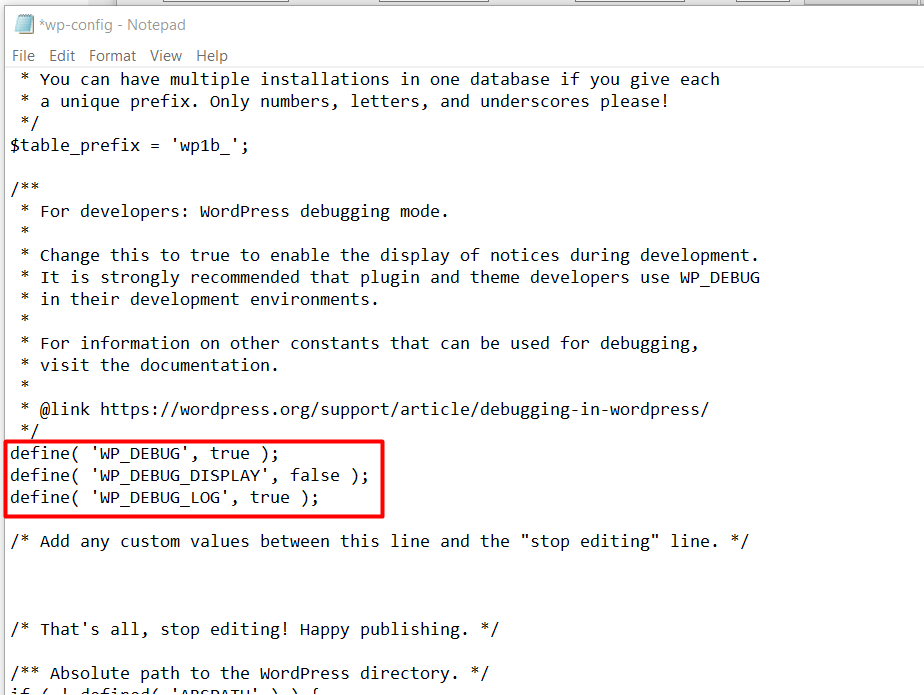
define( 'WP_DEBUG', false );- Alter this line of code to:
define( 'WP_DEBUG', true );- Add the following lines of code beneath it:
define( 'WP_DEBUG_DISPLAY', false );
define( 'WP_DEBUG_LOG', true );- Save your changes
Below is a sample screenshot on these changes:
Once this is done, upon refreshing the site, errors will be logged within the debug.log file that is added to the /wp-content/ directory.


