
• Products
    • BuddyBuilder
    • Visibility Logic for Elementor
    • Woo Addons Upcoming
    • Enhanced Addons Upcoming
  • Blog
  • My Account
  • Products
    • BuddyBuilder
    • Visibility Logic for Elementor
    • Woo Addons Upcoming
    • Enhanced Addons Upcoming
  • Blog
  • My Account

Getting Started

  • Requirements For Stax Theme
  • How to Install the Stax Theme Via WordPress
  • Stax Recommended Plugins
  • How to Install the Stax Theme via FTP
  • Setting up a Stax Child Theme

FAQ

  • Image Sizes
  • How to utilize Visibility Logic plugin within the theme
  • How Can I update the theme

Customizer Settings

  • Stax – Colors
  • Stax – Typography Options
  • Stax- Header
  • Stax – Footer
  • Stax – Layout
  • Stax – Single Post
  • Stax- Single Page
  • Stax – Performance
  • Stax – Archive Listing
  • Stax – 404 Page
  • Stax – Miscellaneous
  • Stax – Menus
  • Stax – Export/Import
  • Stax – Additional CSS
  • Stax- Widgets

Posts and Pages

  • Creating Posts and Pages
  • Stax Options
  • Adding Elementor Templates

How to Guides

  • How to Create and restore Backups to your Website
  • How To Add Custom Fonts

Translation

  • How to Translate the theme with Loco Translate
  • Theme Translation Basics
  • How to Translate the theme with Poedit
  • How to Translate the theme with WPML
  • Multilingual site setup with WPML

Speed and Performance

  • How to Optimize For Speed and Performance

Troubleshooting

  • Basic Troubleshooting
  • Submitting Support Tickets
  • Home
  • Docs
  • Stax Theme
  • Posts and Pages
View Categories

Stax Options

1 min read

Overview

These are settings provided by the theme within the individual edit section of posts and pages and can be viewed by clicking on the “Stax” icon on the top right of a page or post.
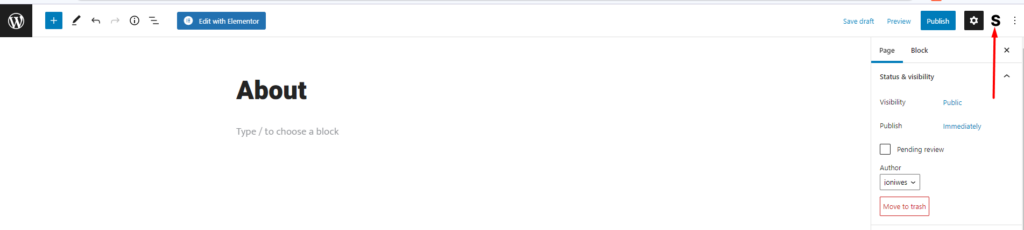
These options determine the layout of your individual posts and pages, and can be used to override the global post settings.

The contents of these options are different in both posts and pages. Within this guide we will explore the different options within both posts and pages.

Stax Options in Pages

Once you click on the “Stax” icon within your page, you will have a view of the available option within your page, which is the “Media Panel”.

Below is a sample display while using the default Gutenberg editor:
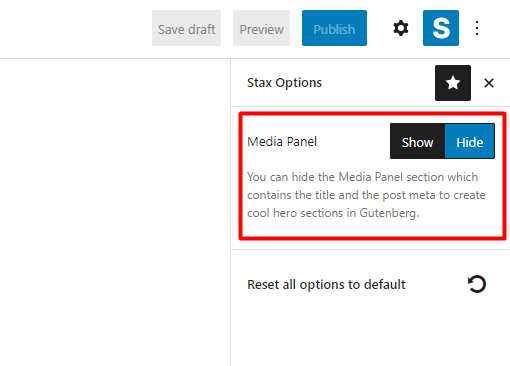
When the media panel is turned on, the page title and other meta available within the page are displayed. If turned off on the other hand, the post title and other available meta are not rendered.

The “Reset all Options to default” setting within the options restores the default Stax Options settings.

Stax Options in Posts

Once the “Stax” option is enabled, a couple of settings are available.
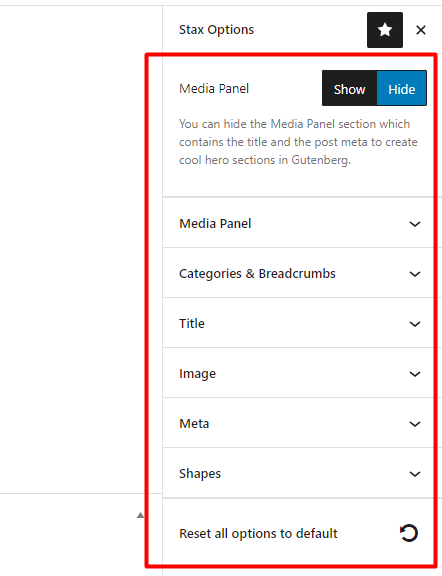
The settings here include:

  • Media Panel
  • Categories & Breadcrumbs
  • Title
  • Image / Gallery / Audio / Video: The option rendered depends on the post format of the post
  • Meta
  • Shapes

These settings provide similar functionality to the Global settings under the Appearance > Customize > Single Post > General section as discussed here. However, the Stax Options within posts are now applied to the individual post and override the Global settings.

Within the options is also an option “Reset all options to default” that resets all configured Stax options to the default settings.

What are your Feelings

Share This Article :

  • Facebook
  • X
  • LinkedIn
  • Pinterest
Still stuck? How can we help?

How can we help?

Updated on March 10, 2022
Creating Posts and PagesAdding Elementor Templates
Table of Contents
  • Overview
    • Stax Options in Pages
    • Stax Options in Posts

Stax Theme | Made with ❤️ by StaxWP