
• Products
    • BuddyBuilder
    • Visibility Logic for Elementor
    • Woo Addons Upcoming
    • Enhanced Addons Upcoming
  • Blog
  • My Account
  • Products
    • BuddyBuilder
    • Visibility Logic for Elementor
    • Woo Addons Upcoming
    • Enhanced Addons Upcoming
  • Blog
  • My Account

Getting Started

  • Requirements For Stax Theme
  • How to Install the Stax Theme Via WordPress
  • Stax Recommended Plugins
  • How to Install the Stax Theme via FTP
  • Setting up a Stax Child Theme

FAQ

  • Image Sizes
  • How to utilize Visibility Logic plugin within the theme
  • How Can I update the theme

Customizer Settings

  • Stax – Colors
  • Stax – Typography Options
  • Stax- Header
  • Stax – Footer
  • Stax – Layout
  • Stax – Single Post
  • Stax- Single Page
  • Stax – Performance
  • Stax – Archive Listing
  • Stax – 404 Page
  • Stax – Miscellaneous
  • Stax – Menus
  • Stax – Export/Import
  • Stax – Additional CSS
  • Stax- Widgets

Posts and Pages

  • Creating Posts and Pages
  • Stax Options
  • Adding Elementor Templates

How to Guides

  • How to Create and restore Backups to your Website
  • How To Add Custom Fonts

Translation

  • How to Translate the theme with Loco Translate
  • Theme Translation Basics
  • How to Translate the theme with Poedit
  • How to Translate the theme with WPML
  • Multilingual site setup with WPML

Speed and Performance

  • How to Optimize For Speed and Performance

Troubleshooting

  • Basic Troubleshooting
  • Submitting Support Tickets
  • Home
  • Docs
  • Stax Theme
  • Posts and Pages
View Categories

Adding Elementor Templates

1 min read

Overview

Elementor plugin, of which is bundled within the theme provides a collection of page templates, both free and pro. The addition of Elementor templates to your page enables you to quick start your page design as the template itself is already predesigned.

Within this guide, we will cover how you can use the free Elementor templates to design your site pages.

Adding Page Templates

We recommend using page templates on a fresh and new page . Instructions on how to create a page within your website are discussed within the guide here.

Once this is done, you may then proceed to adding your desired page template as outlined below:

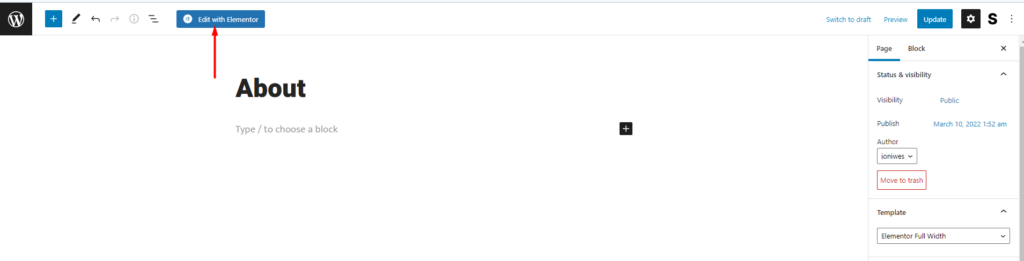
1. Within your page, select the “Edit with Elementor” option
2. On the next screen, click on the “Add Template” Icon
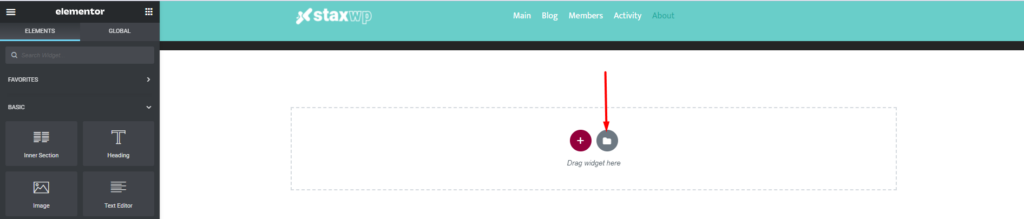
If you have not connected your Elementor account to the Template Library, you will be required to do so within this step by logging in to Elementor first or creating an Elementor account if you do not have one already.

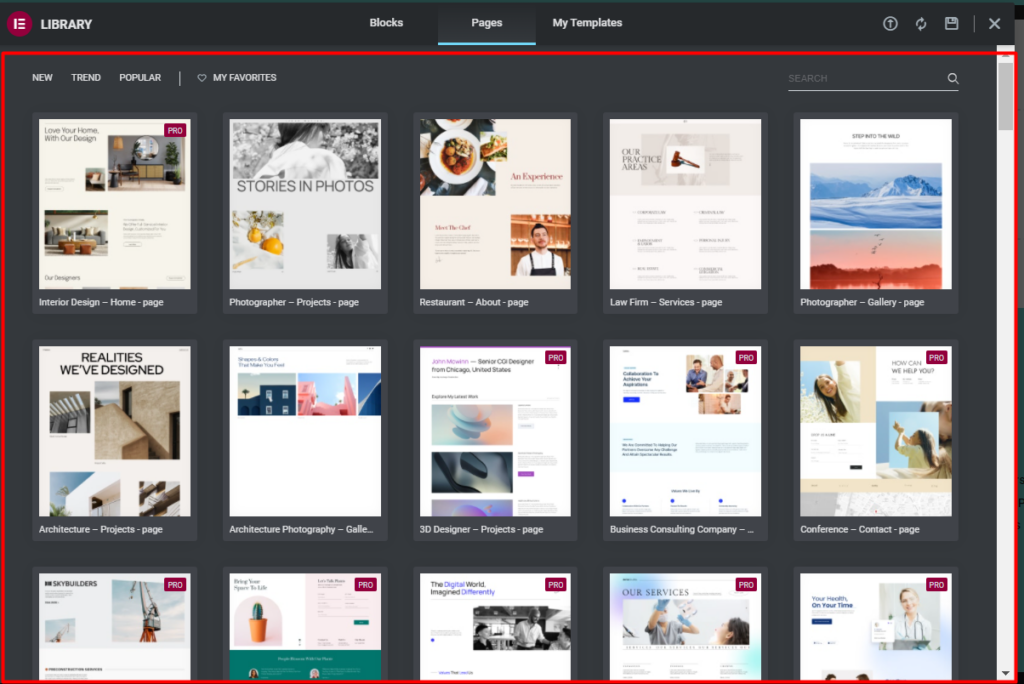
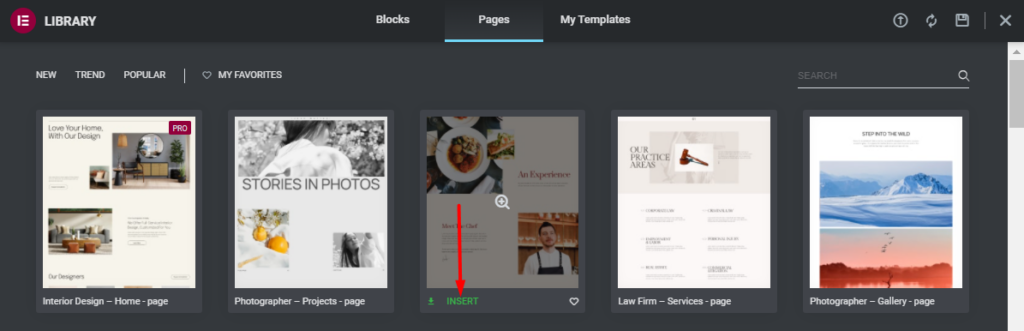
3. You will then be presented with a popup containing a number of templates:
4. Here you can click on the zoom icon seen upon hovering a template in order to preview the templates.
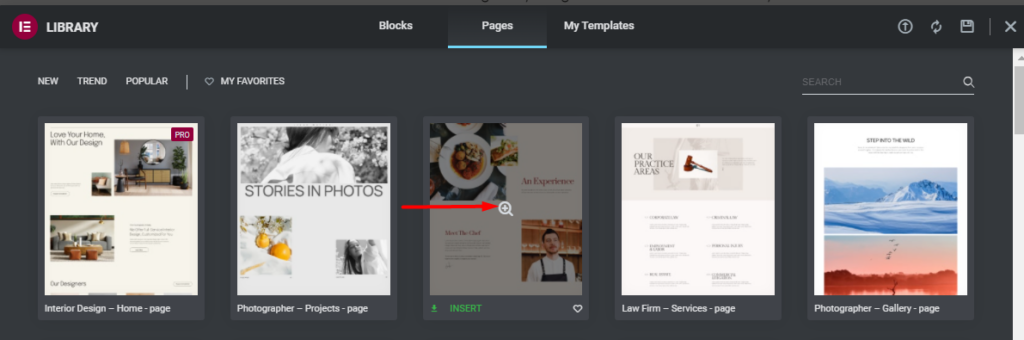
5. Upon the identification of the desired template, you can then click on the “Insert” link within the template.
6. Once the above is carried out, you will then have a view of the template contents within your page.
Below is a sample display:

7. Update your changes within the page

Once the above are done, you may then customize your page to your own liking using Elementor.

What are your Feelings

Share This Article :

  • Facebook
  • X
  • LinkedIn
  • Pinterest
Still stuck? How can we help?

How can we help?

Updated on March 14, 2022
Stax OptionsCreating Posts and Pages
Table of Contents
  • Overview
    • Adding Page Templates

Stax Theme | Made with ❤️ by StaxWP