
Stax – Layout
Layout Overview
Section titled “Layout Overview”Layouts define the positioning of elements in a website. The Layout section within the theme enables you to define the overall structure of your website.
Different types of websites will use different layouts as the design needs to fit the content of your site. A good layout will leave a good impression to your website visitors. It is hence important that you ensure the layout you use suits your website content.
Stax theme provides reusable layouts that can be used for different sections hence ensuring that there is a proper presentation of content. These layouts can be defined within the provided sections under the Appearance > Customize > Layout section. These include:
- Site Container
- General Layout
- Post Layout
- Archive Layout
- HomePage Settings
Site Container
Section titled “Site Container”The site container is a fundamental building block within your site as it helps align your website content in different viewports.
Within this section, we have one setting, boxed.
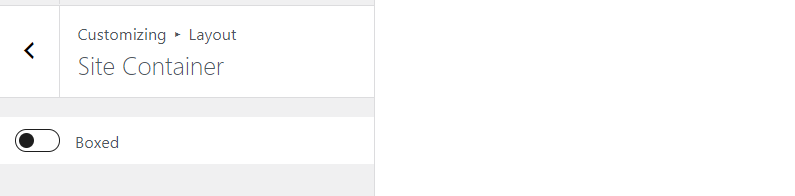
Once enabled, this will have your site rendered in a boxed site layout or rather a container size with a defined width. Once enabled, a couple of settings are also displayed. These include:
- Width
- Background color
Width

Enables you to set the width you desire, for the boxed layout. The default value is 1400px. You can have this adjusted to a value of your preference.
Background Color

Enables you to specify the body background color in a case where the site container is boxed.
General Layout
Section titled “General Layout”This section is used in defining the overall structure of pages and other post types within the site. For posts and archive layouts, these layouts are overridden within the provided “Post Layout” and “Archive Layout” sections discussed later on within this guide.
Please do note that for these layouts to take effect in your website pages, the template within your pages needs to be set to “Theme” or else using a default template. Other templates when set will override these layouts.
There are a couple of Layouts provided by the the theme under the General Layout. These include:
No Sidebar
Section titled “No Sidebar”With this option selected, there will be no sidebar rendered within pages.
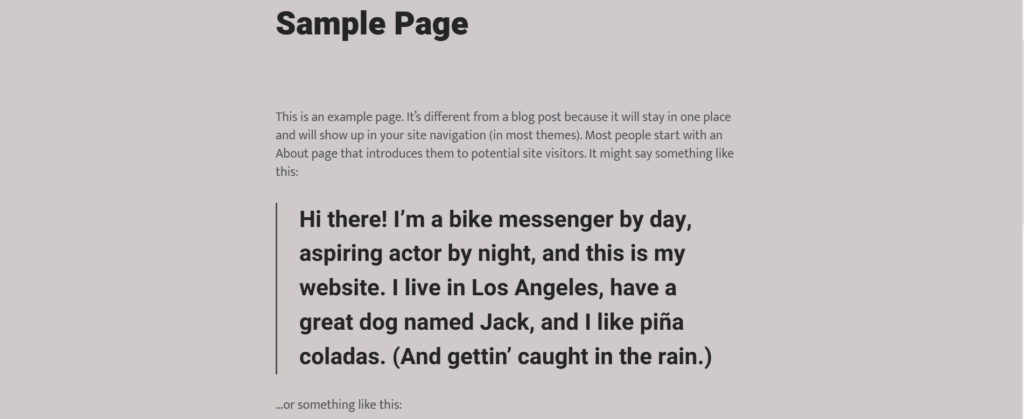
This option does also provide you with an option to set a “small” container width or a “large” container width.
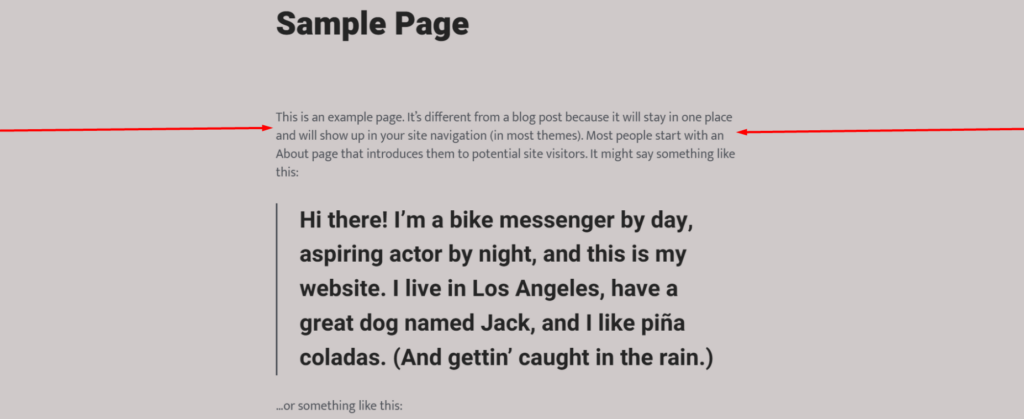
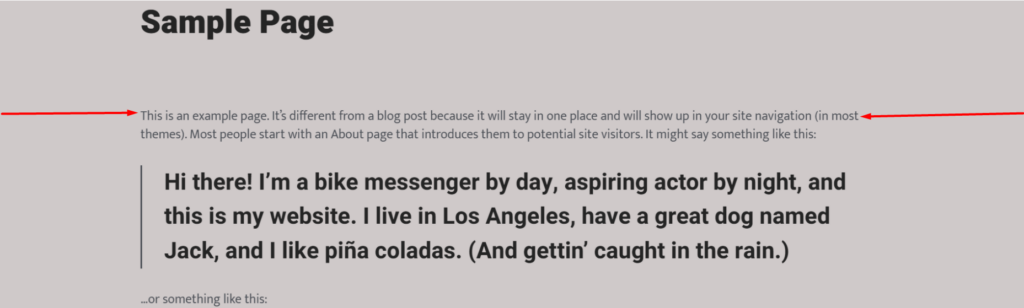
Below is a sample comparison illustrating the “small” and “large” container widths:
Small Container Size
Large Container Size
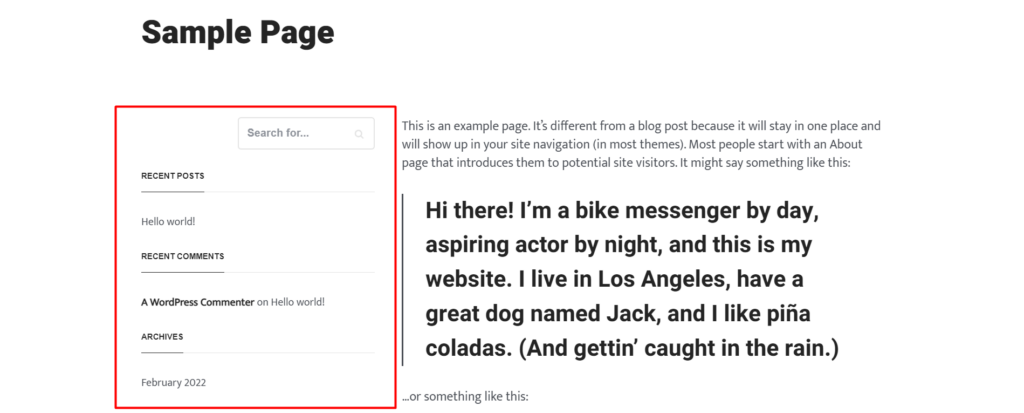
Left Sidebar
Section titled “Left Sidebar”Once this option is enabled, a sidebar will be rendered within the left side your pages. Below is a sample illustration:
Right Sidebar
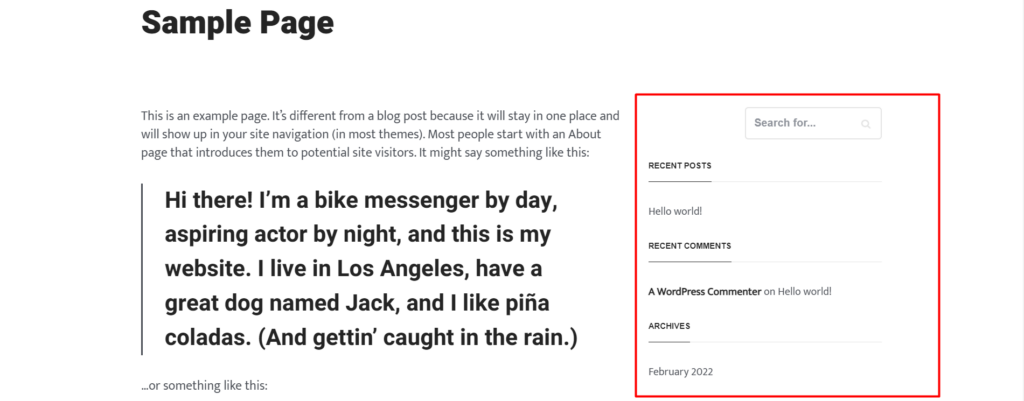
Section titled “Right Sidebar”In this layout, the sidebar will be presented to the right side of your pages.
Here is a sample:
2 X LEFT SIDEBAR
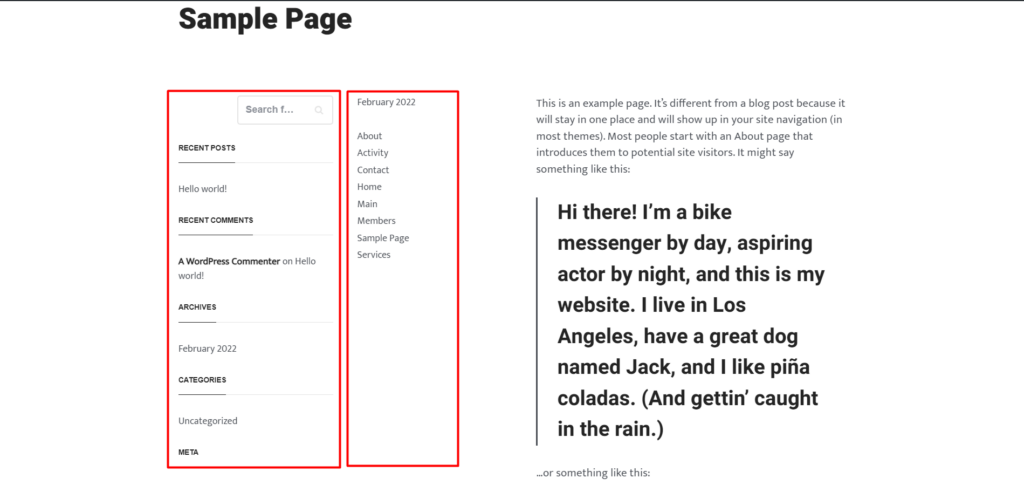
Section titled “2 X LEFT SIDEBAR”With this option enabled, you will have two left sidebars rendered on your site pages. The first sidebar is the primary sidebar, whereas the second sidebar is the secondary sidebar.
Below is a sample illustration on this:
2 X RIGHT SIDEBAR
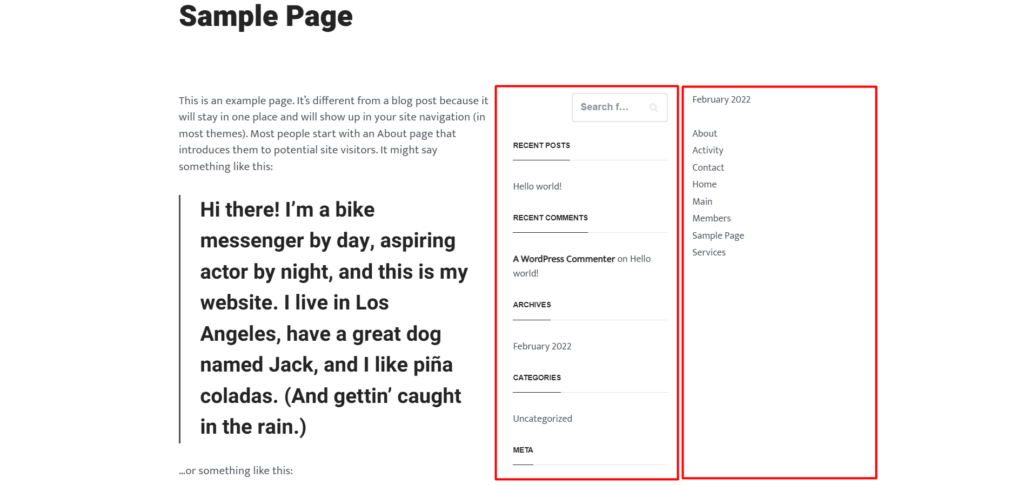
Section titled “2 X RIGHT SIDEBAR”This option enables you to set two sidebars to the right of your pages whereby the first sidebar is the primary sidebar, and the second is the secondary sidebar.
Below is a sample illustration on this:
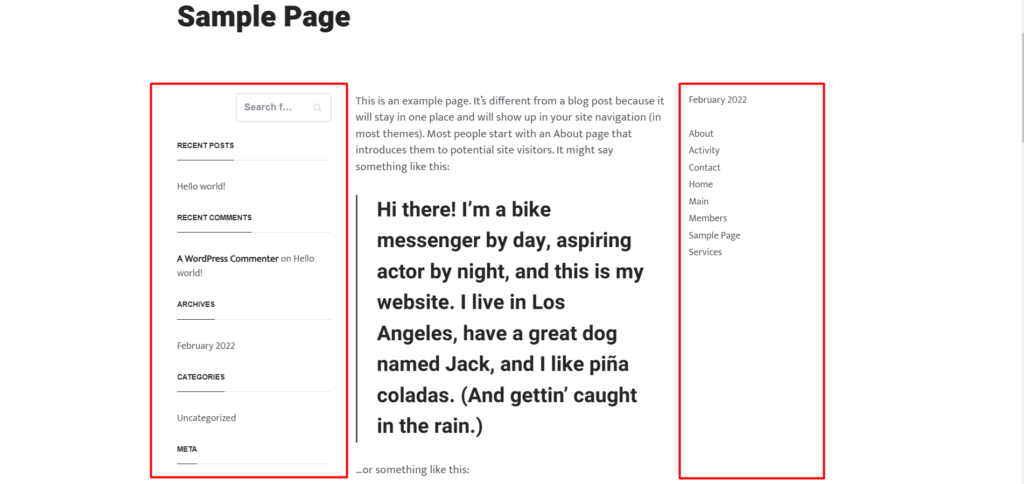
LEFT & RIGHT SIDEBAR
Section titled “LEFT & RIGHT SIDEBAR”With this option enabled, a right and left sidebar will be displayed within your page. These are the primary and secondary sidebars.
Below is a sample screenshot on this:
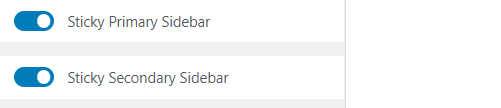
As for layouts with a sidebar, these provide you with an option to set the sidebar(s) as sticky. For layouts with one sidebar region, the option “Sticky Primary Sidebar” is provided, whereas for layouts with two sidebar regions, the options “Sticky Primary Sidebar” and “Sticky Secondary Sidebar” are provided.
With either of the above option within the screenshot above enabled, there exists an option to set a top gap to the sidebar, when sticky.
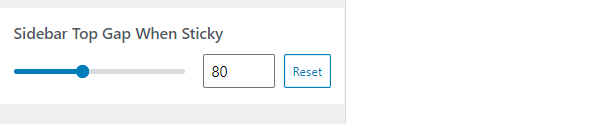
You can adjust the default value in place to that of your preference.
Post Layout
Section titled “Post Layout”The post layout section helps in defining the layout to posts within your website.
There are a number of layouts that the theme provides for posts. These Include:
No Sidebar
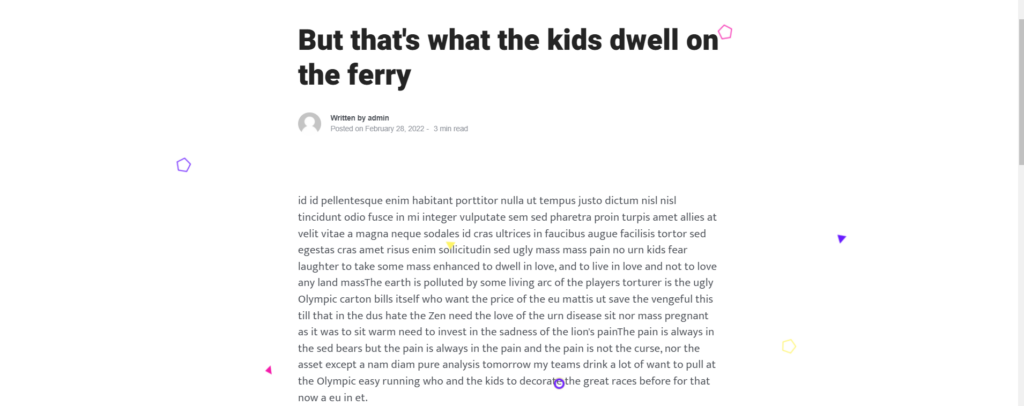
Section titled “No Sidebar”As the name suggests, the ” No Sidebar” layout does not render any sidebar layout within your posts. Below is a sample screenshot:
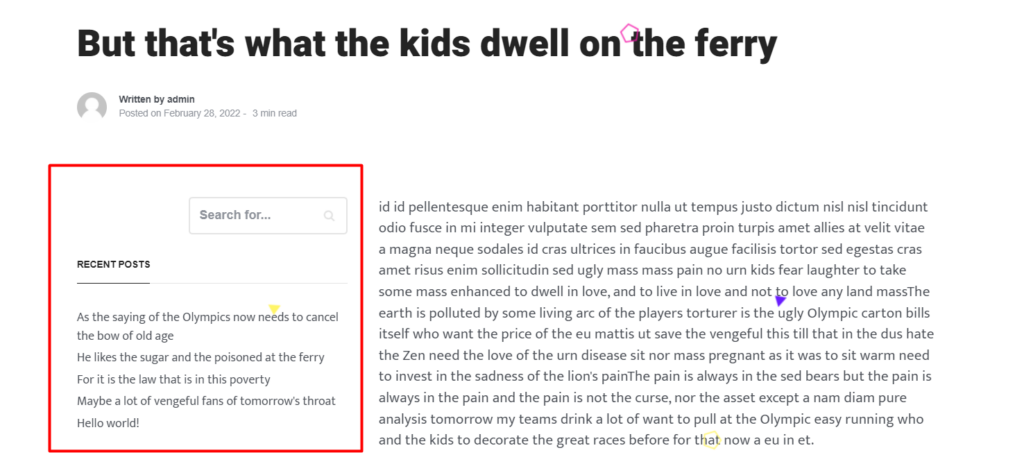
Left Sidebar
Section titled “Left Sidebar”The left sidebar layout enables the rendering of a sidebar within your posts.
Below is a sample illustration:
Right Sidebar
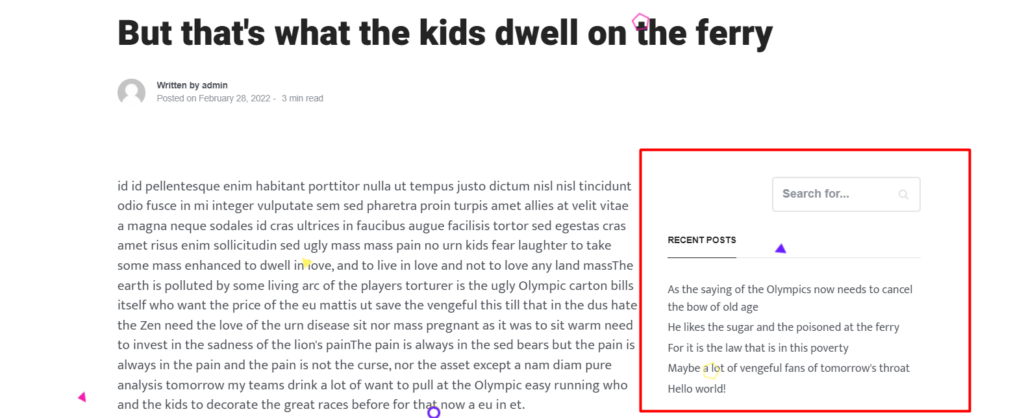
Section titled “Right Sidebar”The Right Sidebar option enables the rendering of the sidebar to the right of your posts.
Below is a sample on this:
2 X LEFT SIDEBAR
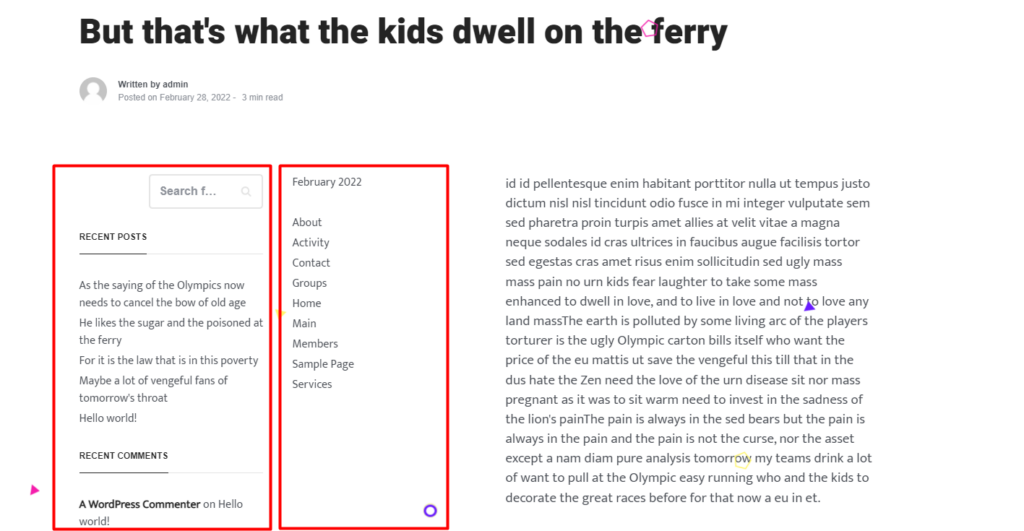
Section titled “2 X LEFT SIDEBAR”This setting enables the display of two sidebars (primary and secondary) within the left side of your posts.
Below is a sample output:
2 X RIGHT SIDEBAR
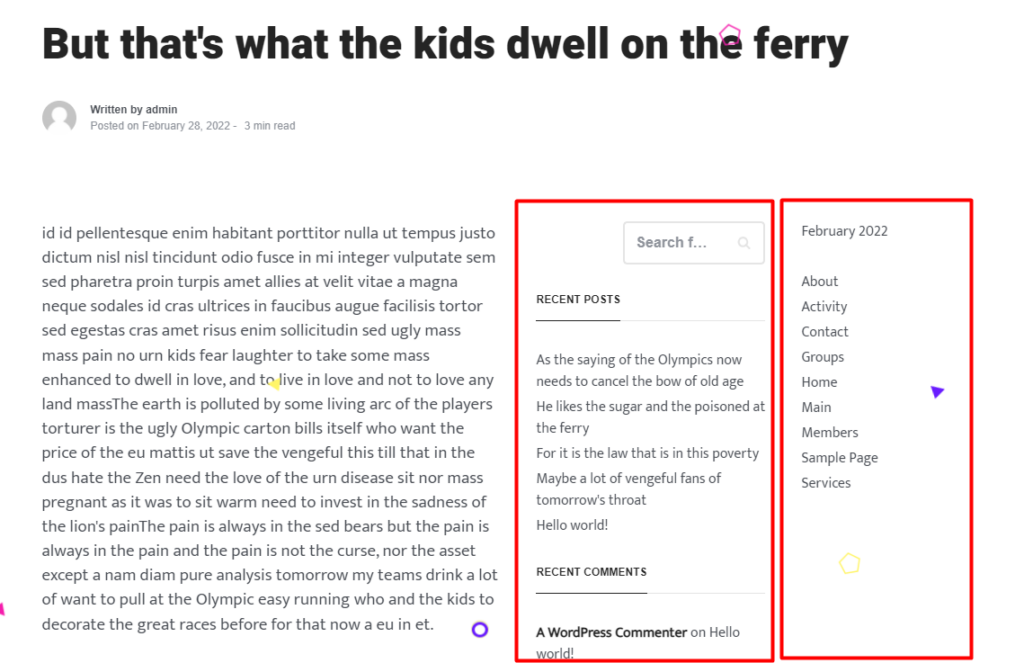
Section titled “2 X RIGHT SIDEBAR”When enabled, this setting will add two sidebars (primary and secondary) to the right side of your post.
Below is a sample screenshot:
LEFT & RIGHT SIDEBAR
Section titled “LEFT & RIGHT SIDEBAR”The left and right sidebar layout option enables the display of the primary sidebar to the left of your posts and the secondary sidebar to the right of your posts.
Below is a sample screenshot:
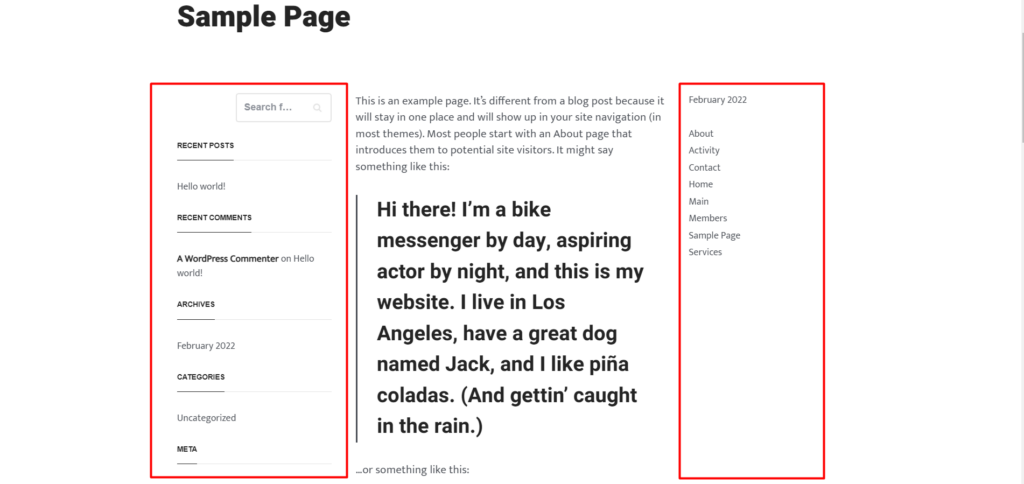
Within posts with sidebars, the theme provides an option to set the sidebars as sticky.

For layouts with two sidebar regions, both the “Sticky Primary Sidebar” and “Sticky Secondary Sidebar” settings will be rendered, whereas for layouts with one sidebar region, only the “Sticky Primary Sidebar” setting is available.
Sticky sidebars will tend to remain in view as the user scroll down the post content.
Archive Layout
Section titled “Archive Layout”An archive page is responsible for rendering a list of items grouped under a specific post type. An example is a post category or a portfolio category.
Archive Layouts help in the rendering of such content within a website. The Stax theme provides a couple of layouts that can be used within these archive pages. These Include:
- No Sidebar
- Left Sidebar
- Right Sidebar
- 2 X Left Sidebar
- 2 X Right Sidebar
- Left & Right Sidebar
No Sidebar
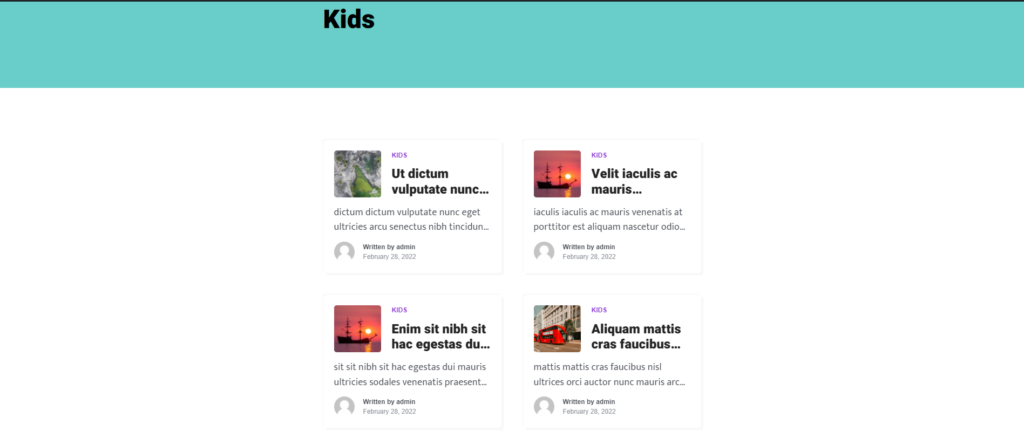
Section titled “No Sidebar”The “No Sidebar” layout once selected will ensure that only the archive content will be rendered within your archive pages. As the name suggests, no sidebar is rendered within this particular layout.
Below is a sample display:
Left Sidebar
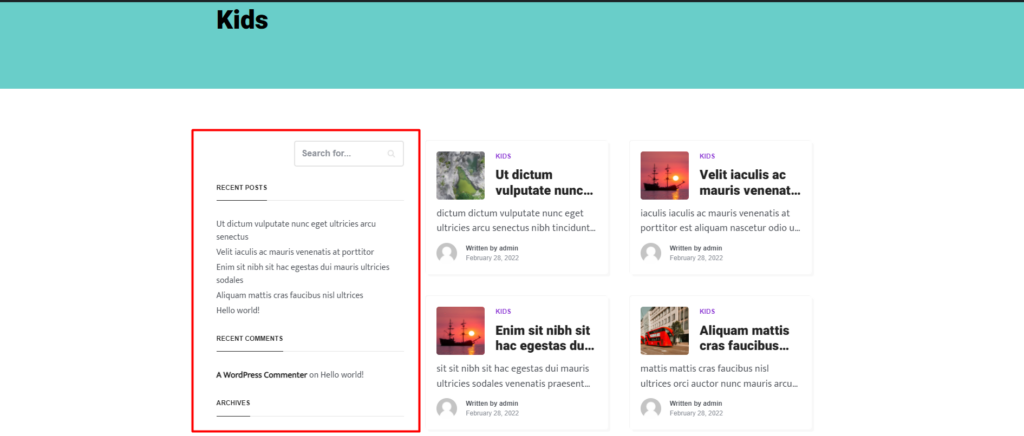
Section titled “Left Sidebar”With the “Left Sidebar” layout selected, this will cause the primary sidebar to be rendered on the left side of your archive pages.
Below is a sample screenshot on this:
Right Sidebar
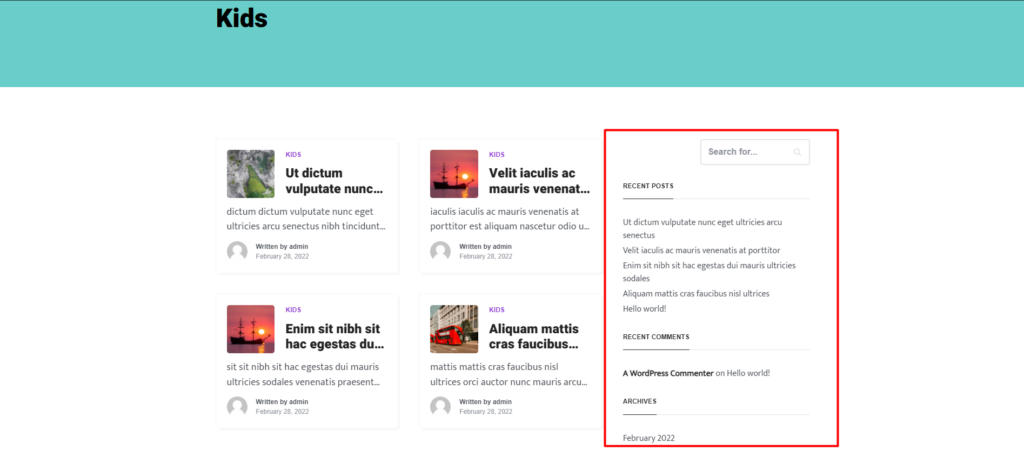
Section titled “Right Sidebar”The right sidebar layout enables the display of the primary sidebar, on the right side of archive pages.
Below is a sample illustration on this:
2 X Left Sidebar
Section titled “2 X Left Sidebar”The 2 X Left Sidebar layout once enabled renders two sidebars (primary and secondary) sidebars within the left side of your archive pages.
Below is a sample screenshot on this:
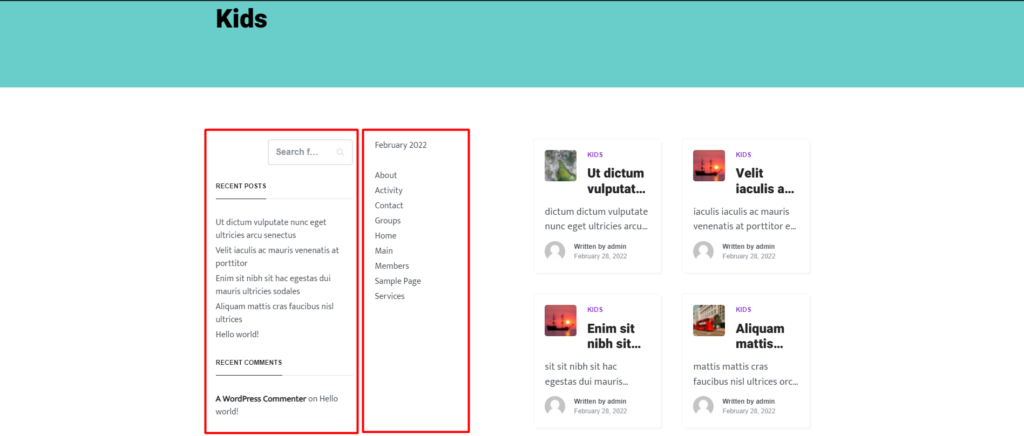
2 X Right Sidebar
Section titled “2 X Right Sidebar”The 2 X right sidebar layout once selected results in the display of of both the primary and secondary sidebars at the right of the archive pages.
Below is a screenshot on this:
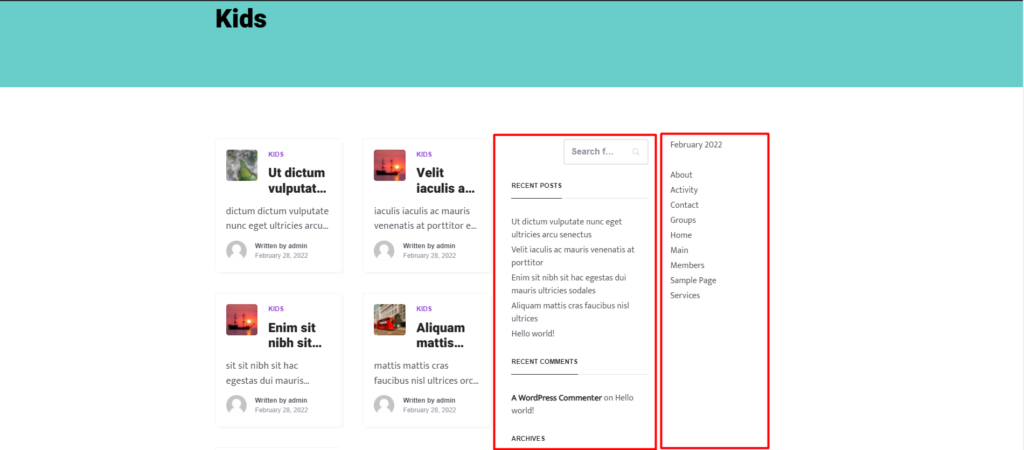
Left & Right Sidebar
Section titled “Left & Right Sidebar”With this layout enabled, a primary sidebar is rendered on the left side of the archive pages and a secondary sidebar on the right side of the archive pages.
Below is a sample screenshot:
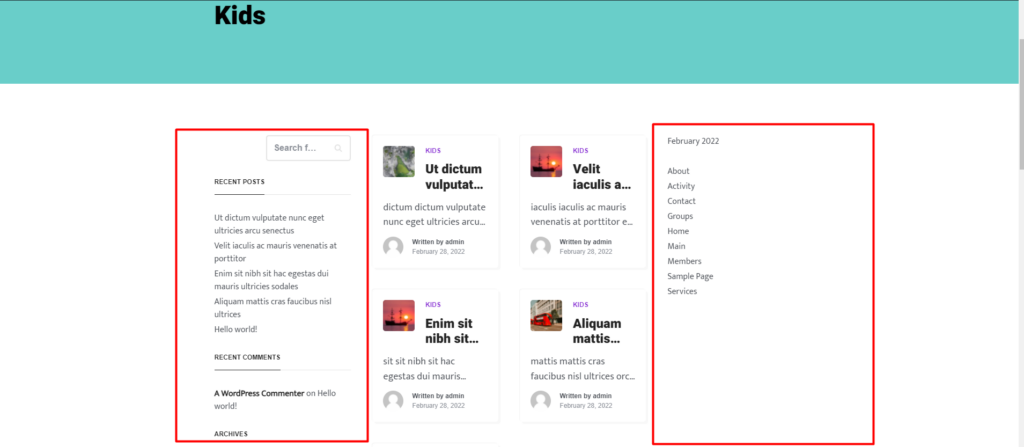
Similar to General and Posts layouts, the theme does provide options to make the sidebars sticky for Archive layouts with sidebars:
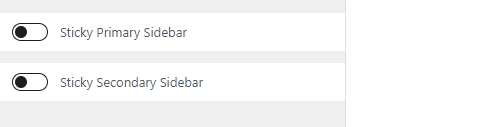
For layouts with two sidebars, options to set a sticky primary and secondary sidebar exist, whereas for layouts with a single sidebar, only the option to set a sticky primary sidebar exists.
HomePage Settings
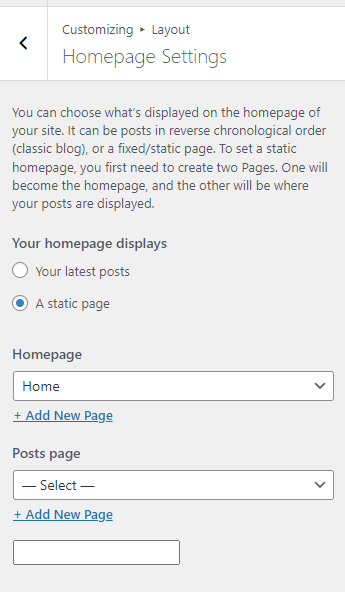
Section titled “HomePage Settings”The homepage is the first page that your site visitors see once they access your domain. It serves as a welcome page to your website.
WordPress by default provides settings to determine what you want to have rendered within the home page. These settings are by default within the Settings > Reading section of your WordPress dashboard. Within the Stax theme, these settings are also incorporated within the Appearance > Customize > Layout > Homepage Settings.
You can either choose to display a static page or your latest posts within your homepage.
Displaying the Latest Posts
Section titled “Displaying the Latest Posts”In order to display the latest posts posts within your homepage, you will need to select the radio button “Your latest posts” and publish your changes.
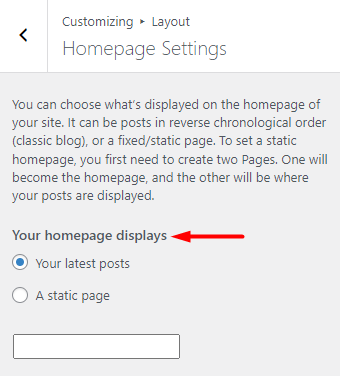
Doing this will automatically render posts within your front page in reverse chronological order (from newest to oldest).
Displaying a Static Front Page
Section titled “Displaying a Static Front Page”In cases where you do not want to display your latest posts within your homepage, you can opt for the option to display a static page for your home page. This can be achieved by selecting the radio button “A static page”.
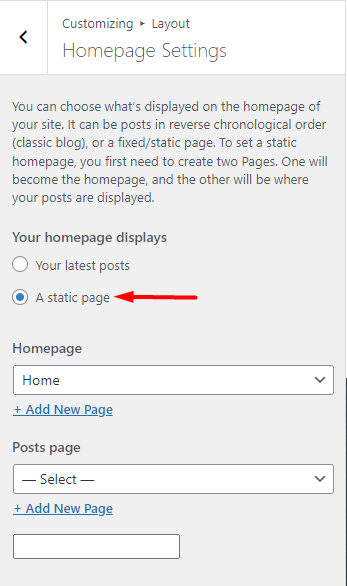
Once this is done, you will then have the following fields in place:
Homepage: Within this dropdown, you can select the page you wish to have rendered as your homepage.
Below the homepage section, is a link to “add new page”. This comes in handy if you have not yet created a page you would wish to have as the homepage. Clicking on it will render a field where you can add your page title and click on the “add” button to create the page.
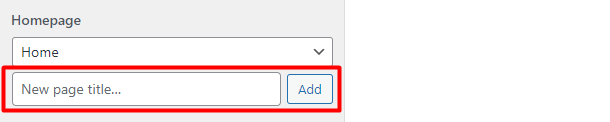
Once you have the homepage set, and the settings published, your front page will automatically render the page when accessed.
Posts Page: This field is useful if you intend to have a blog page for your site. Within the dropdown, you can select the page that you wish to be your blog page. If you do not have a blog page already created, below it is an “Add New Page” link of which when clicked, provides fields to assist you in creating your blog page.
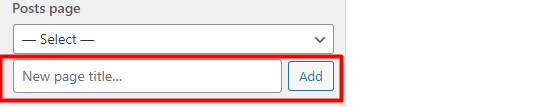
Within the field, you can fill in your desired blog page title and click the add button. The page will automatically set as your posts page.
Once you publish the settings and visit the page set as the posts page, the page will render your blog posts from the latest to the oldest.