Stax – Single Page
Overview
Section titled “Overview”The Single Page section in the theme is located within the Appearance > Customize > Single Page section of the theme.
This section mainly provides settings to determine how page titles, breadcrumbs and shapes are rendered Globally in pages within your website.
Settings within this section would also only work for pages using the themes’ templates. For clarity, the templates that you expect these settings to take effect include:
- Default template
- Theme
- Full Width – Large Container
- Full Width – Small Container
- Left & Right Sidebar
- Left Sidebar
- Right Sidebar
- Two Left Sidebars
- Two Right Sidebars
If a page uses for example an Elementor template, the Single Page settings will not take effect in such a page.
Settings within this section are classified into:
- Title
- BreadCrumbs
- Shapes
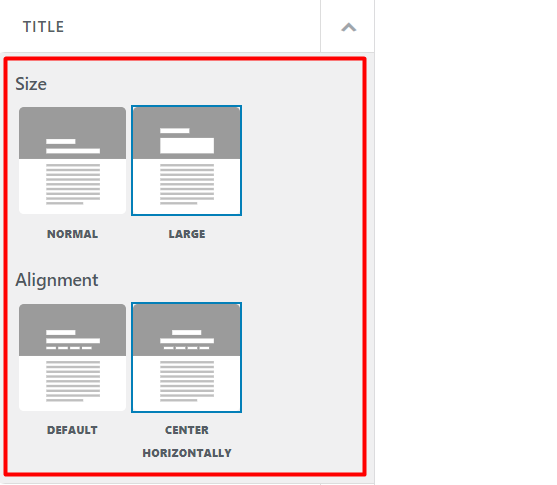
The title section determines the size of the page title and positioning of the entry header items (Page title and Breadcrumbs) within a page.
A number of settings are included within this segment. These include:
- Size
- Alignment
The size setting helps in setting a predefined size for the page title. The setting contains two options, which are normal and large.
Normal
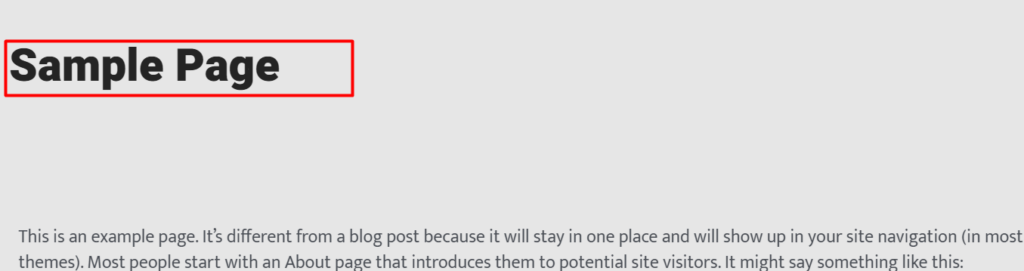
When this option is selected, the page title will use the default H1 font size. This is the default page title font size within the theme.
Large
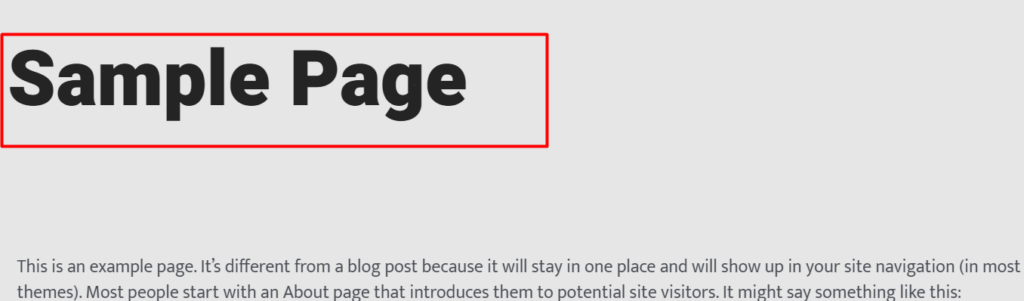
With this option selected, the page title will use the predefined hero font size. The size of the page title appears larger in this case.
Below is sample side by side comparison on the two sizes:
Normal
Large
Alignment
Section titled “Alignment”This setting helps in adjusting the position of the page entry header items (Page title and Breadcrumbs) within the page. It provides two options to facilitate this, namely “default” and “center horizontally”.
Default
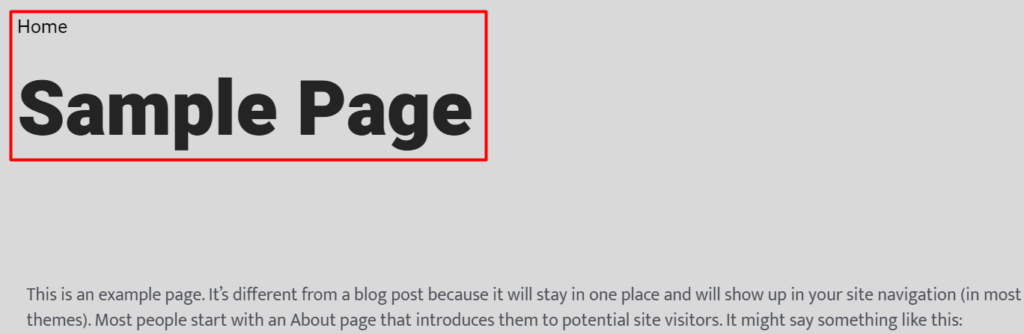
The default option when selected renders the entry header items to the left of the page.
Center Horizontally
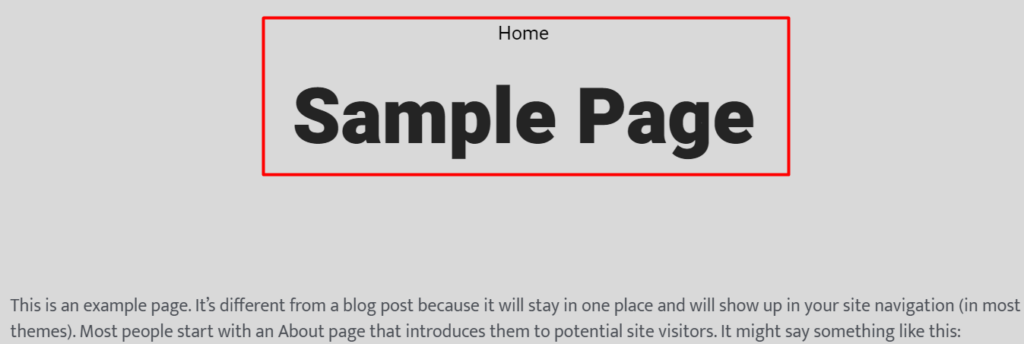
If the “center horizontally” option is selected, the entry header items are rendered in the middle of the page container.
Below is a side by side comparison on these two options:
Default
Center Horizontally
BreadCrumbs
Section titled “BreadCrumbs”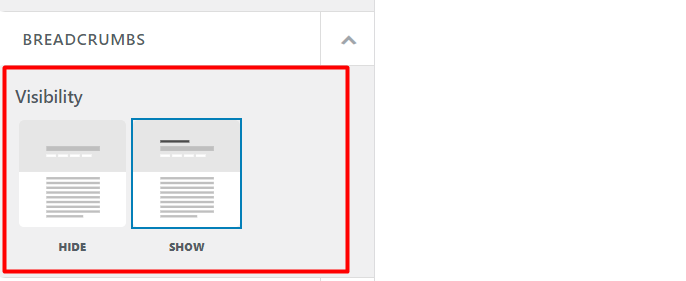
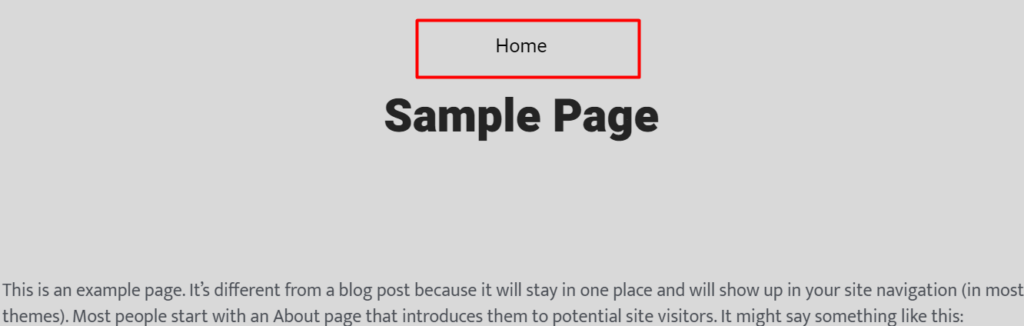
Breadcrumbs are the navigational links that appear at the top of your website pages, above the page title.
This section provides settings to determine whether to have the Breadcrumbs displayed within your pages or not.
Visibility
Section titled “Visibility”This setting provides two options namely “Hide” and “Show”.
Hide
When this option is selected, the Breadcrumbs are not rendered within the page.
Show
If this option is enabled, the Breadcrumbs will be displayed at the top of your pages.
Below is a sample illustration of a Breadcrumb on a page:
Shapes
Section titled “Shapes”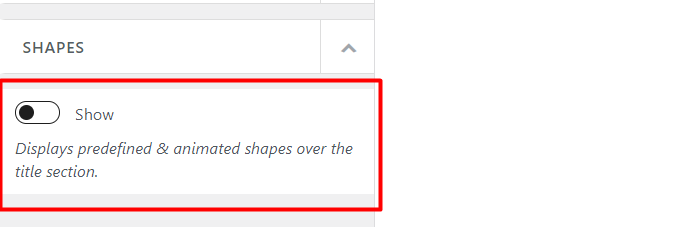
Stax theme includes a set of predesigned shapes that can be used within your pages.
The Shapes section provides an option “Show” to determine whether the shapes are rendered on pages or not.
Show
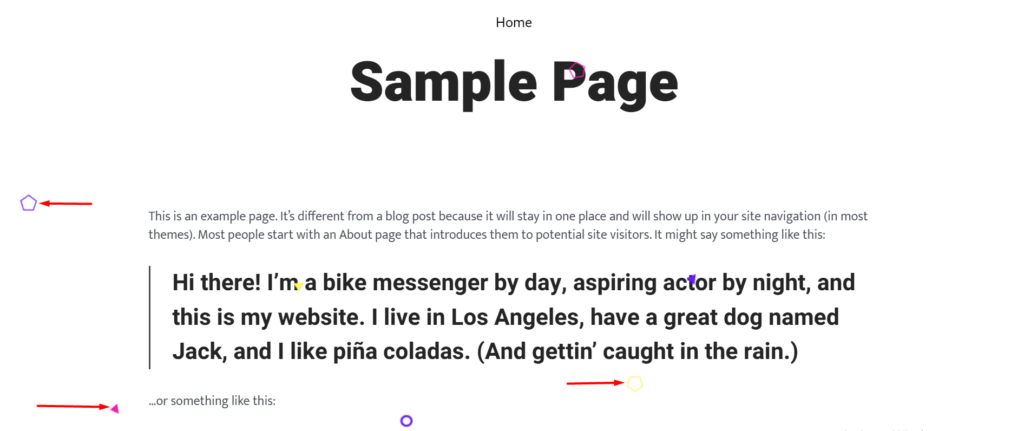
When turned on, there will be a number of animated shapes displayed within your pages.
On the other hand, if the option is not enabled, then only the default rendering of the pages, with no shapes, is observed.
Below is a sample illustration of these Shapes when enabled within pages: