
How to utilize Visibility Logic plugin within the theme
Overview
Section titled “Overview”The Visibility Logic For Elementor is a plugin used to hide sections or widgets in use within a page/post, while using the Elementor page builder plugin. The plugin is available both as a free version and a pro version. The free version of the plugin is what is bundled within the theme and can be installed from the Appearance > Install Plugins section within the WordPress dashboard, after installing the theme.
Taking into consideration that the theme also includes Elementor as a recommended page builder, the plugin can come in handy for users who need to set visibility restrictions to sections or widgets within their websites.
Within this guide, we will look into how you can use the plugin within a page using the builder. This guide assumes that you are already familiar with editing website content with Elementor. If not, you may check out the video here for some basics on this.
Adding Visibility Settings on a Widget or Section
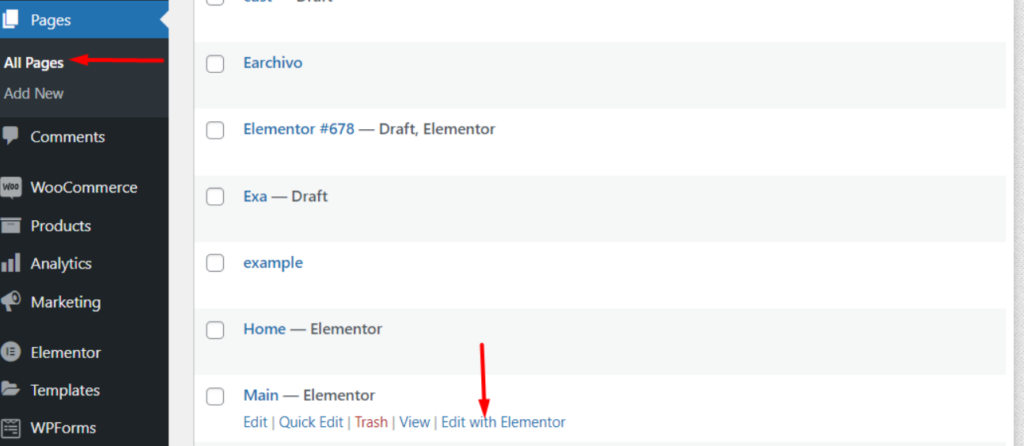
Section titled “Adding Visibility Settings on a Widget or Section”In order to add visibility settings to a section or widget, navigate to the Pages section within your WordPress dashboard and click the link “Edit With Elementor” within the page you wish to edit.
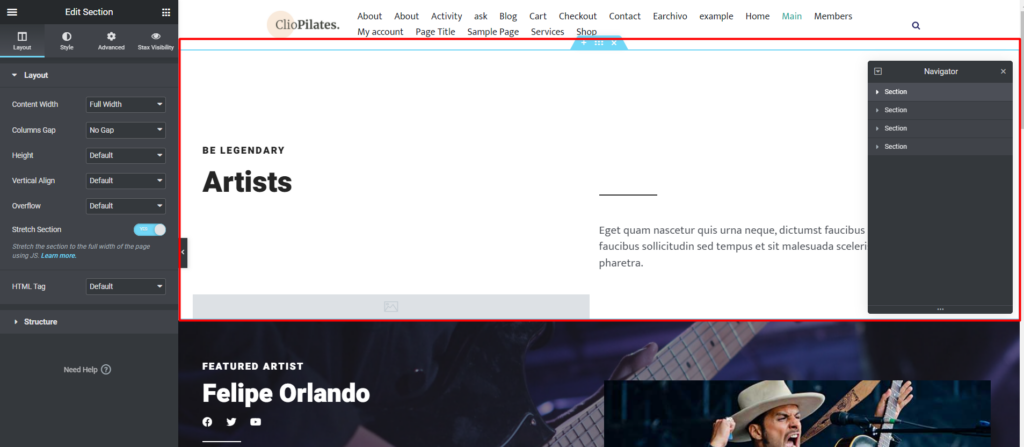
Within the next screen, select a section where you would wish to apply the visibility settings. In our case here, we will select the first section, depicted by a red border in this case, as seen below:
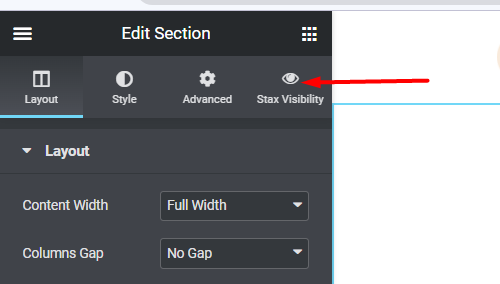
On the left pane, you will have a view of the “Stax Visibility” tab:
Click on the tab and you should now have a view of the General settings in place:
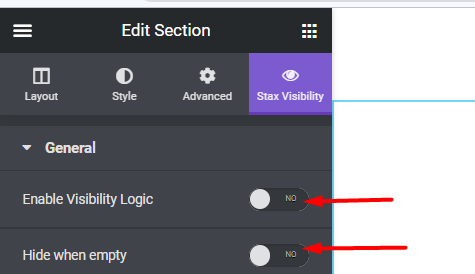
Enable the Option “Enable Visibility Logic”. As for the “Hide When Empty” option, you can as well enable it if you wish to hide from view the entire section, in a case where all the widgets inside it are hidden.
You will then be presented with a couple of settings that you can use to either hide or display your section depending on the condition you set. Below is a sample display:
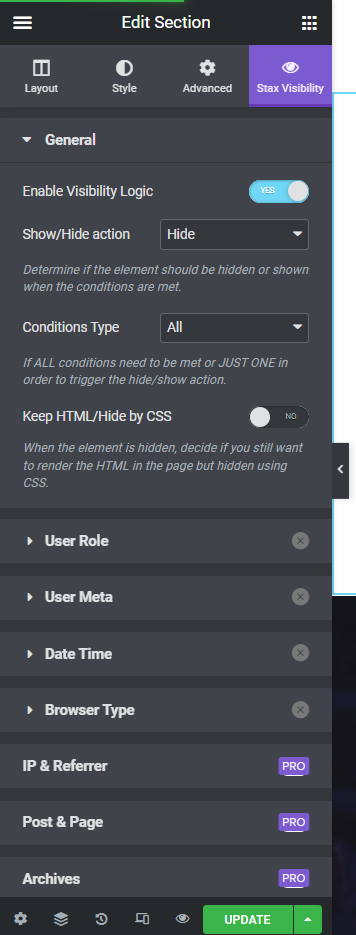
If for example in our case we want to hide the section to for example logged in users, you would need to carry out the following in the respective sections:
- Under the General section, Show/Hide setting, set the option to “Hide”
- Within the “User Role” segment, enable it and from the available user roles within your website, select “Logged in users”.
- Save your changes
Below is a sample screencast on this:
Widget visibility is also applicable following similar steps. Below is a sample screencast illustration on how to hide a button on Chrome browser for logged in users:
The free Visibility Logic For Elementor plugin provides a number of visibility conditions based on user role, user meta, Date Time and Browser Type. You can however have additional visibility settings with the pro version as seen here.
For more details on the extensive plugin functionalities, you can check out the plugins’ documentation here.