Stax – Typography Options
The Typography section within the Appearance > Customize > Typography section allows you to specify various font aspects to the site body, headings, quotes, Masonry / Grid lists, Normal Lists and Big Lists.
Body text is the most common element on your website. You can specify its Typography options within the Appearance > Customize > Typography Body section.
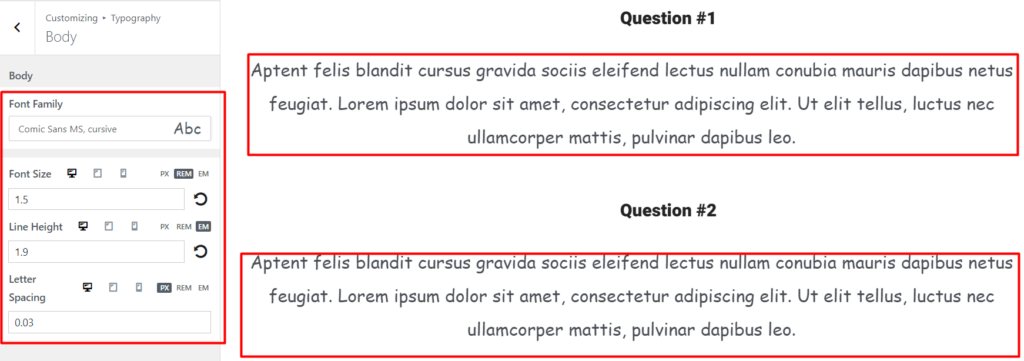
Here you can specify various Typography options, which include:
Font Family: Enables you to define the font used within the body of the website
Font Size: Allows you to specify different sizes to your font, across different device screens
Line Height: Enables you to set a spacing between lines of text, across different device screens
Letter Spacing: Allows you to specify horizontal spacing between characters in a text
Headings
Section titled “Headings”There are six levels of headings, mainly H1, H2, H3, H4, H5 and H6.
The Appearance > Customize > Typography > Headings section allows you to define the Typography settings of each of the headings.
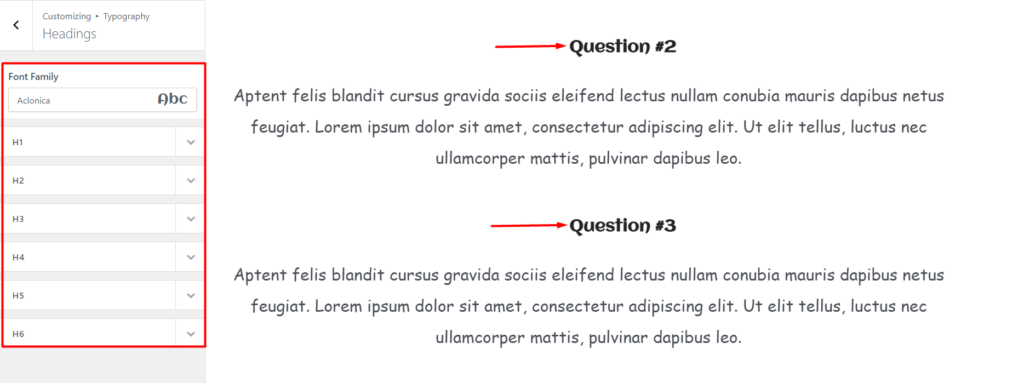
Font Family: Enables you to specify the heading titles font throughout the site
Within each of the Heading tags, one can specify the Typography settings. Below is a sample illustration of the
tag:
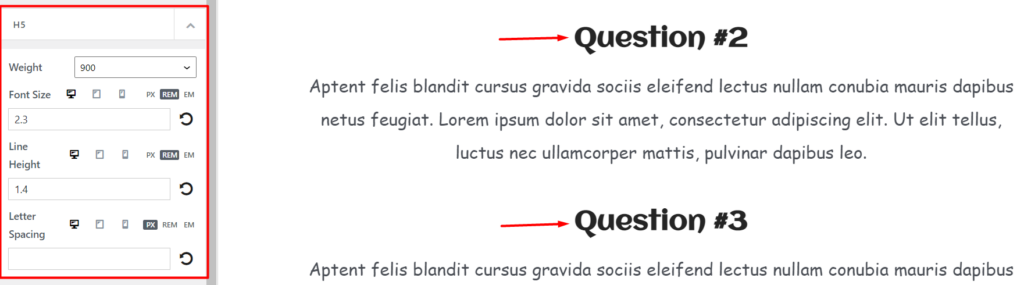
Font Weight: Enables you to specify the boldness of the Header tag
Font Size: The font size allows you to set the size of the Header tag
Line Height: Sets the height of the Header tag
Letter Spacing: Controls the horizontal spacing between text characters in the Header tag
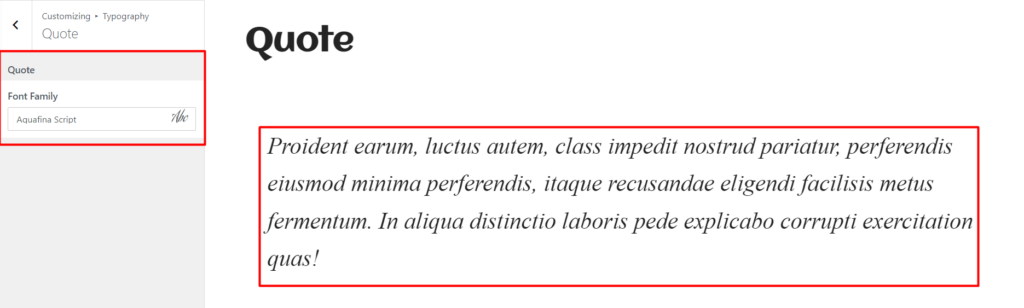
The Quote section enables you to customize the styling to quotations within the site.
Within this segment, one font property is provided that you can apply to quotes, of which is the font family.
The font family enables you to specify the font used in the quotations.
MASONRY/GRID LIST
Section titled “MASONRY/GRID LIST”The Masonry / Grid stylings are list styles used in archive listings. Examples of archive listings are blog pages and category pages.
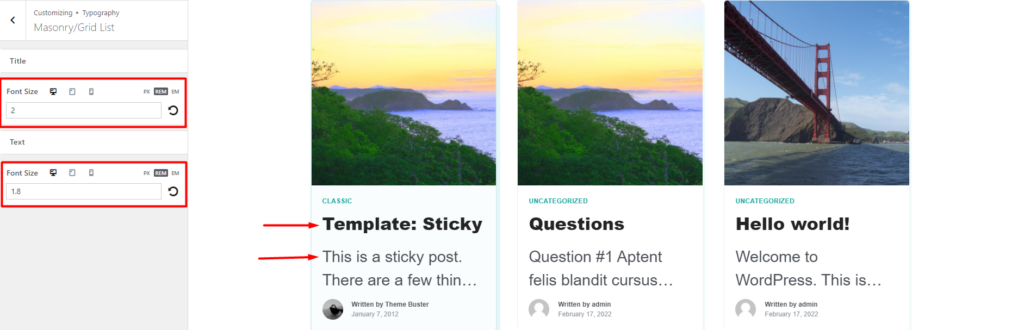
In order to specify the Typography settings to these listings, the theme provides a section where this can be accomplished, which is the Appearance > Customize > Typography > Masonry/Grid List.
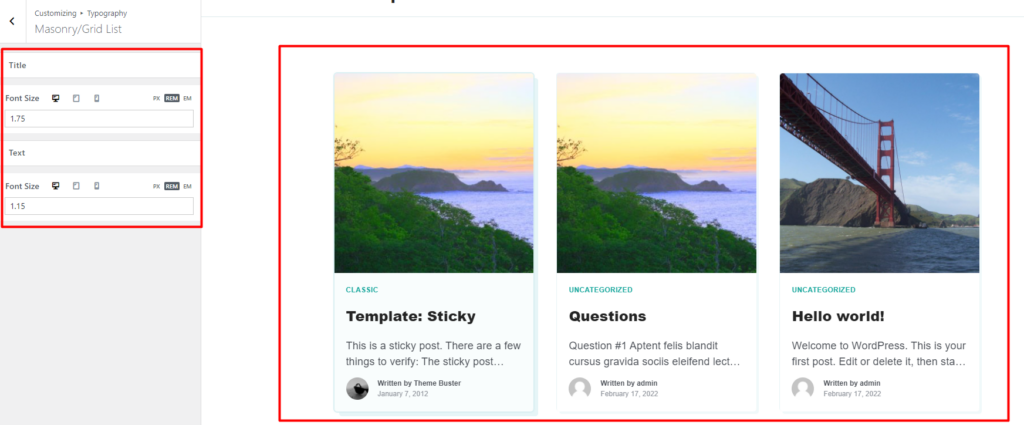
Within this section, you can specify the font sizes to the title and text on the listings as illustrated below:
Normal list
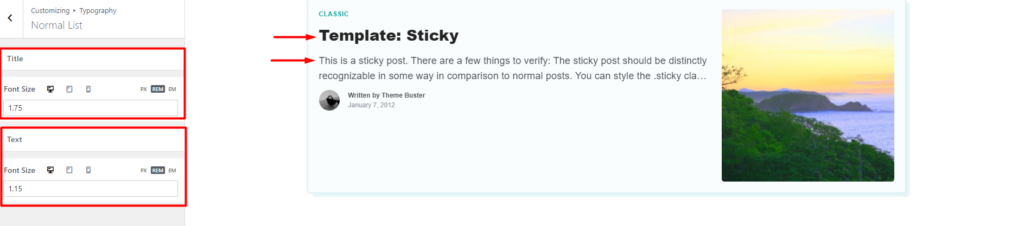
Section titled “Normal list”Normal / Default styling is a list style used in archive pages / listings.
Within the Appearance > Customize > Typography > Normal List section, you can set the font sizes to the titles and texts within the listings as illustrated below:
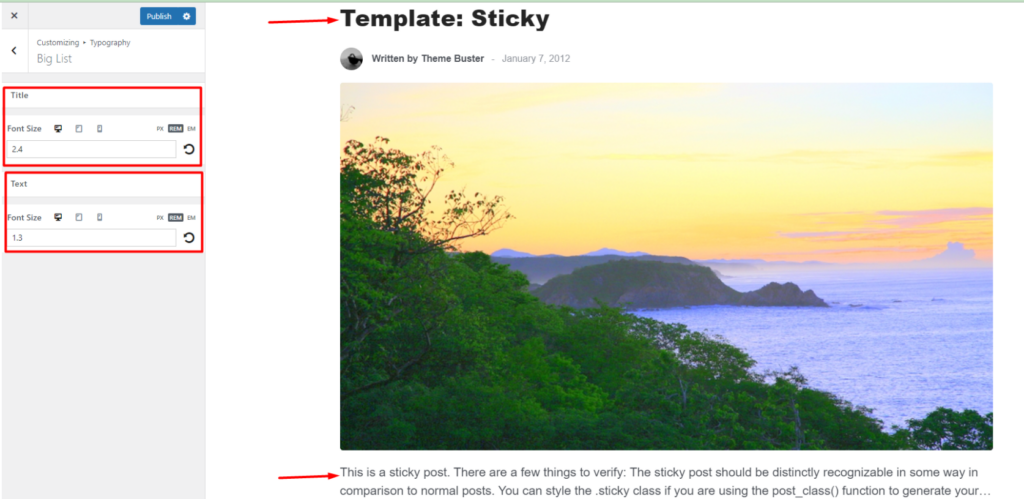
Big List
Section titled “Big List”Similar to Normal, Masonry and Grid styles, the Big List style is a listing style that is applied to archive pages.
The Appearance > Customize > Typography > Big List section enables you to set the font sizes to the title and text content within the list items.