
Create and assign BuddyBuilder templates
A BuddyBuilder template is an Elementor template of the type BuddyPress, tied to one page type such as Member Profile. The page type selected in BuddyBuilder > Dashboard decides which template your community pages use.
Template types
Section titled “Template types”| Template type | Designs | Plugin |
|---|---|---|
| Member Profile | A member’s profile page | Free |
| Members Directory | The members directory page | Free |
| Group Profile | A single group page | Free |
| Groups Directory | The groups directory page | Free |
| Site-Wide Activity | The main activity page | Free |
| Members Directory Loop Item | One member card inside the members list | Pro |
| Groups Directory Loop Item | One group card inside the groups list | Pro |
| Groups Create | The group creation steps | Pro |
| Site-Wide Activity Loop Item | One activity entry, wherever activity is listed | Pro |
| Register page | The BuddyPress registration page | Pro |
Create a template from the BuddyBuilder dashboard
Section titled “Create a template from the BuddyBuilder dashboard”This is the fastest way: the new template is set as the active one for its page type as soon as it is created.
- Go to BuddyBuilder > Dashboard.
- Under the page type you want to design, for example Member Profile, click Create new. Elementor opens with a new template of that type.
- Build the layout with the widgets of the BuddyBuilder category for that page type. If the Elementor template library offers a starter template for the page type, click Insert to start from it.
- Open the Elementor page settings (the gear icon) and give the template a title.
- Click Publish.
- Visit the matching page on the front end, for example a member profile, to check the result.
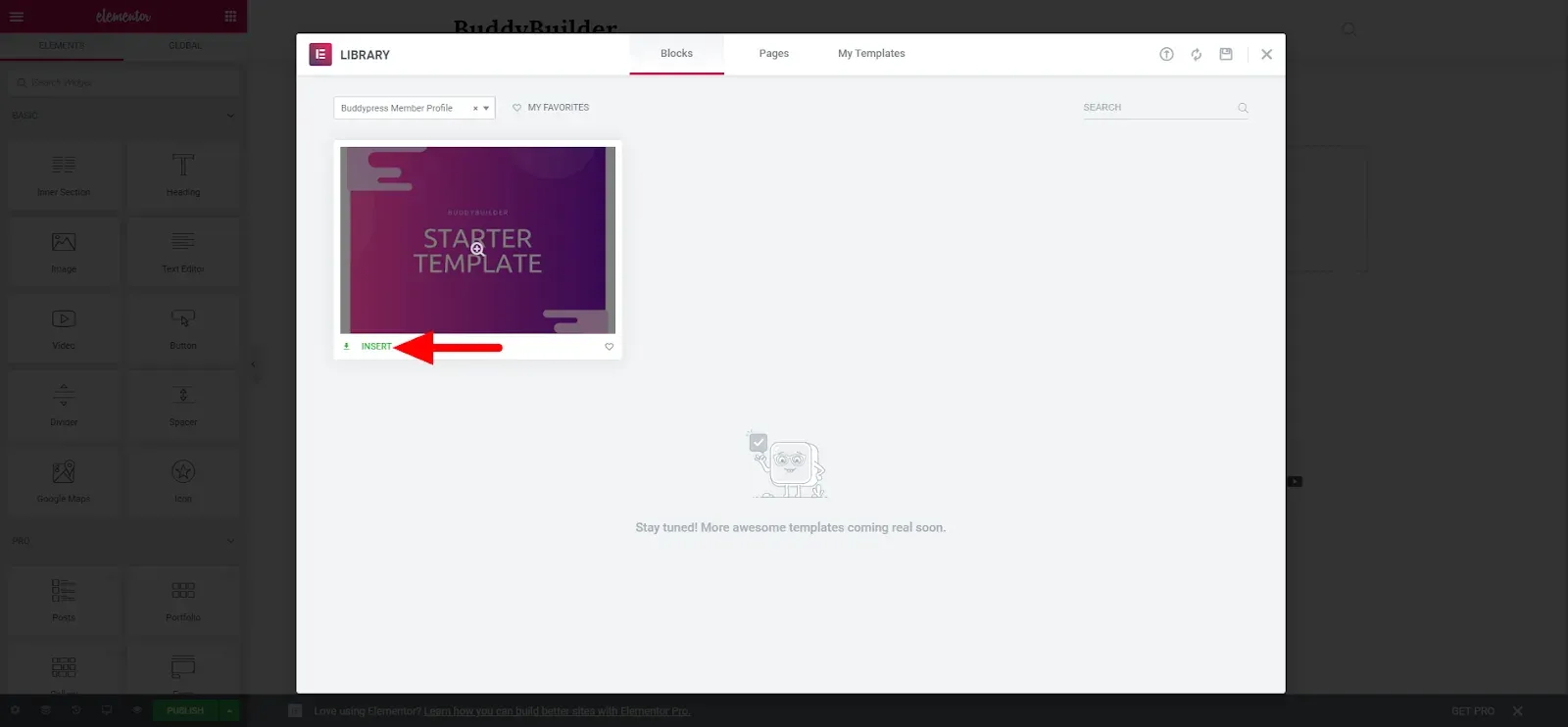
Create a template from the Elementor Templates page
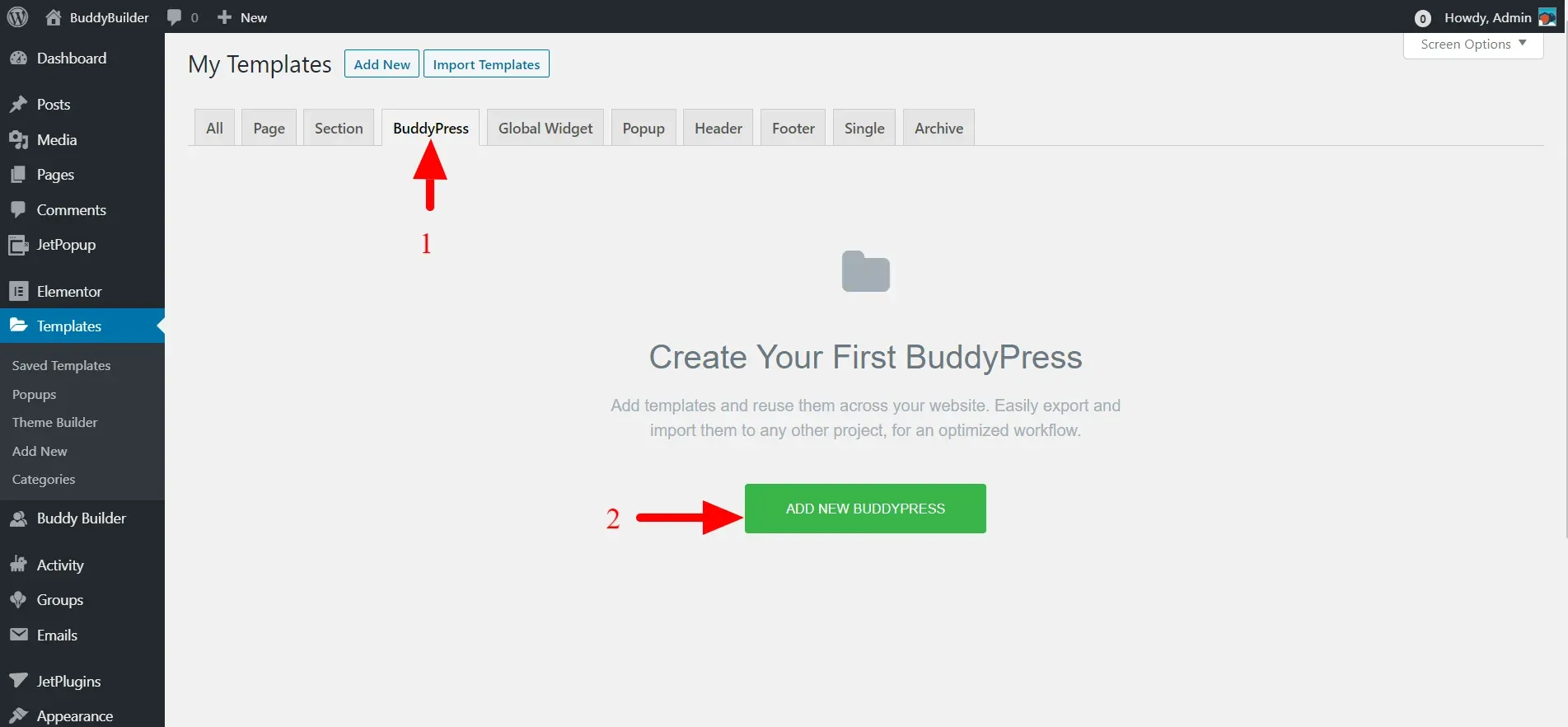
Section titled “Create a template from the Elementor Templates page”- Go to Templates > Saved Templates and open the BuddyPress tab.
- Click the button to add a new template.
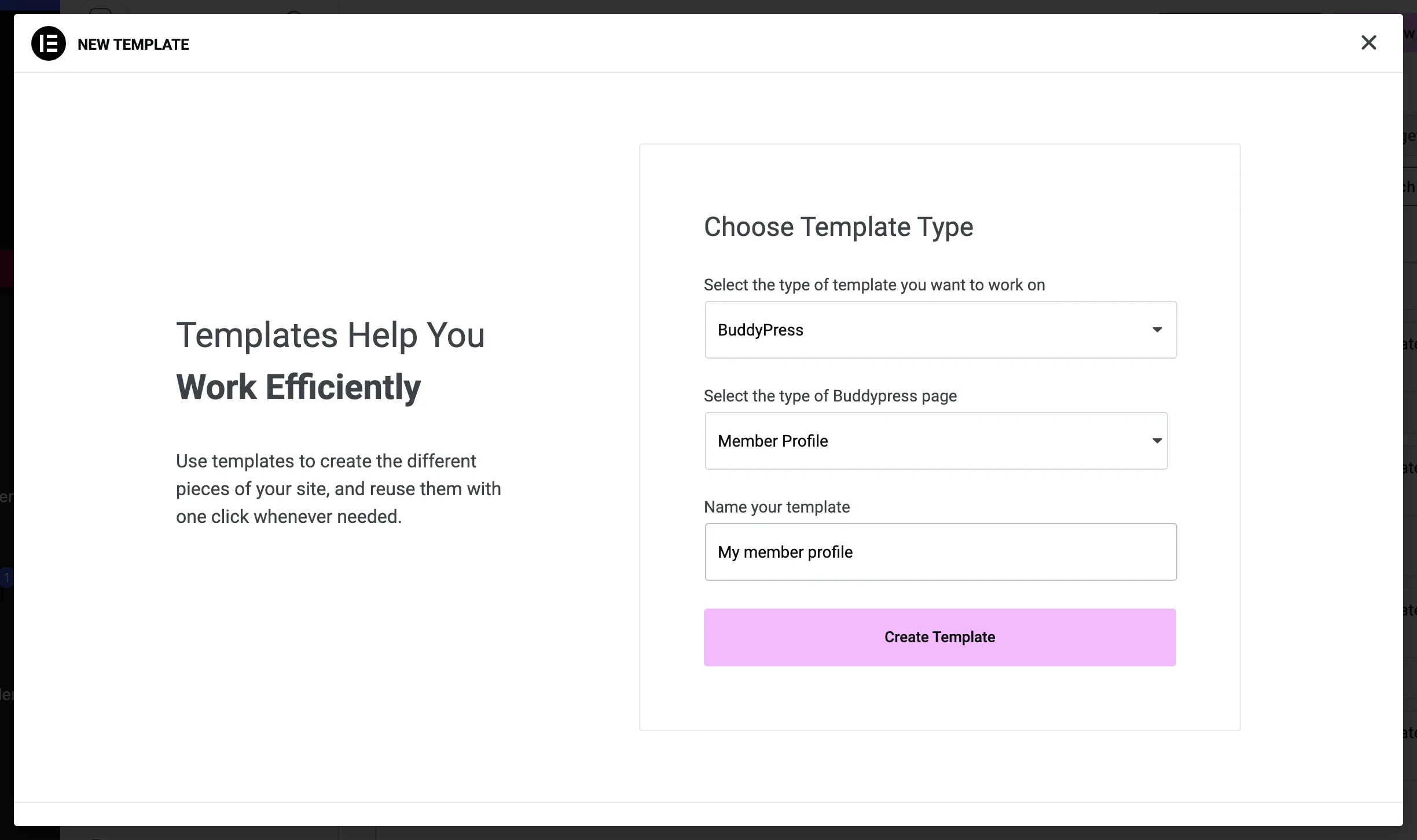
- In the New Template dialog, choose BuddyPress as the template type.
- Under Select the type of Buddypress page, pick the page type, for example Member Profile.
- Name the template and click Create Template.
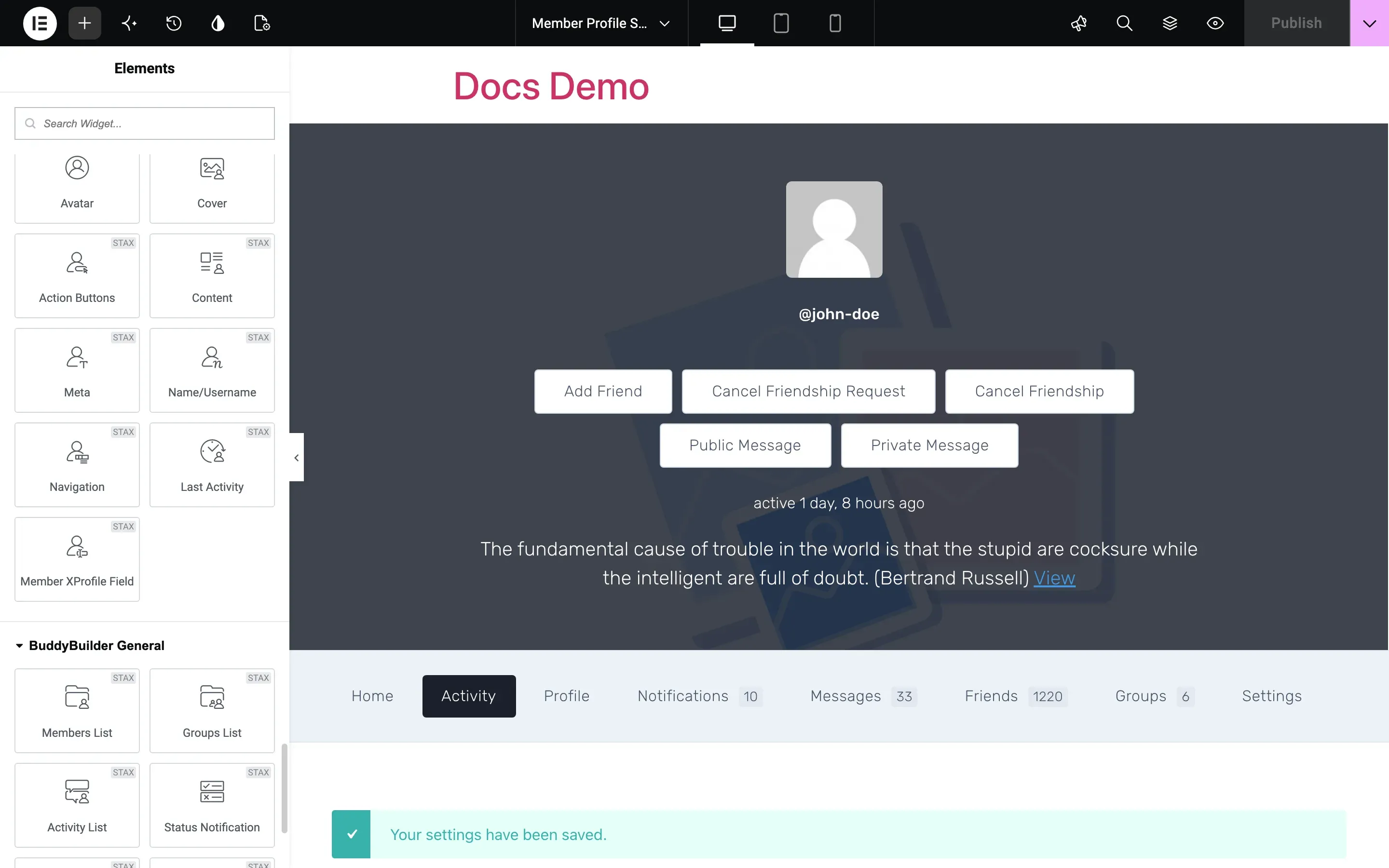
- Build the layout with the BuddyBuilder widgets and click Publish.
- Assign the template as described in the next section. A template created this way is not active until you select it.
Assign a template to a page type
Section titled “Assign a template to a page type”- Go to BuddyBuilder > Dashboard. The screen is titled Templates Settings.
- In the dropdown under the page type, select your template. Each dropdown lists only the templates created for that page type.
- Click Save.
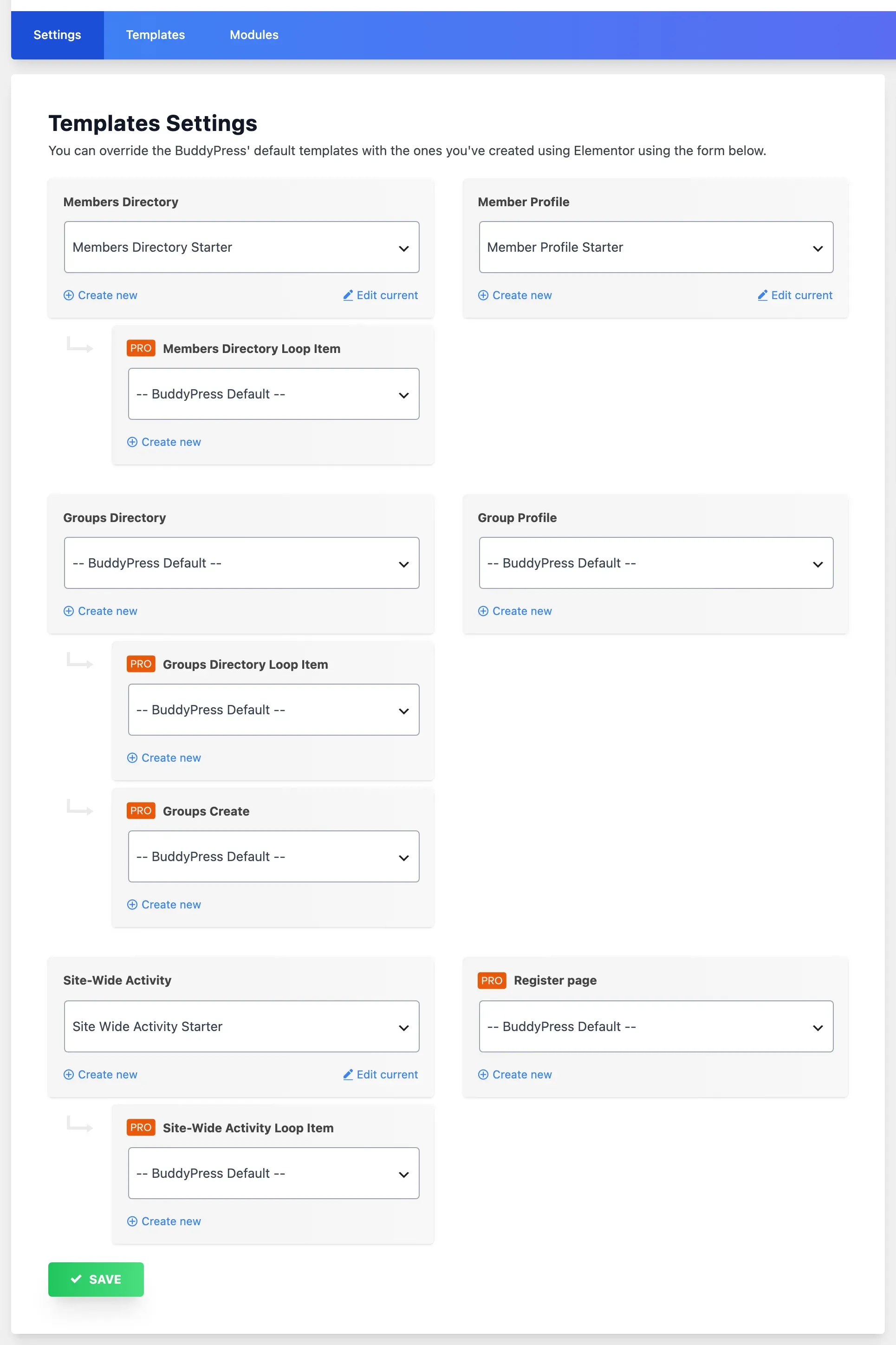
To edit the template that is in use, click Edit current under its dropdown.
Go back to the default BuddyPress design
Section titled “Go back to the default BuddyPress design”- Go to BuddyBuilder > Dashboard.
- Select – BuddyPress Default – for the page type.
- Click Save.
The Elementor template is kept, so you can select it again later.
Common questions
Section titled “Common questions”Can I have several templates for the same page type? Yes. Create as many as you like, and select the active one in BuddyBuilder > Dashboard. Only one template per page type is active at a time.
My template is not in the dropdown. The dropdown lists templates by their BuddyPress page type. A template created as another Elementor type (for example Page or Section) does not appear. Create it again from BuddyBuilder > Dashboard with Create new.
Where are the widgets for each page type? The BuddyBuilder widget category in Elementor changes with the template you edit: a Member Profile template shows the member profile widgets, a Site-Wide Activity template shows the activity widgets. See the widget reference pages linked from the BuddyBuilder documentation.