
Visibility Logic Pro conditions
Visibility Logic Pro adds twelve conditions to the Elementor Visibility tab. Each one is a section with its own Enable switch, used together with the settings in the General section (see Set up a visibility rule).
A condition “matches” when its check is true for the current visitor or page. What happens then depends on the element’s Show/Hide action and Conditions Type. For the free conditions, see Visibility Logic free conditions.
IP and Referrer
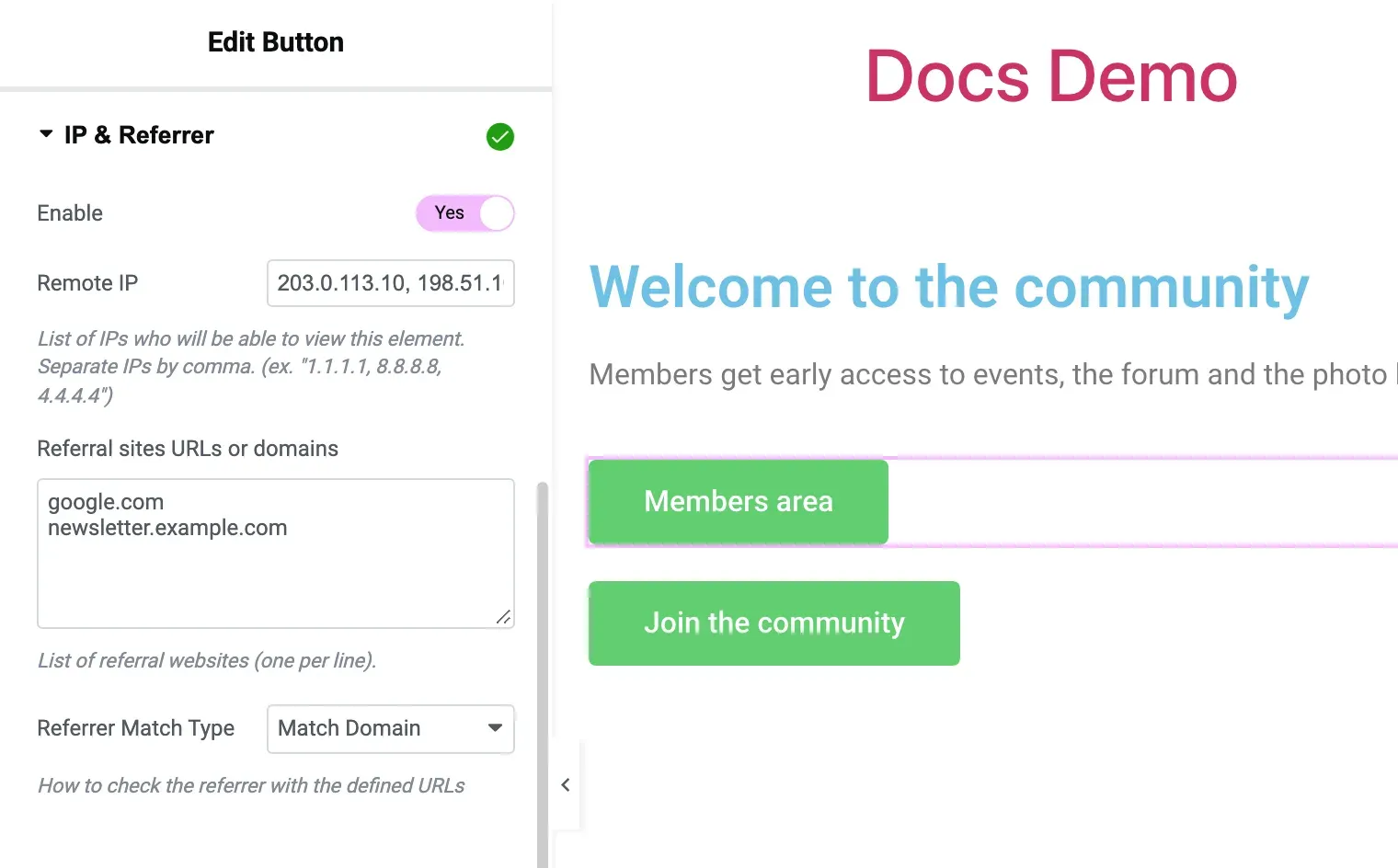
Section titled “IP and Referrer”The IP & Referrer section matches visitors by IP address or by the site they came from.
| Setting | What it does |
|---|---|
| Remote IP | Comma-separated list of IP addresses, for example 1.1.1.1, 8.8.8.8. Matches when the visitor’s IP is in the list. |
| Referral sites URLs or domains | One site per line. Matches when the visitor arrived from one of them (the browser’s referrer). |
| Referrer Match Type | Match Domain (default) compares the domain, Match Exact URL the full URL, Contains checks that the referrer contains the text. |
If you fill in both lists, they are two separate checks combined by Conditions Type. A visitor who opens the page directly, or whose browser does not send a referrer, never matches the referrer list.
Geo Location
Section titled “Geo Location”The Geo Location section matches visitors by country or city, using MaxMind’s free GeoLite2 service. It needs a MaxMind account ID and license key.
Set up MaxMind once:
- Create a MaxMind account and license key.
- In WordPress, go to Settings > Visibility Logic and open the Settings tab.
- Under MaxMind Api, fill in Account ID and License key.
- Click Save.
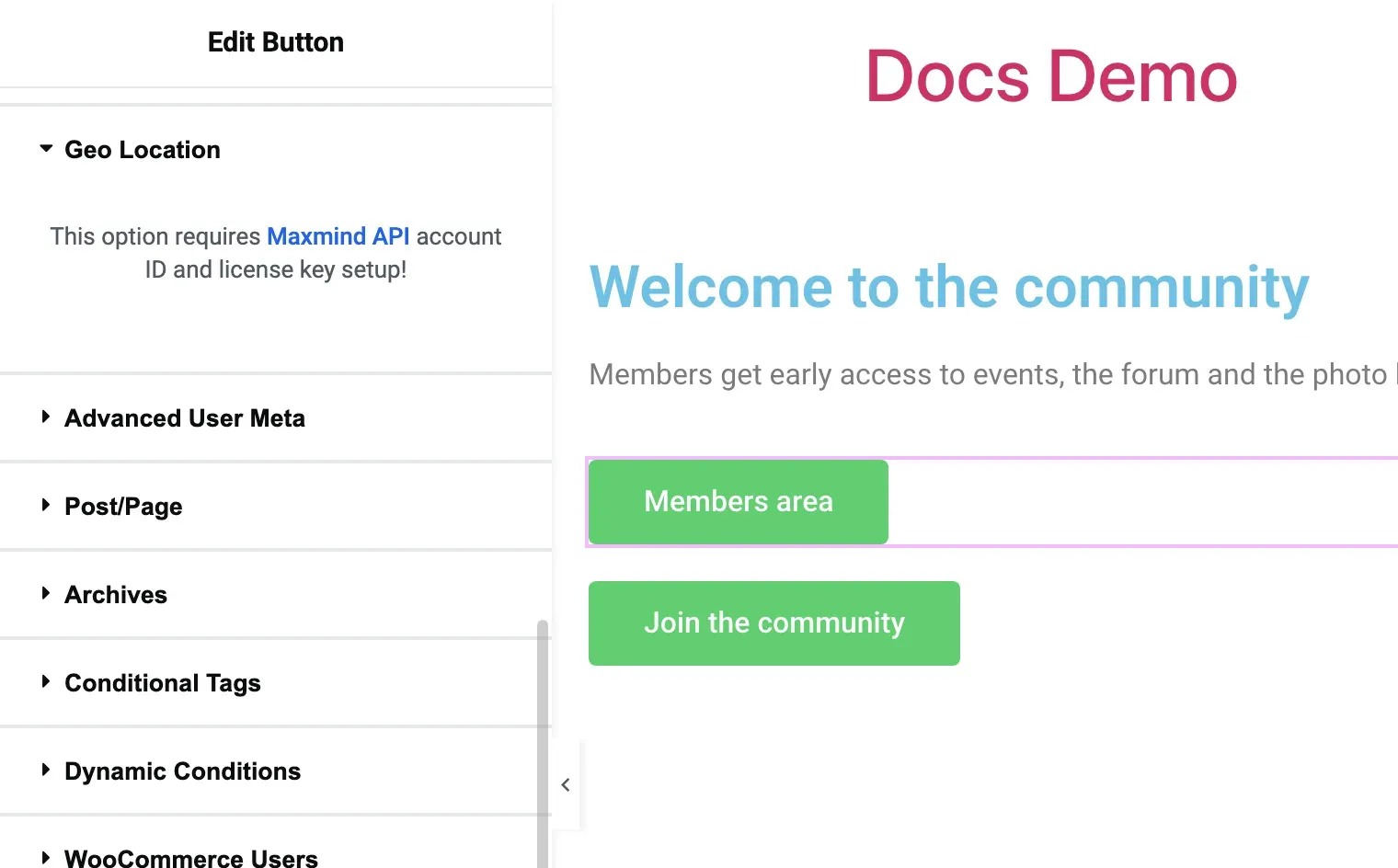
Until both are saved, the section shows “This option requires Maxmind API account ID and license key setup!” instead of its settings.
| Setting | What it does |
|---|---|
| Location Type | Country (default) or City. |
| Countries | One or more countries. |
| Cities | One or more cities, when Location Type is City. |
The location of each IP address is looked up once and remembered for 24 hours. On a local or private network address, MaxMind cannot find a location; administrators then see a short “Admin notice” on the page with the MaxMind error.
Advanced User Meta
Section titled “Advanced User Meta”The Advanced User Meta section works like the free User Meta condition, but with several conditions in one rule.
| Setting | What it does |
|---|---|
| Rule | AND: all conditions must be true. OR: at least one must be true. |
| Conditions | A list of conditions. Each has Meta Name, Meta Condition, Condition Value and, for Between, Condition Value 2. |
The Meta Condition options are the same as in User Meta. Between matches values from Condition Value to Condition Value 2, both included (since Pro 2.4.2; earlier versions matched almost any number, so check rules that use it).
Post and Page
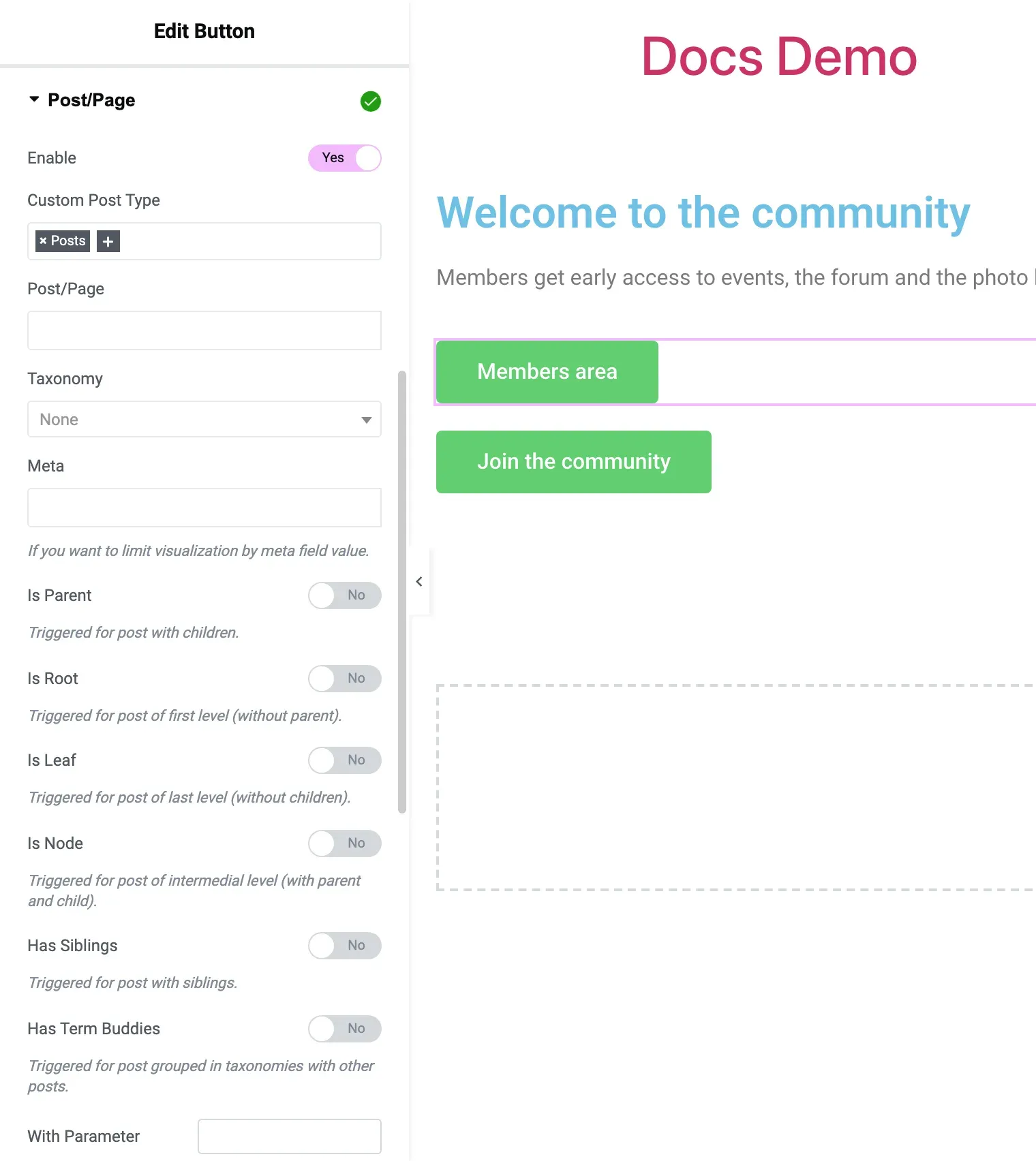
Section titled “Post and Page”The Post/Page section matches the page being viewed. Each field you fill in is a separate check, combined by Conditions Type.
| Setting | What it does |
|---|---|
| Custom Post Type | Matches when the current content is one of the selected post types (posts, pages, products and so on). |
| Post/Page | Matches on the selected posts or pages. |
| Taxonomy, Terms | Matches when the current post has one of the selected terms of that taxonomy. Pick at least one term. |
| Meta, Meta Condition, Meta Condition Value | Tests a custom field (post meta) of the current post. Meta Condition has the same tests as User Meta, with Any Value in place of None. Works with ACF fields, since ACF stores them as post meta. |
| Is Parent | Matches posts that have children. |
| Is Root | Matches top-level posts (no parent). |
| Is Leaf | Matches posts without children. |
| Is Node, Node level | Matches posts that have both a parent and children, optionally at a given depth. |
| Has Siblings | Matches posts whose parent has other children. |
| Has Term Buddies, Terms where find Buddies | Matches posts that share a term with other posts. |
| With Parameter, Parameter Status, Parameter Value | Checks a GET or POST parameter: Not isset, Isset or Definited value. For URL parameters, the URL Parameters condition below is more flexible. |
Example: to show a notice only on posts of the “News” category, set Show/Hide action to Show, Taxonomy to Categories and Terms to News.
Archives
Section titled “Archives”The Archives section matches archive pages.
| Setting | What it does |
|---|---|
| Post Type Archive | Matches the archive of the selected post types (for example the shop page of products). |
| Taxonomy Archive, Terms | Matches archives of the selected taxonomy. Leave Terms empty for any term, or pick specific terms. |
Conditional Tags
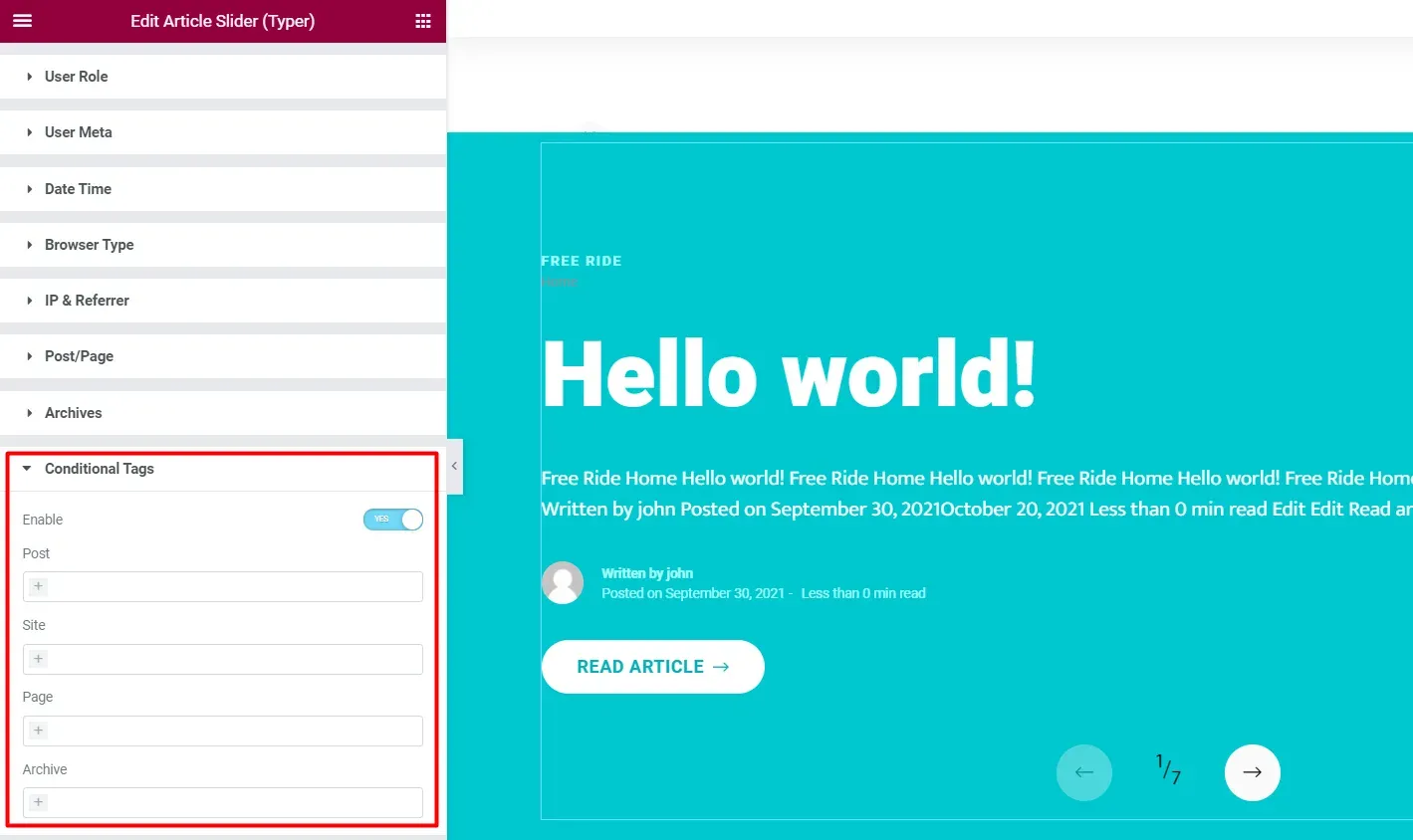
Section titled “Conditional Tags”The Conditional Tags section uses WordPress conditional tags. It has four lists; in each list the check matches when any selected tag is true, and each filled-in list is a separate check.
| List | Examples of tags |
|---|---|
| Post | Is Sticky, Comments open, Has Tags, Has Excerpt, Has Post Thumbnail, Has Nav menu |
| Site | RTL, Multisite, Main site, Child theme, Multi author, Active sidebar |
| Page | Front Page, Home, 404 Not Found, Single, Page, Attachment, Preview, Page Template, and WooCommerce pages such as Shop, Product, Cart, Checkout, Account page, Order complete |
| Archive | Category, Tag, Taxonomy, Author, Date, Year, Month, Day, Search |
Has Nav menu and Active sidebar check the theme location or sidebar with the ID primary.
Dynamic Conditions
Section titled “Dynamic Conditions”The Dynamic Conditions section compares the value of any Elementor Pro dynamic tag (post title, custom field, author info, request parameter and so on). It needs Elementor Pro.
| Setting | What it does |
|---|---|
| Dynamic Tag | The dynamic tag whose value is tested. |
| Condition | Is equal to, Is not equal to, Contains, Does not contain, Is empty, Is not empty, Between, Less than, Greater than, In array, In array contains. |
| Compare Type | Text, Date, Weekdays, Months or String to time. |
| Conditional value | The value to compare with, and a second value for Between. |
Dates in Date, Weekdays, Months and String to time are read in the site time zone, see Dates and the site time zone.
Pro also adds a Number posts dynamic tag that returns how many posts a category or post type has.
WooCommerce Users
Section titled “WooCommerce Users”The WooCommerce Users section matches logged-in customers by what they bought. It needs WooCommerce. Logged-out visitors never match.
| Condition | What it does |
|---|---|
| User has purchased any product | Matches customers with at least one paid order. |
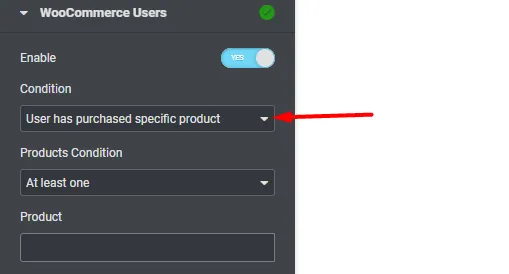
| User has purchased specific product | Matches customers who bought the products in Product. Products Condition: At least one or All. |
| User has purchased specific product variation | Same, with variations in Product Variation. |
Purchases count only for paid orders (processing or completed), so a refunded order does not count.
WooCommerce Subscriptions
Section titled “WooCommerce Subscriptions”With the WooCommerce Subscriptions plugin active, Condition has two more options:
| Condition | What it does |
|---|---|
| User has any active subscription | Matches customers with at least one active subscription. |
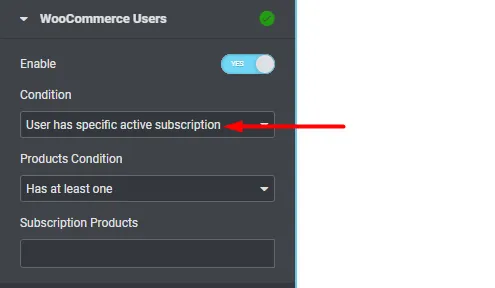
| User has specific active subscription | Matches customers with an active subscription to the products in Subscription Products. Products Condition: Has at least one or Has all. |
Only subscriptions with the status Active count; on-hold, pending-cancel, cancelled and expired subscriptions do not.
EDD Users
Section titled “EDD Users”The EDD Users section matches logged-in customers of Easy Digital Downloads. It needs Easy Digital Downloads.
| Condition | What it does |
|---|---|
| User has purchased any product | Matches customers who bought anything. |
| User has purchased specific product | Matches customers who bought the downloads in Products. Products Condition: At least one or All. |
URL Parameters
Section titled “URL Parameters”The URL Parameters section matches query string parameters, for example ?utm_source=newsletter, and POST form fields.
| Setting | What it does |
|---|---|
| Conditions Logic | AND (all must match) or OR (at least one). |
| URL Parameters | A list of rules, each with Parameter Name, Condition and Value. |
Condition options: Exists (is set), Does not exist, Equals, Not equals, Contains, Does not contain, Is empty, Is not empty, Matches regex. For Matches regex, enter the pattern without delimiters, for example ^spring-\d+$.
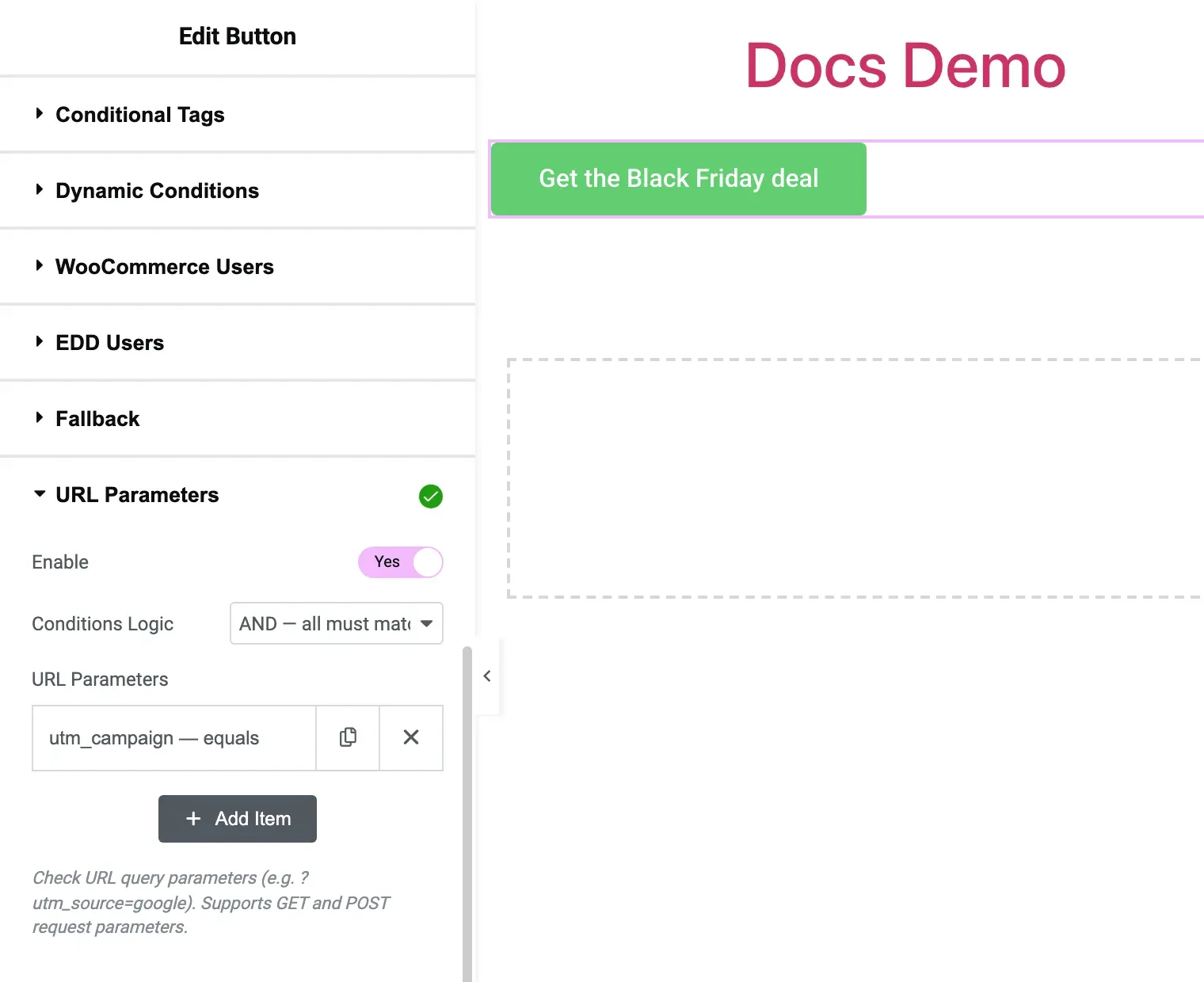
Example: to show a discount banner only to visitors from a campaign link, set Show/Hide action to Show and add a rule with Parameter Name utm_campaign, Condition Equals and Value black-friday.
Language
Section titled “Language”The Language section matches the current language of a multilingual site. It works with WPML, Polylang and TranslatePress; without one of them it shows a notice.
| Setting | What it does |
|---|---|
| Languages | One or more site languages. The panel also shows the current language. |
Advanced ACF
Section titled “Advanced ACF”The Advanced ACF section tests one or more Advanced Custom Fields fields from different sources. ACF must be active.
| Setting | What it does |
|---|---|
| Conditions Logic | AND (all must match) or OR (at least one). |
| ACF Conditions | A list of rules (see below). |
Each rule has:
| Setting | What it does |
|---|---|
| Field Source | Current Post, Current User, Options Page, Current Term (Archive) or Specific Post ID (with Post ID). |
| Field Name | The ACF field name, for example my_custom_field. |
| Condition | Is empty, Is not empty, Equals, Not equals, Contains, Does not contain, Greater than, Less than, Between, Is true, Is false, Date is before, Date is after, Has rows (repeater), Has no rows (repeater), Array contains, Matches regex. |
| Value, Value 2 (upper bound) | The value to compare with; the second value is for Between. |
Date is before and Date is after read both the field and Value as dates, so Value can be a date such as 2026-12-31 or a relative date such as now or today. Set the date field’s Return Format in ACF to Y-m-d (or another format PHP can read, which d/m/Y is not).
Example: to show a “Renew your membership” box only to users whose ACF user field membership_end is in the past, use Field Source Current User, Field Name membership_end, Condition Date is before and Value now.
Dates and the site time zone
Section titled “Dates and the site time zone”Since Pro 2.4.3, the dates in Dynamic Conditions and in the Advanced ACF Date is before and Date is after checks are read in the site time zone (Settings > General > Timezone), the same as the free plugin’s Date FROM and Date TO from free 2.5.2. A date such as 2026-12-31 18:00 means 18:00 on the site’s clock, and today starts at midnight site time. Earlier versions read these dates in UTC, so on a site that is not set to UTC the rules switched early or late by the site’s offset; if you shifted dates to make up for it, set them back to the site time.
If you change the site time zone later, the rules keep their dates and times as typed (wall-clock time) and read them in the new time zone. For example, a rule that starts at 2026-12-31 18:00 starts at 18:00 in the new time zone, which is a different moment than before. Nothing needs to be saved again.
Developers can keep the old UTC reading with the stax/visibility/date_timezone filter (it also applies to the free plugin’s dates from 2.5.2):
add_filter( 'stax/visibility/date_timezone', function () { return new DateTimeZone( 'UTC' );} );