
BuddyBuilder register page widgets
The register page widgets build the BuddyPress registration form in Elementor: the account fields, the profile fields, the optional site fields on multisite, the notice at the top and the submit button. Each widget outputs one part of the BuddyPress sign-up form, so the fields themselves still come from BuddyPress.
Create the register page template
Section titled “Create the register page template”- Go to BuddyBuilder > Dashboard.
- Under Register page, click Create new.
- Add the widgets from the BuddyBuilder Register Page category. Add Account Details and Submit Button at least, otherwise visitors cannot complete the form.
- Click Publish. The template is set as the active one for the register page.
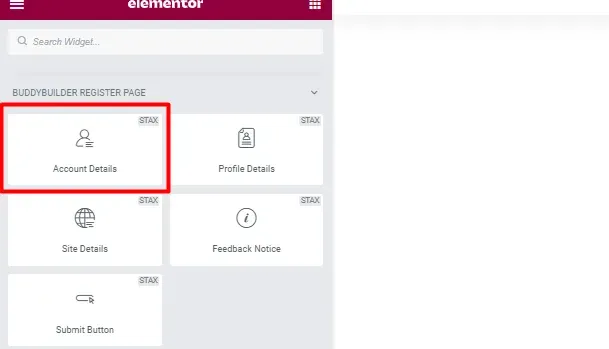
All options are on the Style tab. Standard Elementor controls (Typography, Border, Padding, Margin) work as in any other widget.
Account Details
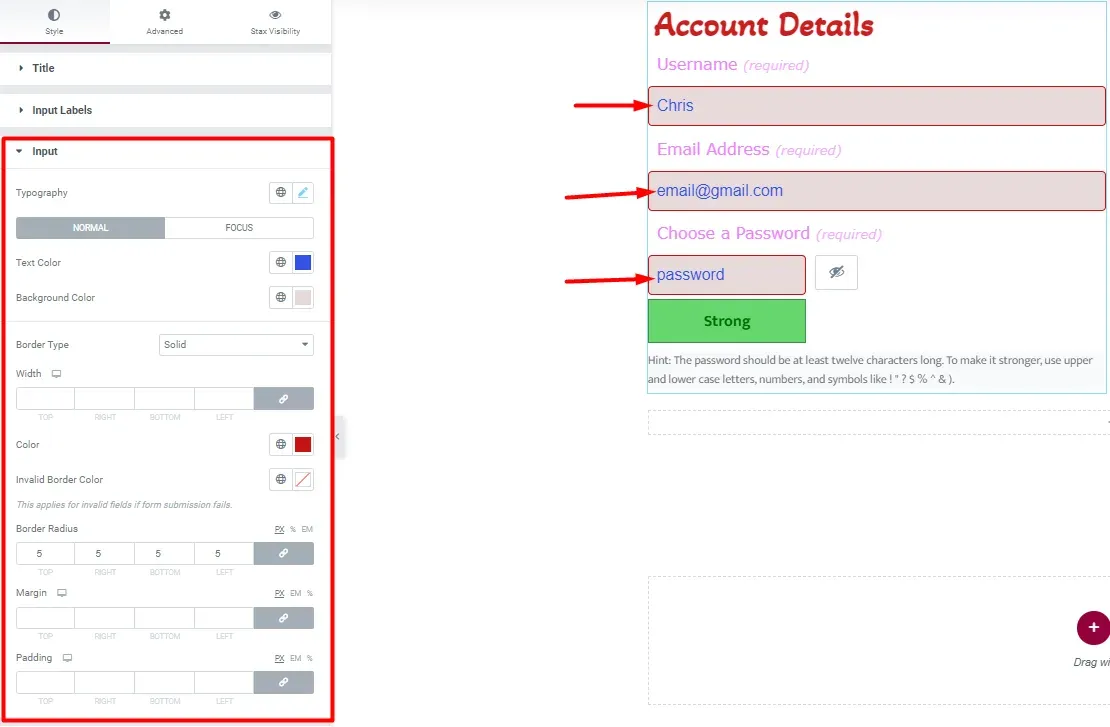
Section titled “Account Details”The Account Details widget shows the account fields of the sign-up form: username, email address and password.
| Style section | Options |
|---|---|
| Title | Text Color, typography, Margin and Padding of the section title. |
| Input Labels | Text Color, typography, Margin and Padding of the field labels. |
| Input | Typography, Text Color, Background Color and border for the normal and focus states, Invalid Border Color (used on invalid fields when the form submission fails), Border Radius, Margin, Padding. |
| Password | Three groups: Show/Hide Password (color, background and border of the toggle, normal and hover), Strength Indicator (text color plus background and border colors for very weak, weak, medium and strong passwords) and Hint Text (color, background, radius, padding). |
Profile Details
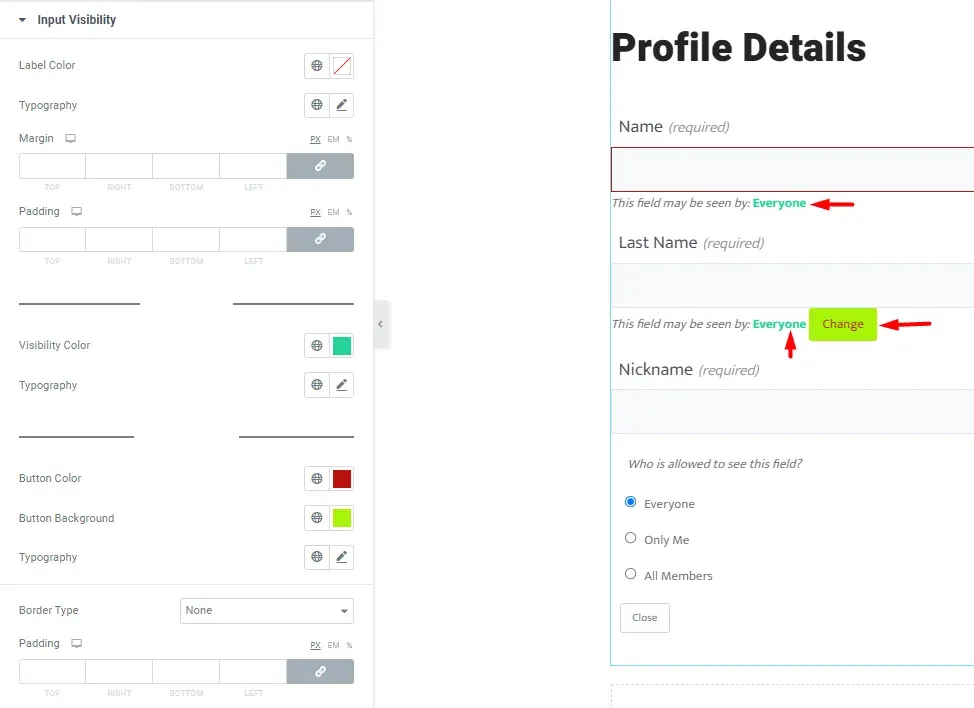
Section titled “Profile Details”The Profile Details widget shows the extended profile (xProfile) fields that BuddyPress asks for at sign-up, such as the name, with the visibility setting of each field. It needs the BuddyPress Extended Profiles component.
| Style section | Options |
|---|---|
| Title | Text Color, typography, Margin, Padding. |
| Input | Same options as the Input section of Account Details. |
| Input Labels | Text Color, typography, Margin, Padding. |
| Input Visibility | The “This field may be seen by” line: Label Color, Margin, Padding; Visibility Text (Visibility Color); Visibility Button (Button Color, Button Background, Padding) for the “Change” button. |
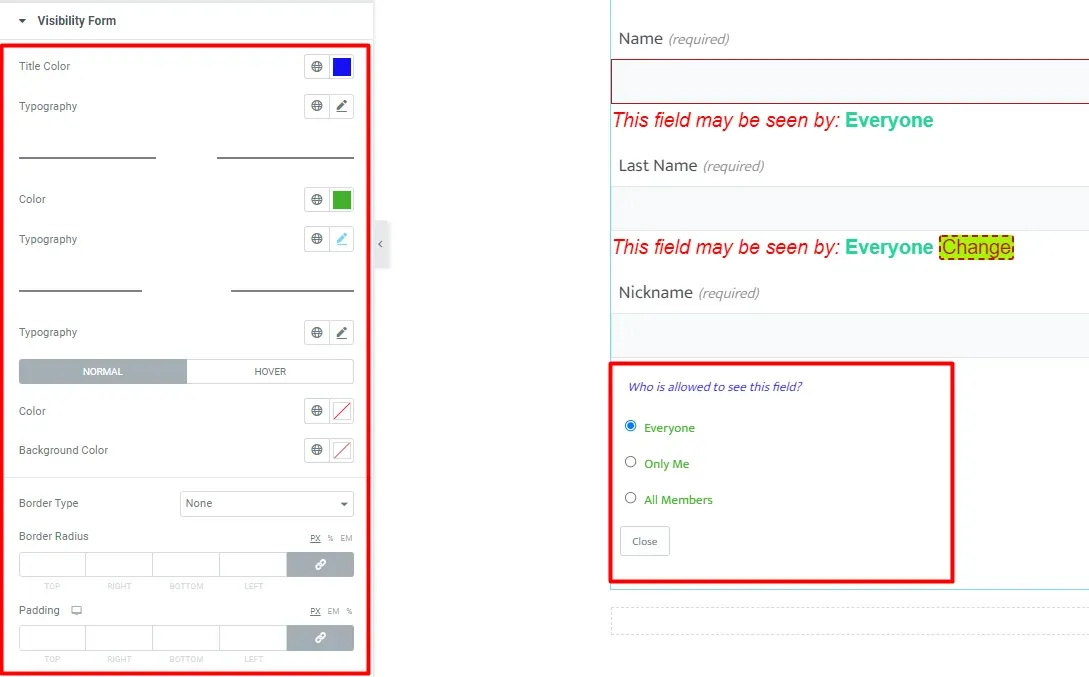
| Visibility Form | The options that open after clicking “Change”: Title Color, Options color, and the Close Button colors, border, radius and padding for the normal and hover states. |
Site Details
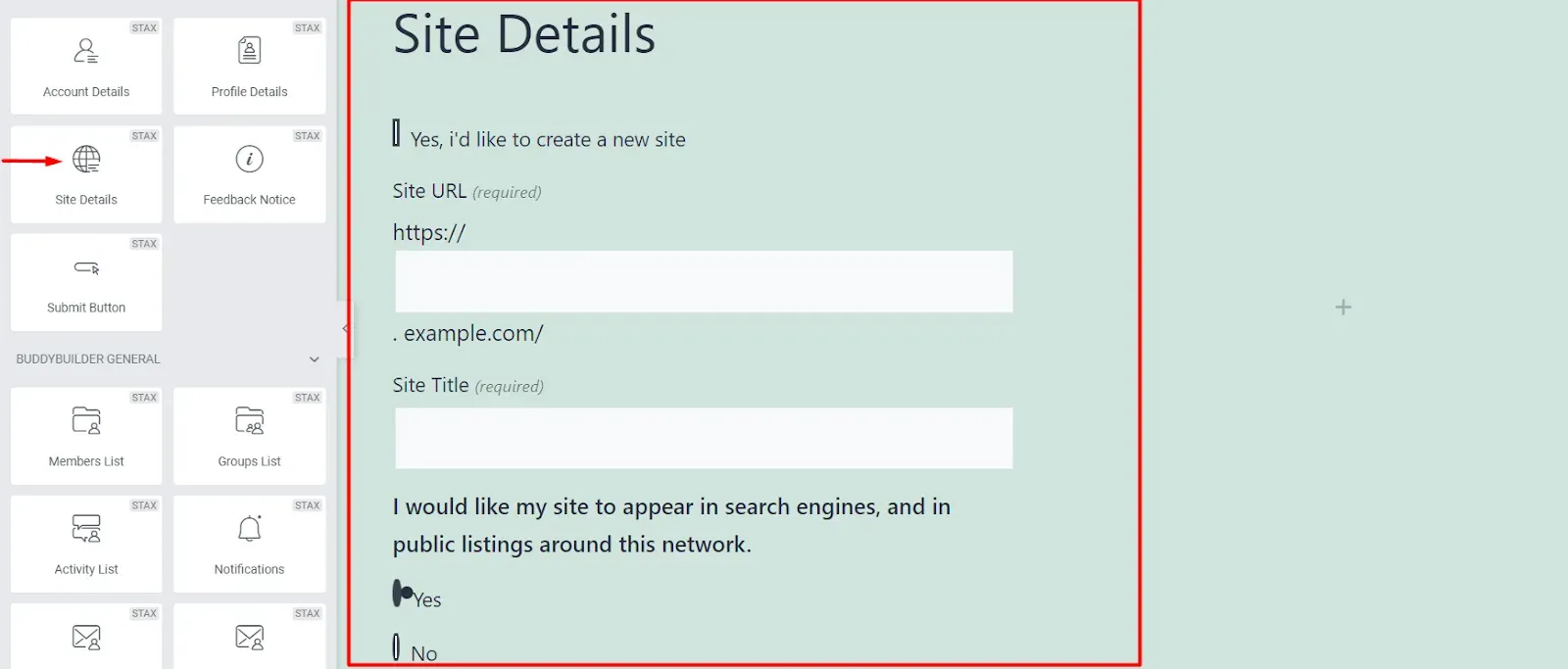
Section titled “Site Details”The Site Details widget shows the fields that let a new member create a site during sign-up: the “Yes, i’d like to create a new site” checkbox, the site URL, the site title and the search engine visibility choice. It only works on a WordPress multisite network where BuddyPress allows site registration. On a single site the editor shows a notice instead of the fields.
| Style section | Options |
|---|---|
| Title | Text Color, typography, Margin, Padding. |
| Input Labels | Text Color, typography, Margin, Padding. |
| Search Engine | Text Color, typography, Margin and Padding of the search engine visibility question. |
| Input | Typography, Text Color, Background Color and border for the normal and focus states, Border Radius, Margin, Padding. |
Feedback Notice
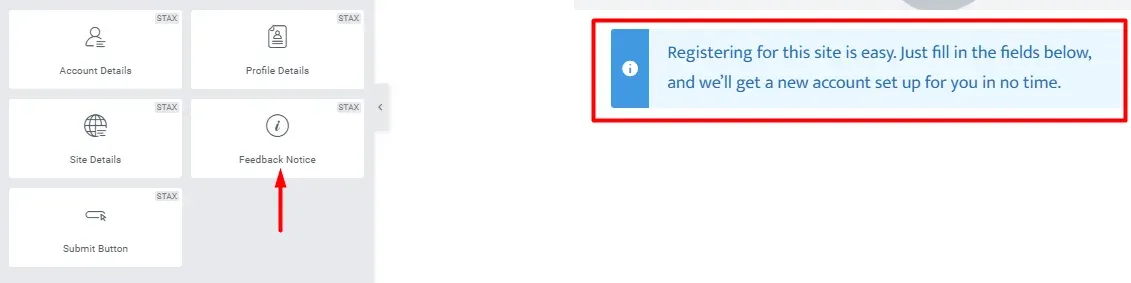
Section titled “Feedback Notice”The Feedback Notice widget shows the BuddyPress message for the current sign-up step, for example the introduction above the form or the confirmation after the form is sent. Place it at the top of the template. The widget has no style options of its own: use the Advanced tab of Elementor for spacing and background.
Submit Button
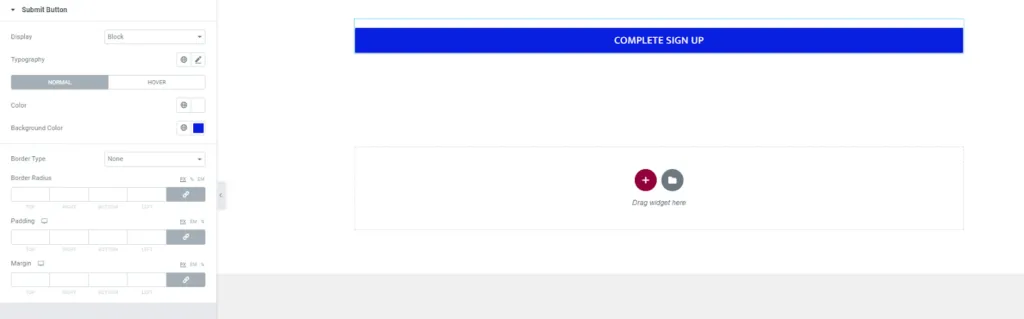
Section titled “Submit Button”The Submit Button widget shows the button that sends the registration form. When BuddyPress requires acceptance of the privacy policy, the acceptance checkbox is output just above the button.
| Option | What it does |
|---|---|
| Display | Inline (as wide as its text) or Block (full width). |
| Alignment | Left, center or right, for an inline button. |
| Typography | Font of the button text. |
| Normal / Hover | Color, Background Color and, on hover, Border Color. |
| Border, Border Radius, Padding, Margin | Shape and spacing of the button. |

Common questions
Section titled “Common questions”The registration page still shows the default form. Check that a template is selected under Register page in BuddyBuilder > Dashboard, and that registration is enabled in WordPress (Settings > General, Anyone can register).
Can I add or remove fields? Not in the widgets. The fields come from BuddyPress: manage the profile fields shown at sign-up in Users > Profile Fields.