
BuddyBuilder Pro modules
BuddyBuilder Pro includes three optional modules: Ads Manager, Birthday and Link Preview. You turn them on or off in BuddyBuilder > Modules.
If the modules are enabled but nothing shows to visitors, check your version: Pro 1.7.0 and 1.7.1 loaded them only in the dashboard. Update to BuddyBuilder Pro 1.7.2 or newer.
Enable or disable a module
Section titled “Enable or disable a module”- Go to BuddyBuilder > Modules.
- Switch each module on or off. All three are on by default.
- Click Save.
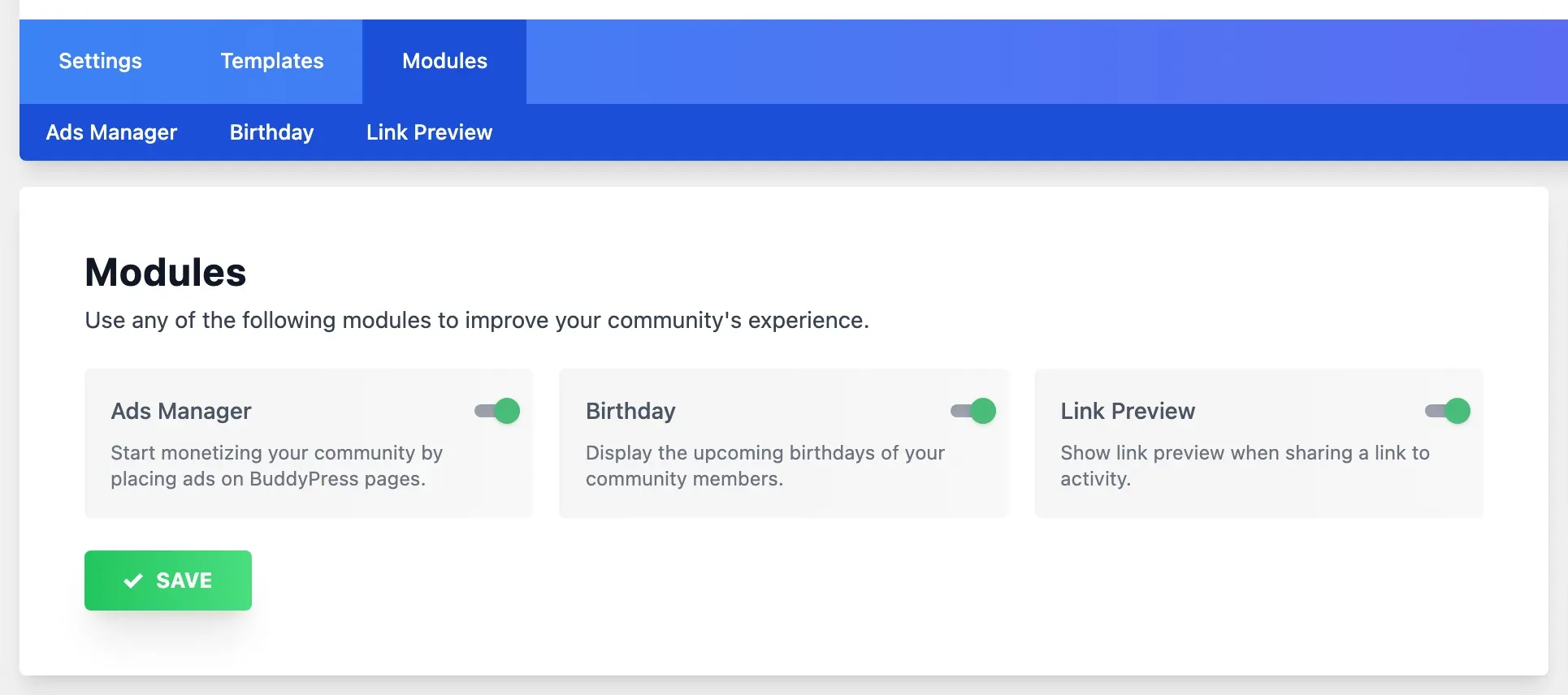
Each enabled module gets its own tab under the Modules tab, where its settings or instructions are.
Ads Manager
Section titled “Ads Manager”Ads Manager places banners on BuddyPress pages. You create banners, then attach them to zones (fixed positions on the community pages).
Add banners
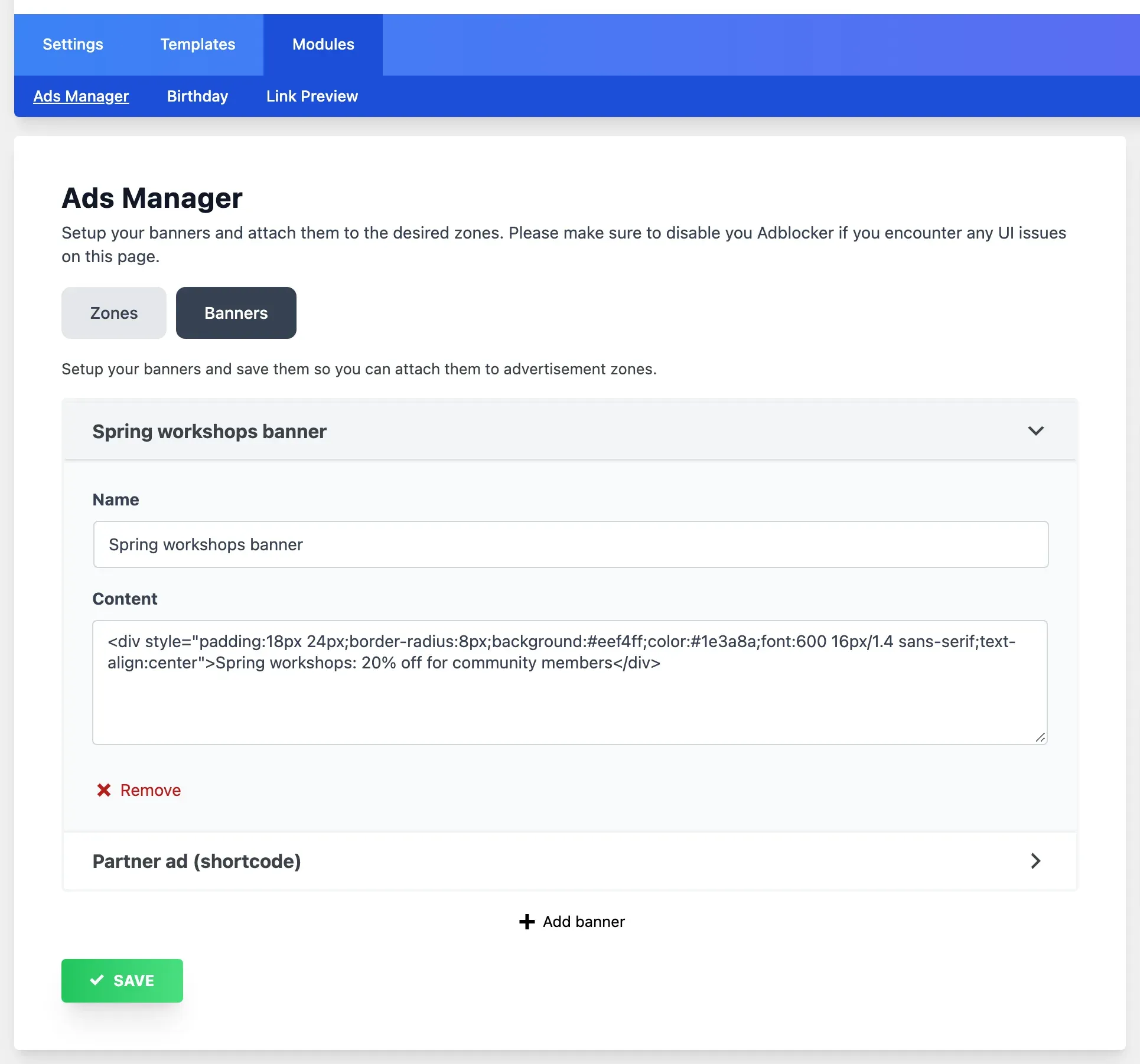
Section titled “Add banners”- Go to BuddyBuilder > Modules and open Ads Manager.
- Open the Banners tab.
- Click Add banner.
- Fill in Name (for your reference) and Content (the banner code: the HTML of an image link, an ad network snippet or a shortcode).
- Click Save.
Attach banners to zones
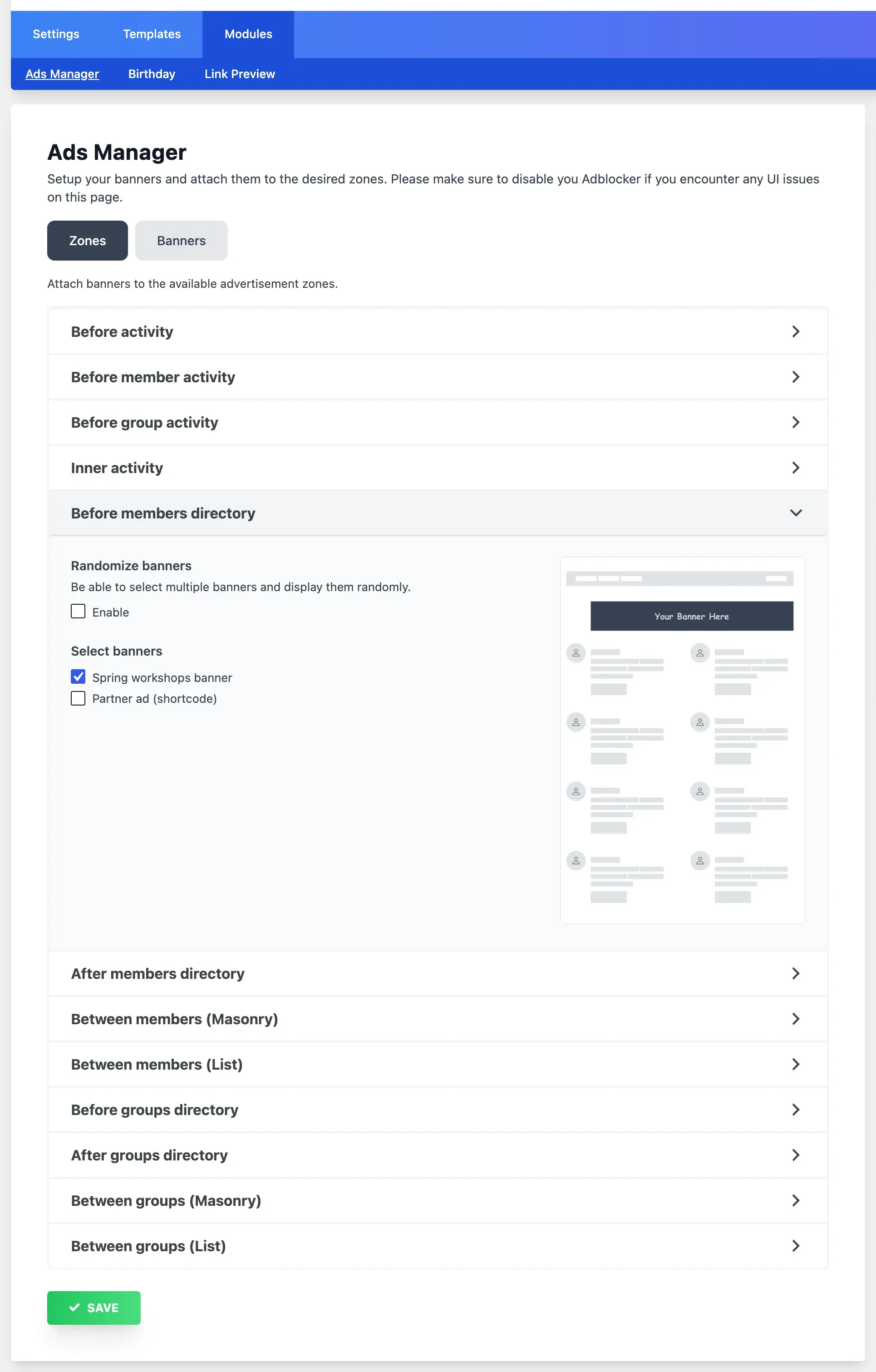
Section titled “Attach banners to zones”- Open the Zones tab.
- For each zone you want to use, select one or more banners under Select banners.
- Optional: set Repeat render to show the banner again every given number of items (0 shows it once), and enable Randomize banners to select several banners and show one at random.
- Click Save.
Since Pro 1.7.2, banner content runs shortcodes, so you can show ads from a plugin such as AdRotate by pasting its shortcode as the banner content.
Available zones:
| Area | Zones |
|---|---|
| Activity | Before activity, Before member activity, Before group activity, Inner activity |
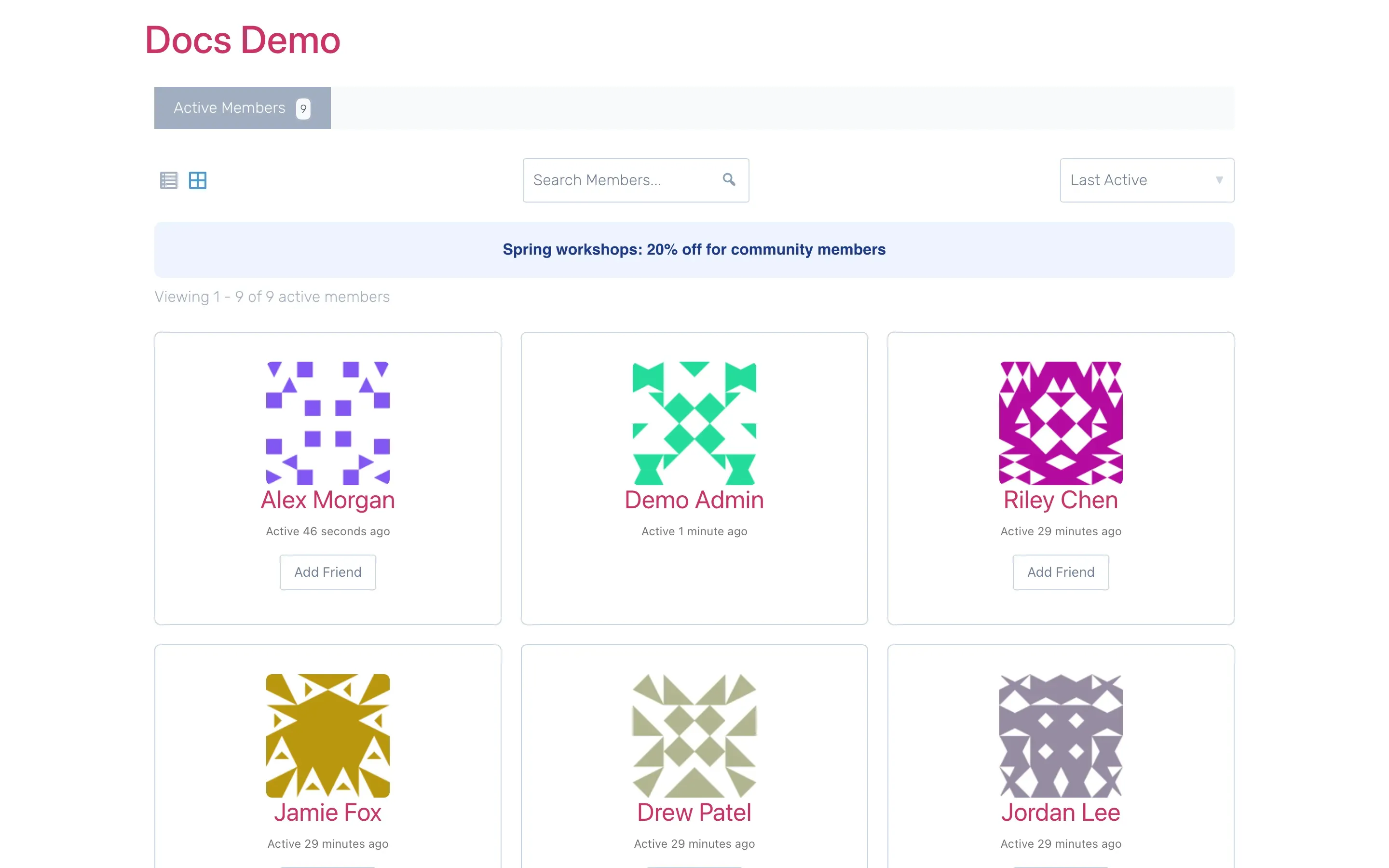
| Members directory | Before members directory, After members directory, Between members (Masonry), Between members (List) |
| Groups directory | Before groups directory, After groups directory, Between groups (Masonry), Between groups (List) |
If the Ads Manager screen looks broken, disable your browser’s ad blocker for the WordPress dashboard.
Birthday
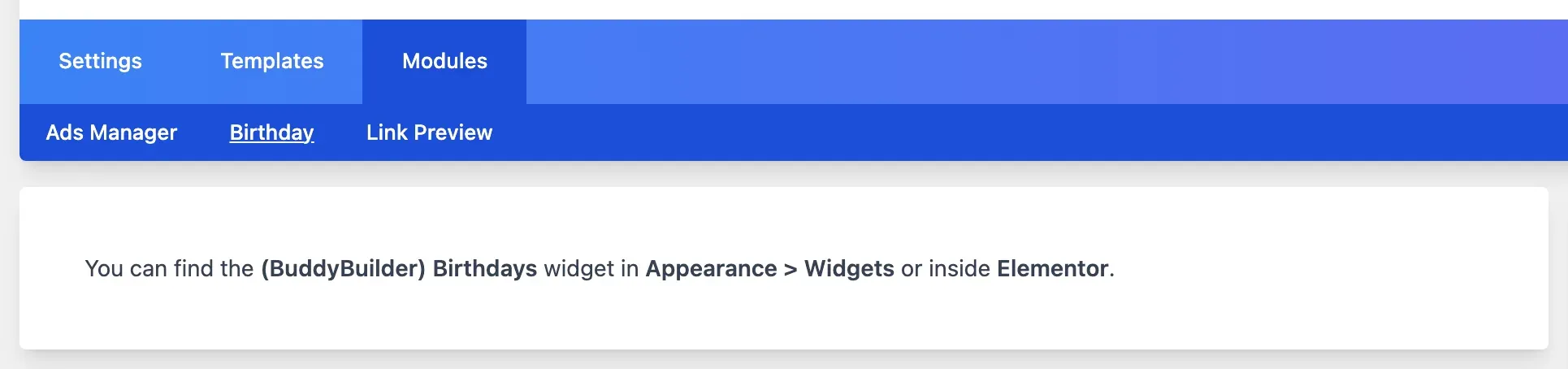
Section titled “Birthday”The Birthday module adds a WordPress widget named (BuddyBuilder) Birthdays that lists the upcoming birthdays of your members. Add it in Appearance > Widgets, or in Elementor from the WordPress widgets.
The widget reads the date from a BuddyPress profile field of the date type, so create such a field first (for example “Birthday”) in the BuddyPress profile fields.
| Widget option | What it does |
|---|---|
| Title | Widget title. The default is “Community Birthdays”. |
| Show the age of the person | Adds the age next to the name. |
| Enable option to wish them | Adds a link to send the member a private message. Needs the BuddyPress Private Messaging component. |
| Date Format | PHP date format used for the birthday date. |
| Birthday range limit | No Limit, Weekly or Monthly. |
| Show Birthdays of | Friends (needs the Friend Connections component), Followings (needs a follow feature) or All Members. |
| Display Name Type | User name, Nick name or First Name. |
| Field’s name | The profile date field that holds the birthday. |
| Number of birthdays to show | Maximum number of entries. |
| Select Emoji | Optional icon shown with each birthday. |
Link Preview
Section titled “Link Preview”With Link Preview enabled, a link pasted in an activity post form shows a preview (title, description and image of the linked page), and the preview is saved with the activity. There are no settings.
Since Pro 1.7.1:
- Previews are generated only for logged-in members.
- Only public web pages (http or https) are fetched, never private or local network addresses.
- The number of previews a member can request in a short time is limited. A member who goes over the limit sees “Too many link previews. Please try again in a few minutes.”
Common questions
Section titled “Common questions”I do not see BuddyBuilder > Modules. Modules need BuddyBuilder Pro active and a recent version of the free plugin. Update both plugins.
A module is enabled but nothing shows on the site. Check your BuddyBuilder Pro version. In 1.7.0 and 1.7.1 the modules loaded only in the dashboard; update to 1.7.2 or newer. If the problem remains after updating, contact support.