
Import BuddyBuilder template kits
To import a ready-made design, go to BuddyBuilder > Templates and click Import under a kit. BuddyBuilder downloads the kit’s Elementor templates and sets them as the active templates for your BuddyPress pages.
Available kits
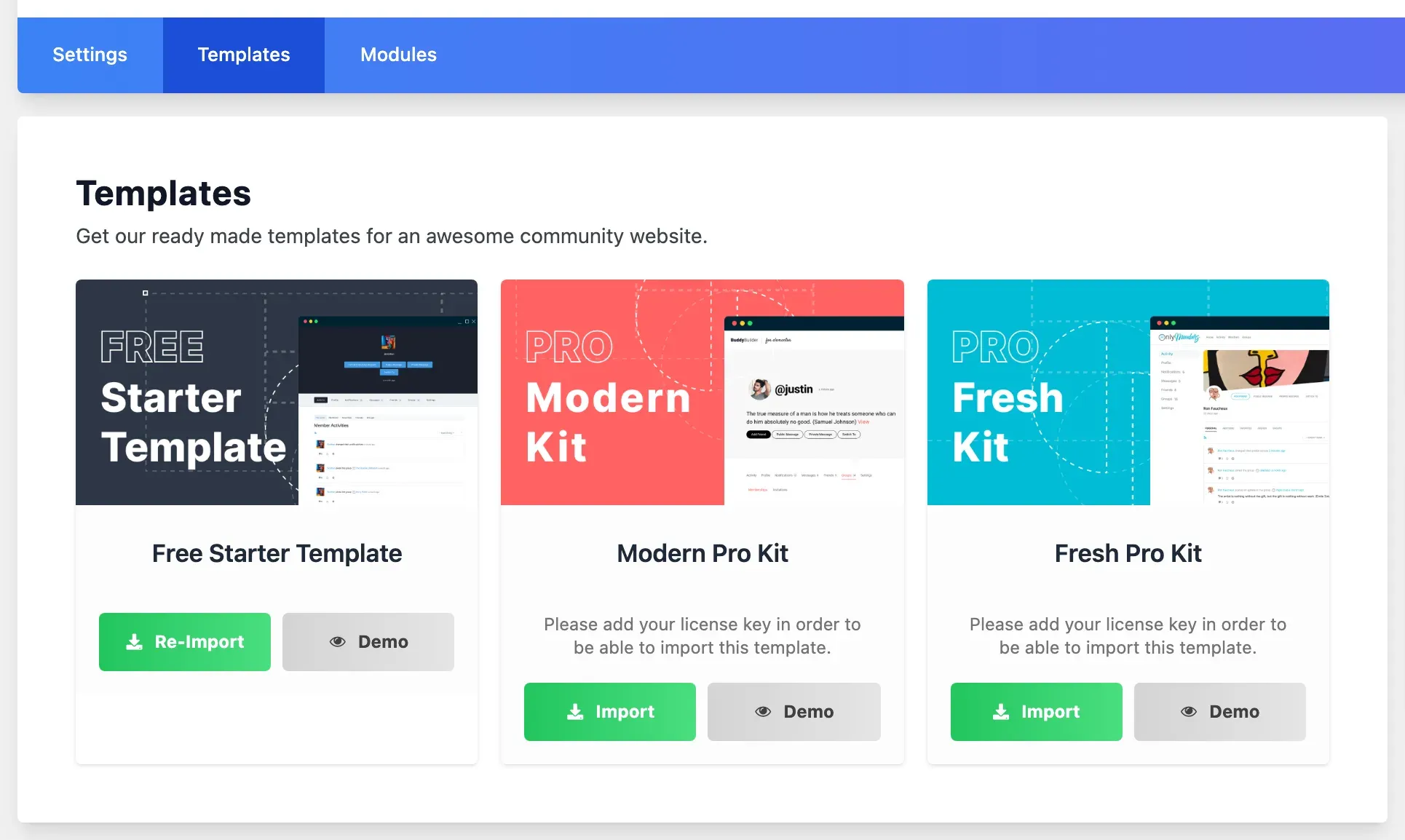
Section titled “Available kits”| Kit | Available with |
|---|---|
| Free Starter Template | Free plugin, on BuddyPress or BuddyBoss Platform |
| Modern Pro Kit | BuddyBuilder Pro with an active license, on BuddyPress |
| Fresh Pro Kit | BuddyBuilder Pro with an active license, on BuddyPress |
| BuddyBoss Platform Kit | BuddyBuilder Pro with an active license, on BuddyBoss Platform |
Click Demo under a kit to preview it before you import.
Before you import
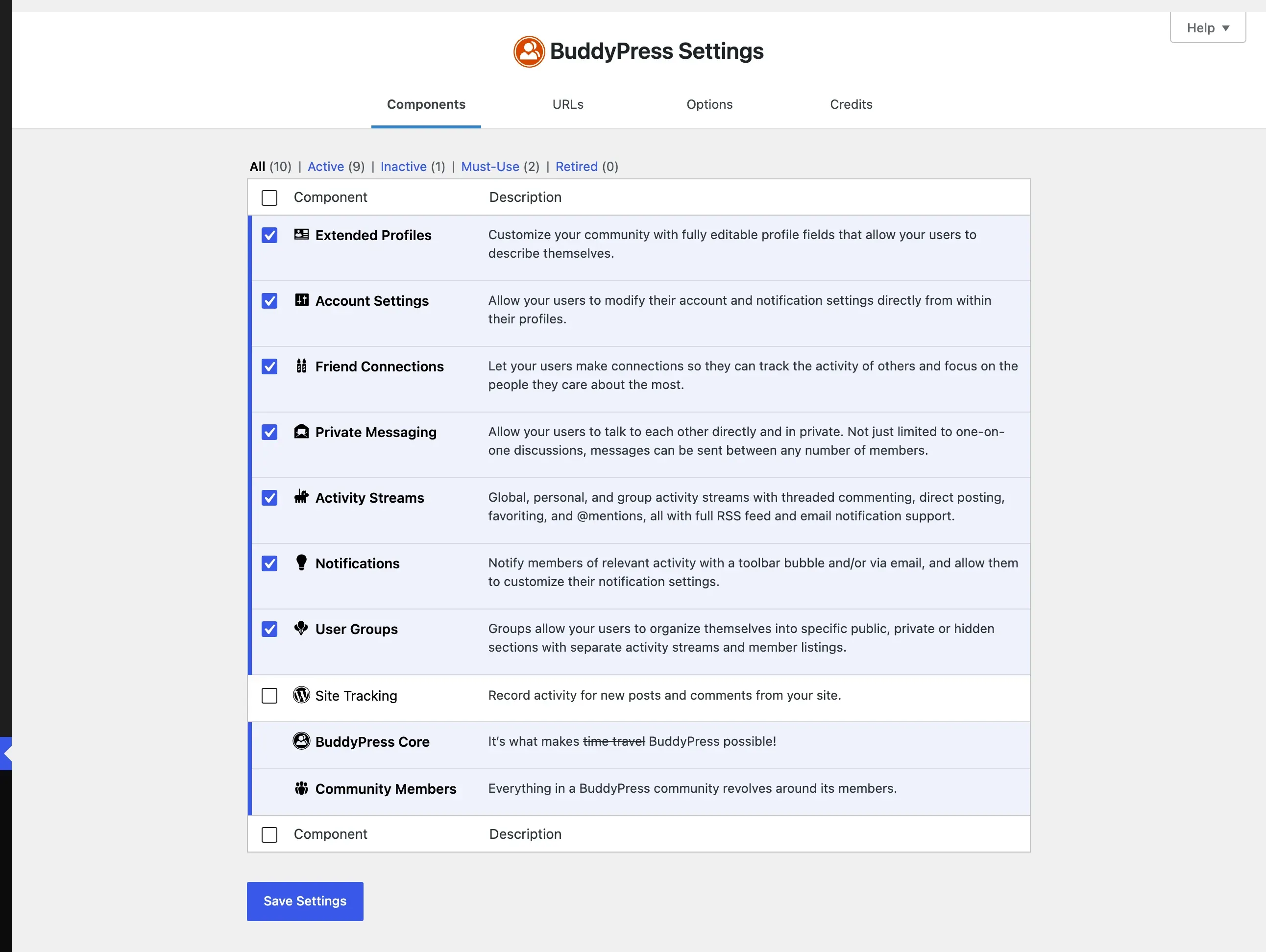
Section titled “Before you import”Go to Settings > BuddyPress > Components and turn on the components you want templates for. Group templates are skipped when the User Groups component is off.
Import the free starter kit
Section titled “Import the free starter kit”- Go to BuddyBuilder > Templates.
- Click Import under Free Starter Template.
- Wait for the message “YAY! The template was imported successfully!”.
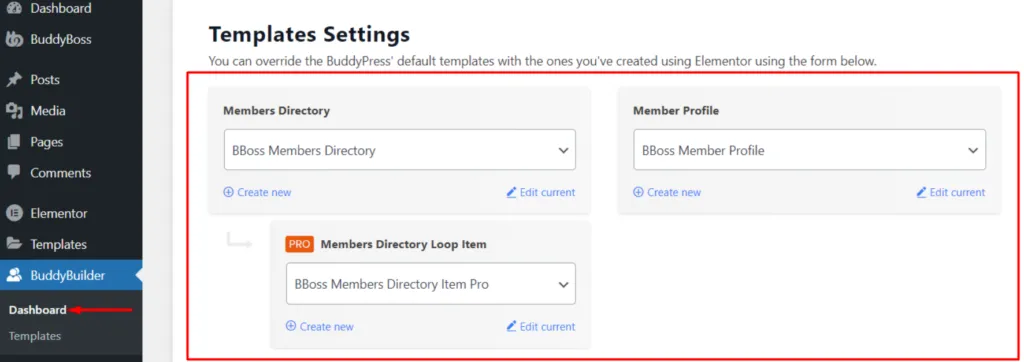
- Open BuddyBuilder > Dashboard to see the imported templates selected for each page type.
Import a Pro kit
Section titled “Import a Pro kit”- Activate your license key. Without it the kit shows “Please add your license key in order to be able to import this template.”
- Go to BuddyBuilder > Templates.
- Click Import under Modern Pro Kit or Fresh Pro Kit.
Import the BuddyBoss Platform kit
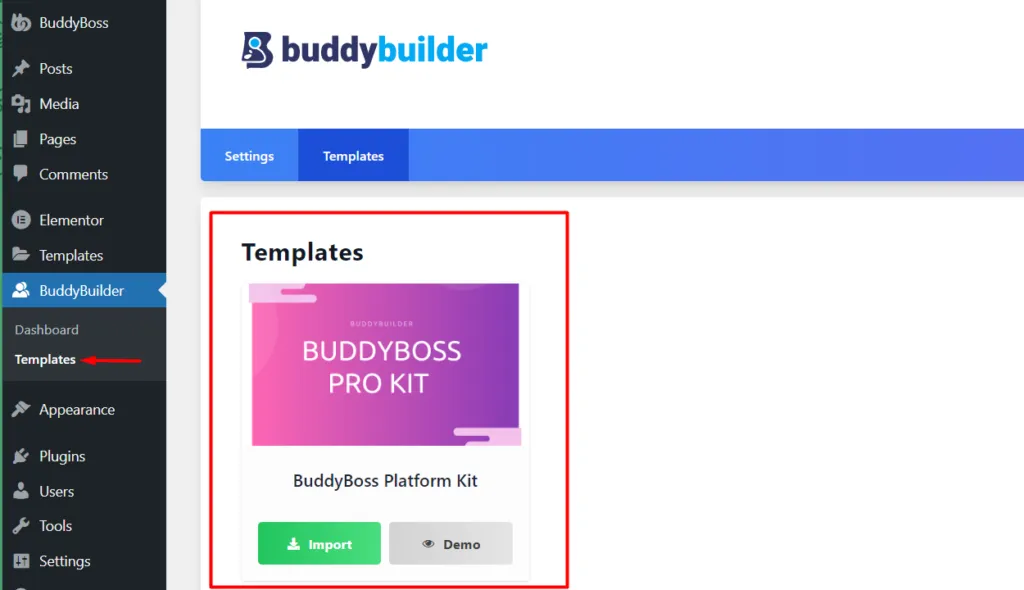
Section titled “Import the BuddyBoss Platform kit”When BuddyBoss Platform is active and BuddyBuilder Pro is installed, BuddyBuilder > Templates lists one kit, BuddyBoss Platform Kit, built for the BuddyBoss markup.
- Go to BuddyBuilder > Templates.
- Click Import under BuddyBoss Platform Kit.
- Open BuddyBuilder > Dashboard and confirm the imported templates are selected.
- Visit your BuddyBoss pages on the front end to check the result.
Re-import a kit
Section titled “Re-import a kit”After a kit is imported its button reads Re-Import. Re-importing moves the templates from the previous import of that kit to the trash and imports fresh copies, so changes you made to those templates are no longer active. Duplicate a template you want to keep before you re-import.
Common questions
Section titled “Common questions”The import fails with “Oops! An error occurred while importing the template!” The site could not download the kit from the StaxWP template server. Check that your server allows outgoing HTTPS requests, and for Pro kits that the license key shows as activated, then try again.
Can I change an imported template? Yes. Go to BuddyBuilder > Dashboard and click Edit current under the page type. See Create and assign templates.