
BuddyBuilder with the SweetDate theme
On a SweetDate site you can build the members directory with BuddyBuilder and still use the SweetDate Elementor widgets, such as Profile Search, inside the same template. This page covers three common additions to the Members Directory template: a sort filter, a search form and an online members list.
SweetDate is a dating theme by SeventhQueen. The BuddyBuilder parts of this page (the Members Directory template and its widgets) work the same in any theme.
Open the Members Directory template
Section titled “Open the Members Directory template”Every section below starts from the template in Elementor:
- Go to BuddyBuilder > Settings.
- In the Members Directory box, select your template and click Save. If you have no template yet, click Create new, or import the starter templates.
- Click Edit current.
The starter Members Directory template contains three BuddyBuilder widgets: Members Navigation, Members Filters and Members Listing. They are in the BuddyBuilder Members Directory category of the widget panel. The SweetDate widgets are in the SweetDate category.
Add a members sort filter
Section titled “Add a members sort filter”The Members Filters widget shows the search box, the sort dropdown (Last Active, Newest Registered, Alphabetical) and the grid/list toggle. To show the sort dropdown:
- If the template has no Members Filters widget, drag one in above Members Listing.
- Select the widget. In the Content section, open Show & Order.
- Pick the combination you want. The option name lists the visible parts from left to right:
- Sort: only the sort dropdown.
- Search: only the search box.
- Search > Sort or Sort > Search: both, in that order.
- Options that include List Toggle also show the grid/list switch.
- Click Update.
The other sections of the widget style the search box, the sort dropdown and the toggle.
Add a profile search form
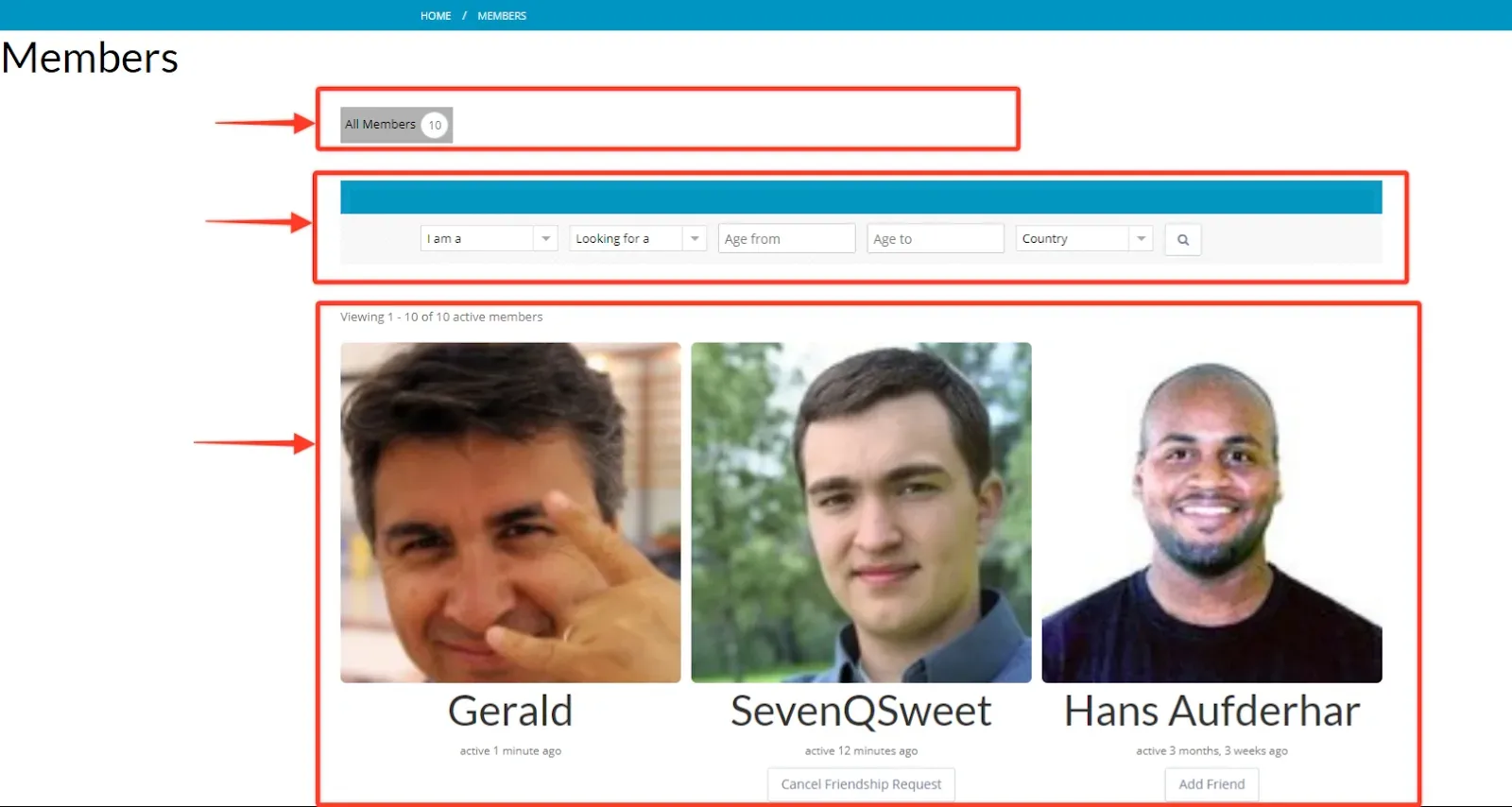
Section titled “Add a profile search form”The Members Filters search box is a single keyword search. To let members search by specific profile fields (for example gender, age or country), use a form from the BP Profile Search plugin, which SweetDate supports, and place it with the SweetDate Profile Search widget.
Create the search form
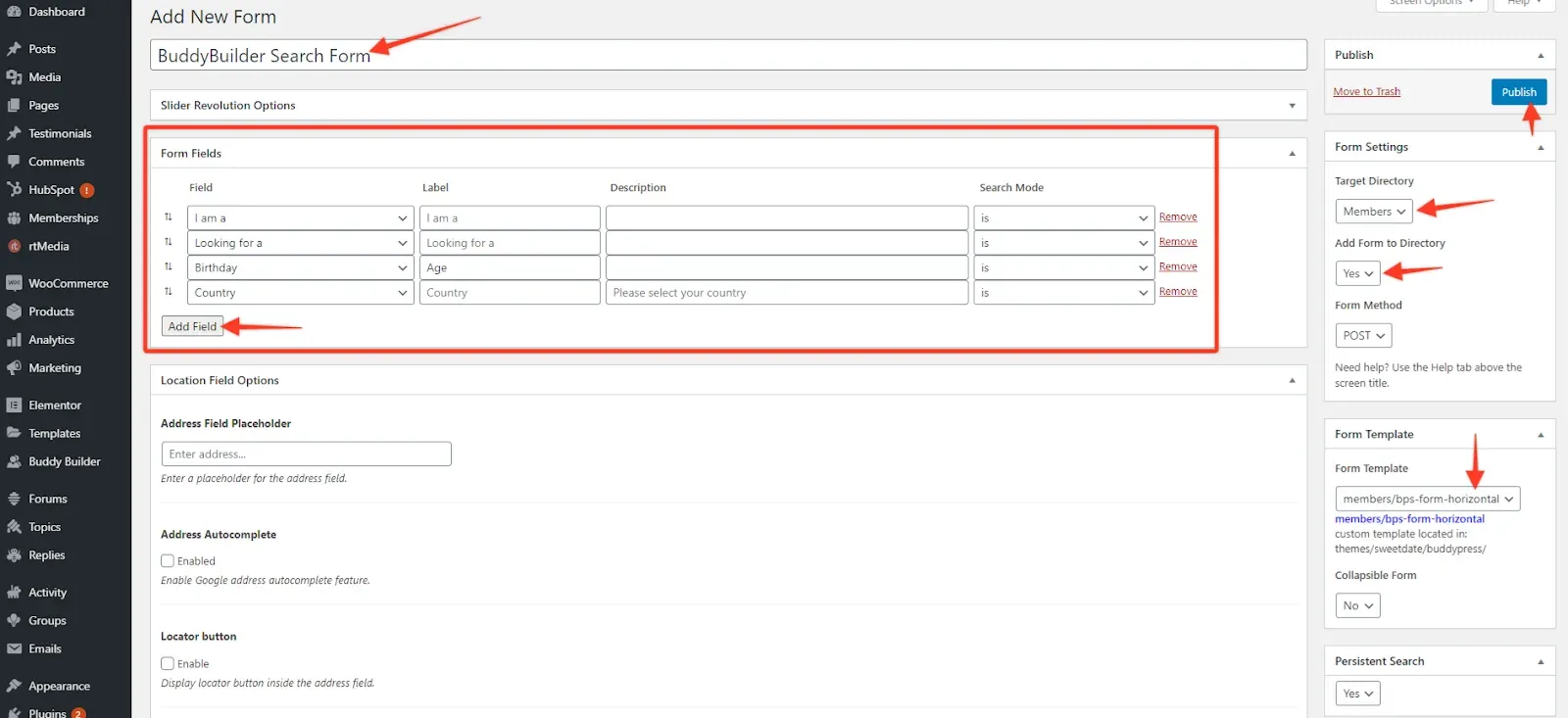
Section titled “Create the search form”- Go to Users > Profile Search and click Add New.
- Enter a title for the form.
- Under Form Fields, add the profile fields to search by. The example uses “I am a”, “Looking for a”, “Birthday” (as an age range) and “Country”.
- In Form Settings, set Target Directory to the Members directory and Add Form to Directory to Yes.
- In Form Template, choose a template. The horizontal SweetDate template takes the least space.
- Click Publish.
Place the form in the template
Section titled “Place the form in the template”- Open the Members Directory template in Elementor.
- Optional: delete the Members Filters widget, so the page has one search form instead of two. Keep Members Navigation and Members Listing.
- From the SweetDate category, drag the Profile Search widget between Members Navigation and Members Listing.
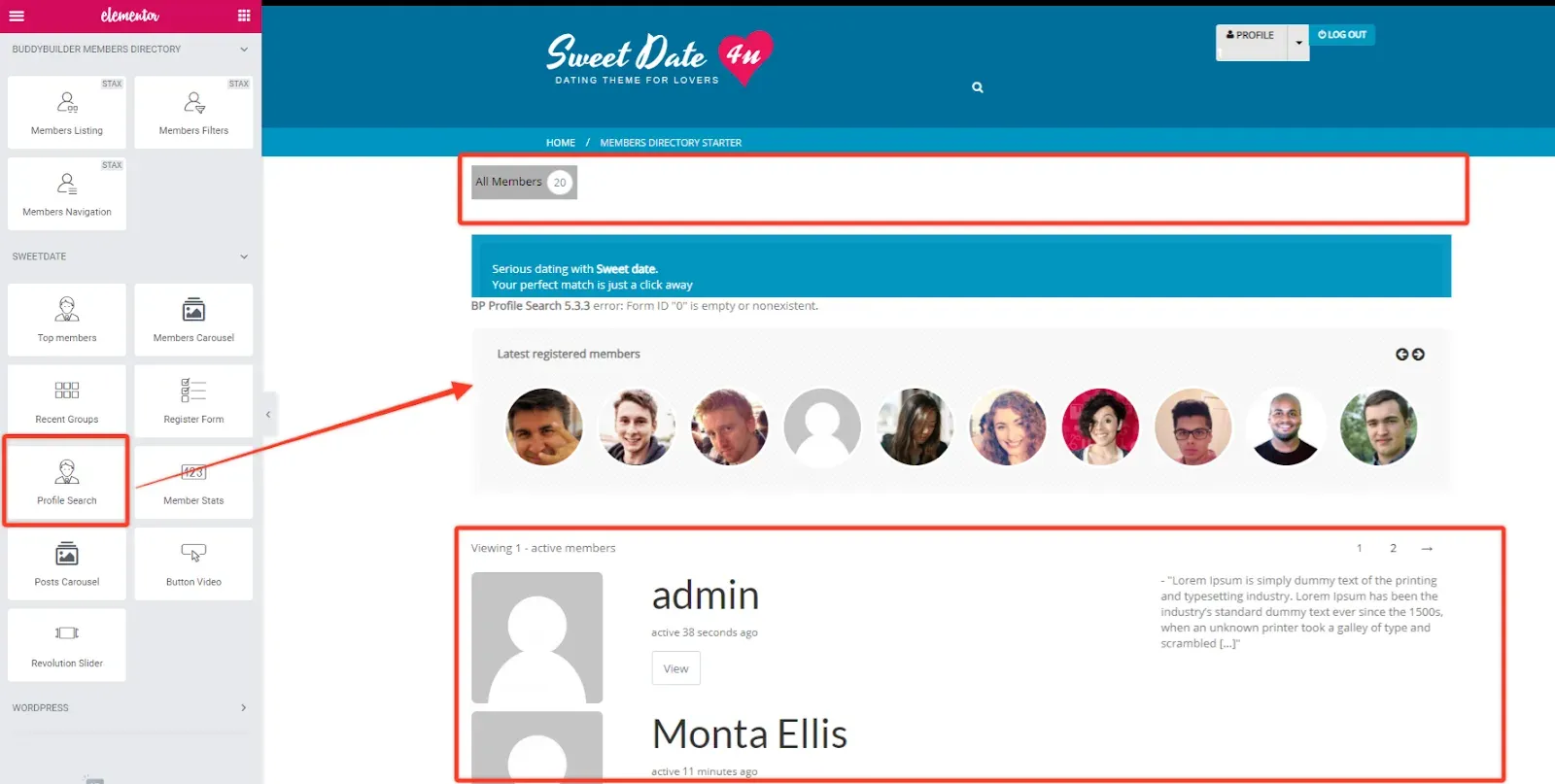
- In the widget’s Settings section, choose your form under Form. Until a form is selected, the widget shows a BP Profile Search error about an empty form ID.
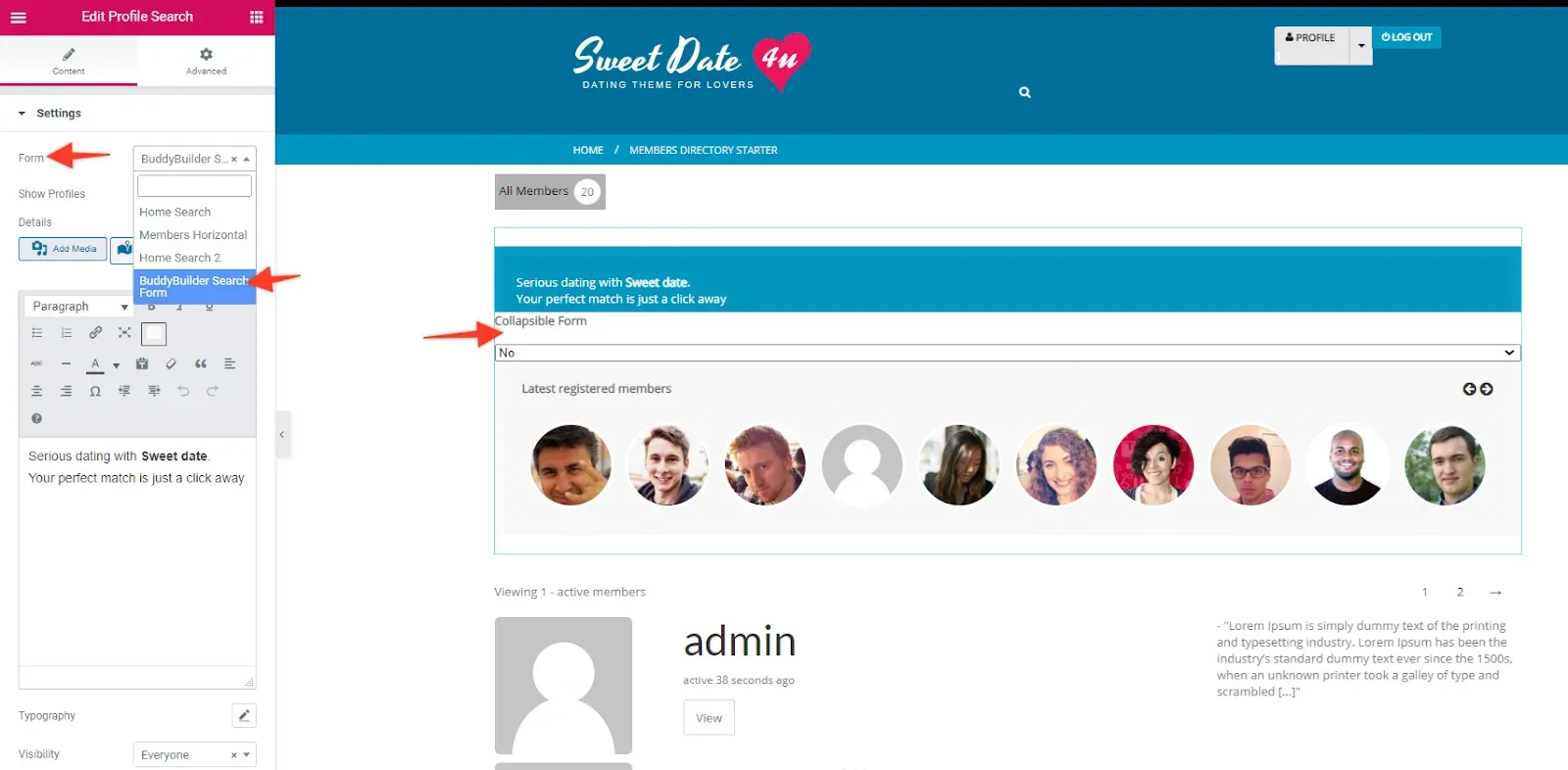
- Adjust the rest of the widget:
| Option | What it does |
|---|---|
| Show Profiles | Shows or hides the row of member avatars under the form |
| Details | The text shown in the form header. Empty it for a compact form |
| Typography | Font of the header text |
| Visibility | Shows the widget to everyone, to logged-in users or to guests |
- Click Update.
Add an online members list
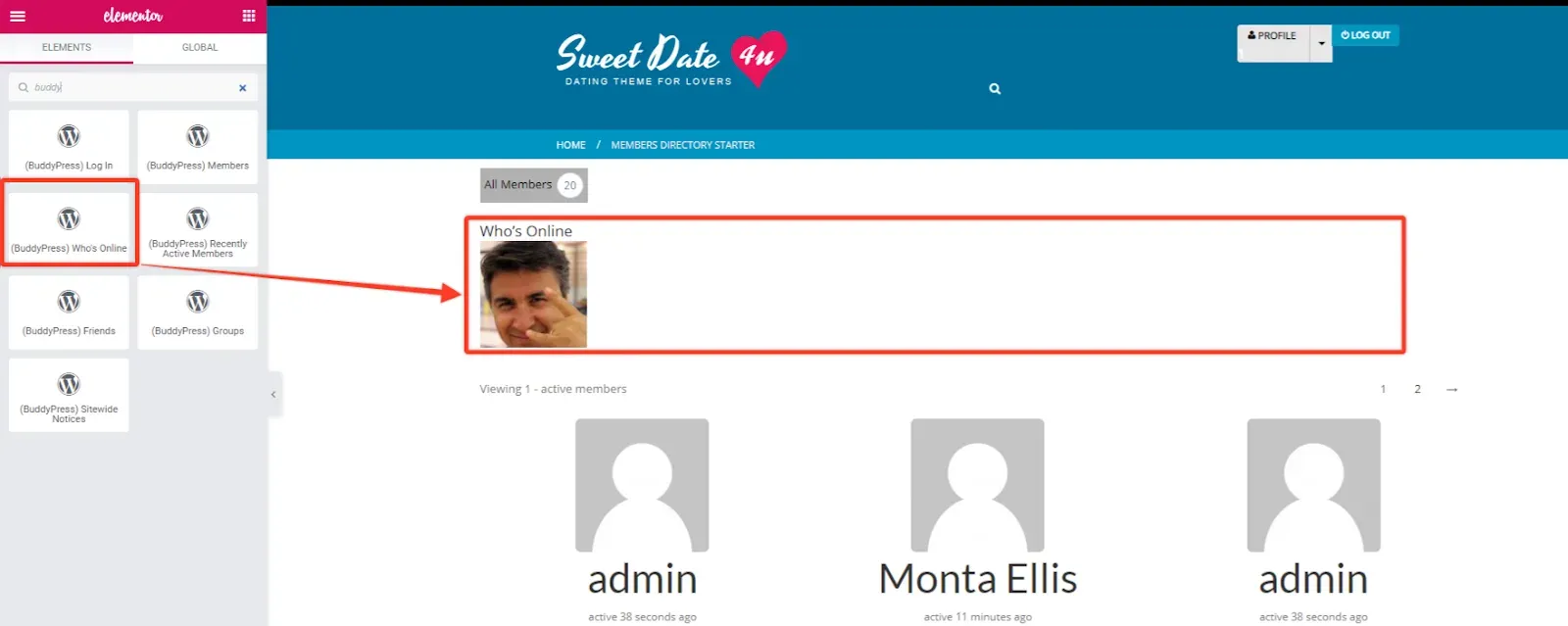
Section titled “Add an online members list”The (BuddyPress) Who’s Online widget shows the avatars of the members who are online right now, in a compact row.
- Open the Members Directory template in Elementor.
- In the widget panel, search for “buddy”. The BuddyPress widgets are listed in the WordPress category.
- Drag (BuddyPress) Who’s Online between Members Navigation and Members Listing.
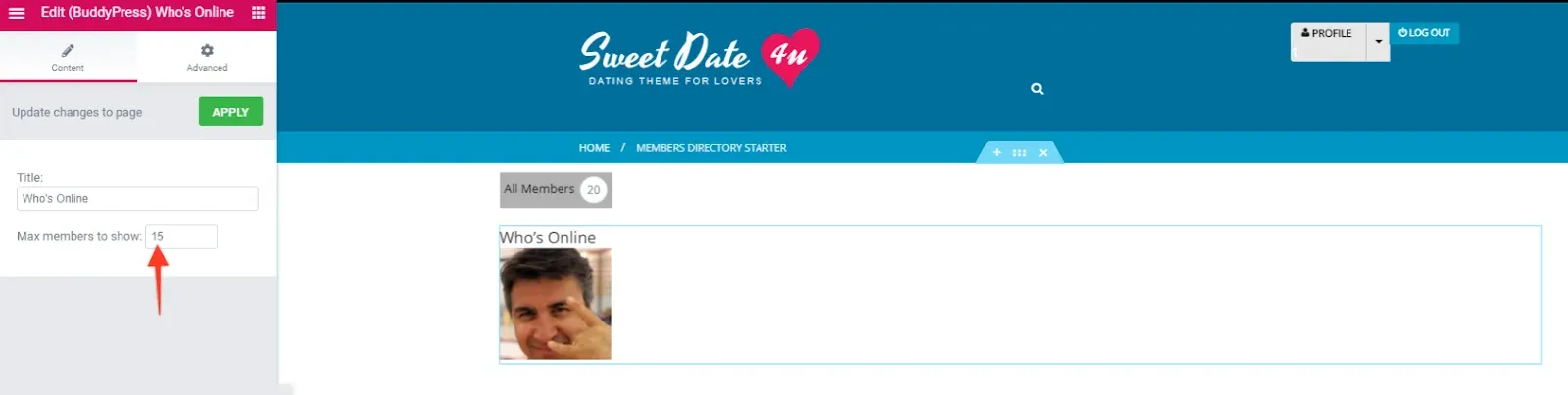
- Set the Title and Max members to show (15 by default), then click Apply.
- Click Update.
Related pages
Section titled “Related pages”- Members directory widgets: every option of Members Navigation, Members Filters and Members Listing.
- BuddyBuilder code snippets: change how many members the directory shows per page, or hide a user role from it.