Notifications – Table Styling
Table Styling
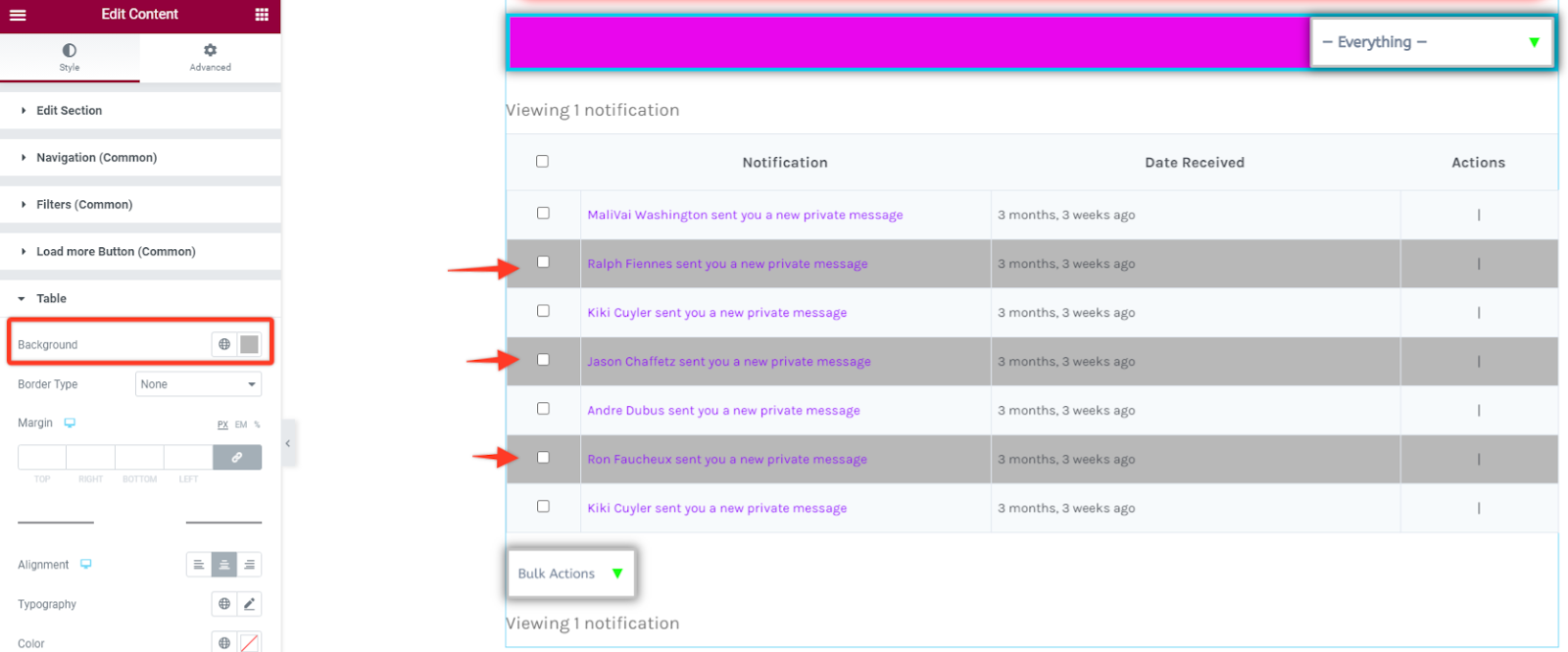
Section titled “Table Styling”Background
Under this option you can change the background color of the table in the content widget.
Border Styling
This option will enable you to add some border styling like adding different border types like solid, dotted, dashed, double among others. Then define the width size of your border in the table section and choose a preferred color for the border.
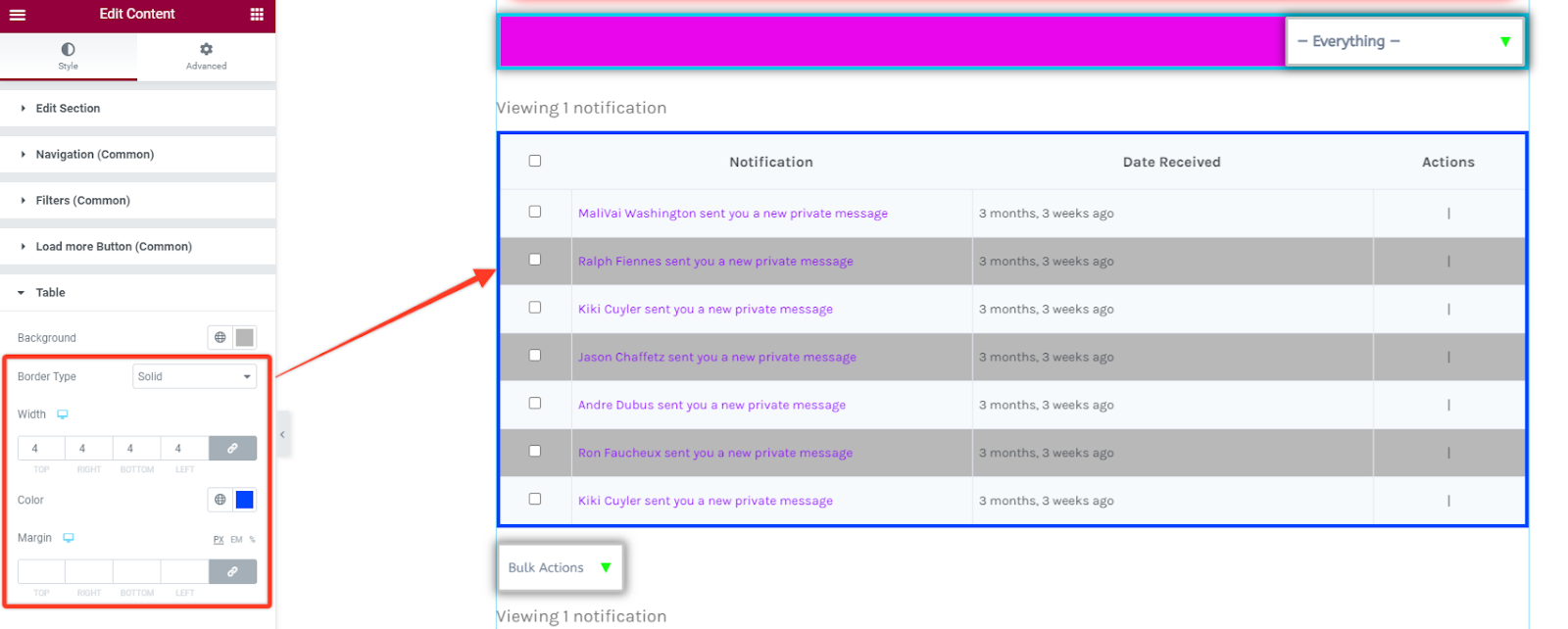
Table Heading Text
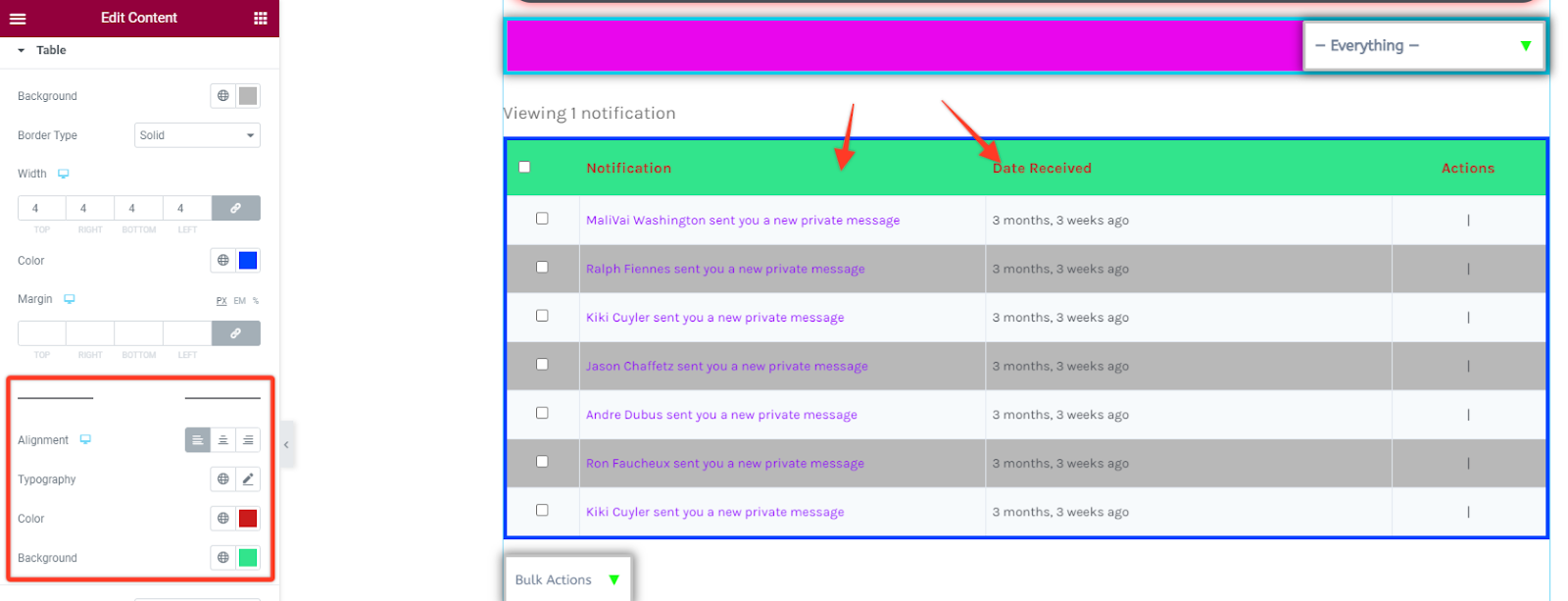
Section titled “Table Heading Text”Alignment
This option allows you to set the position of the heading text button within the table from (either towards the left, right or center location)
Typography
In this style option you can alter the font settings of the text headings in the table . You can change the font family, size, weight, style, line height among others.
Text Color & Background Color
Under this option you have the option to choose your preferred text, and background color for the table heading texts.
Border Styling
This option allows you to add borders within the table headings. You can add different border types like solid, dotted, dashed, double among others. Then define the width size of your border in the table heading section and choose a preferred color for the border.
You can additionally add some padding to increase spacing between the headings and table container.
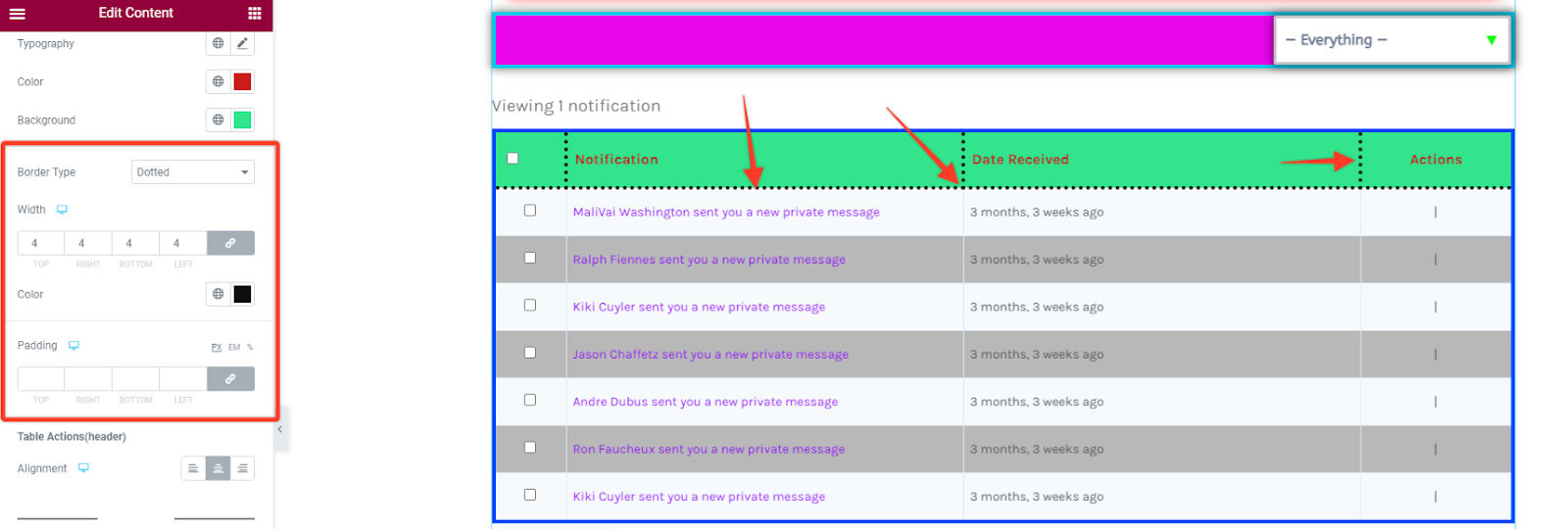
Table Actions
Section titled “Table Actions”Alignment
This option allows you to set the position of the “Action” text button within the table from (either towards the left, right or center location).
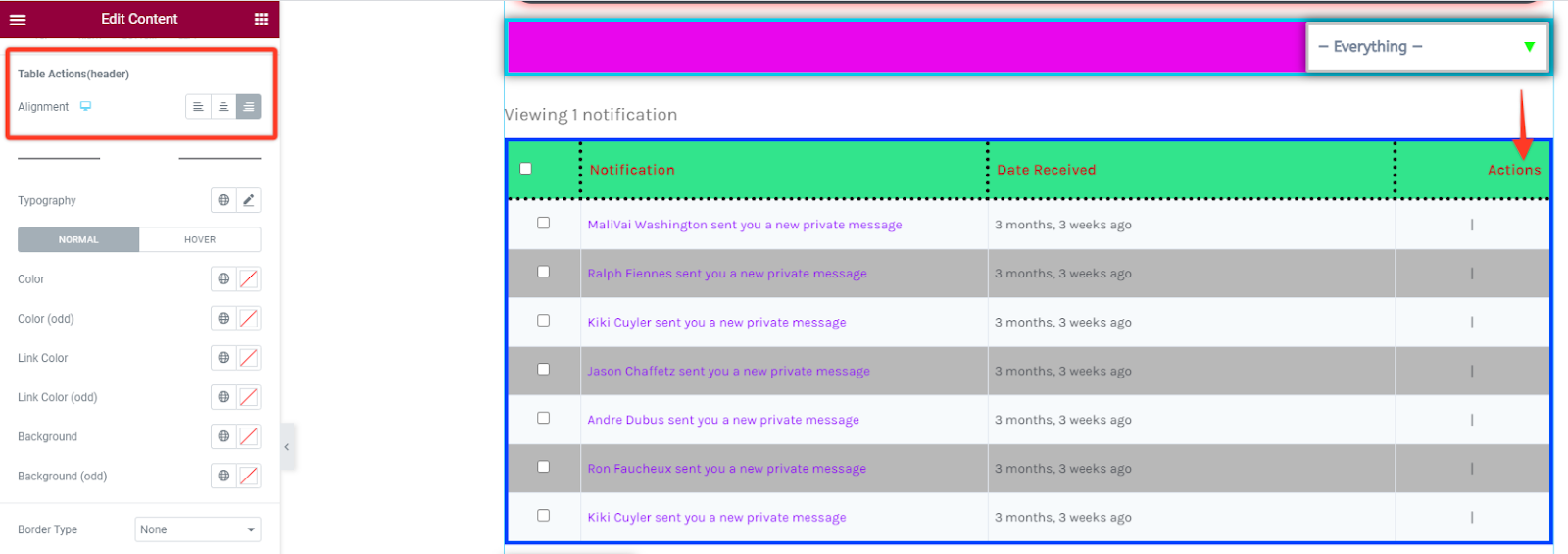
Table Content
Section titled “Table Content”Typography
In this style option you can alter the font settings of the table content . You can change the font family, size, weight, style, line height among others. Alternatively you can choose a global font setting.

Color Styling
Under this option you have the option to choose your preferred color for the text in the table, the links and the overall background color within the table. The three do have the odd options as well as in both hover and normal states.

Table Border Styling
This option enables you to add borders inside the table rows/columns. You can add different border types like solid, dotted, dashed, double among others. Then define the width size of your border in the inner table section and choose a preferred color for the border.
You can additionally add some padding to increase spacing between the rows.

Filter Actions Button
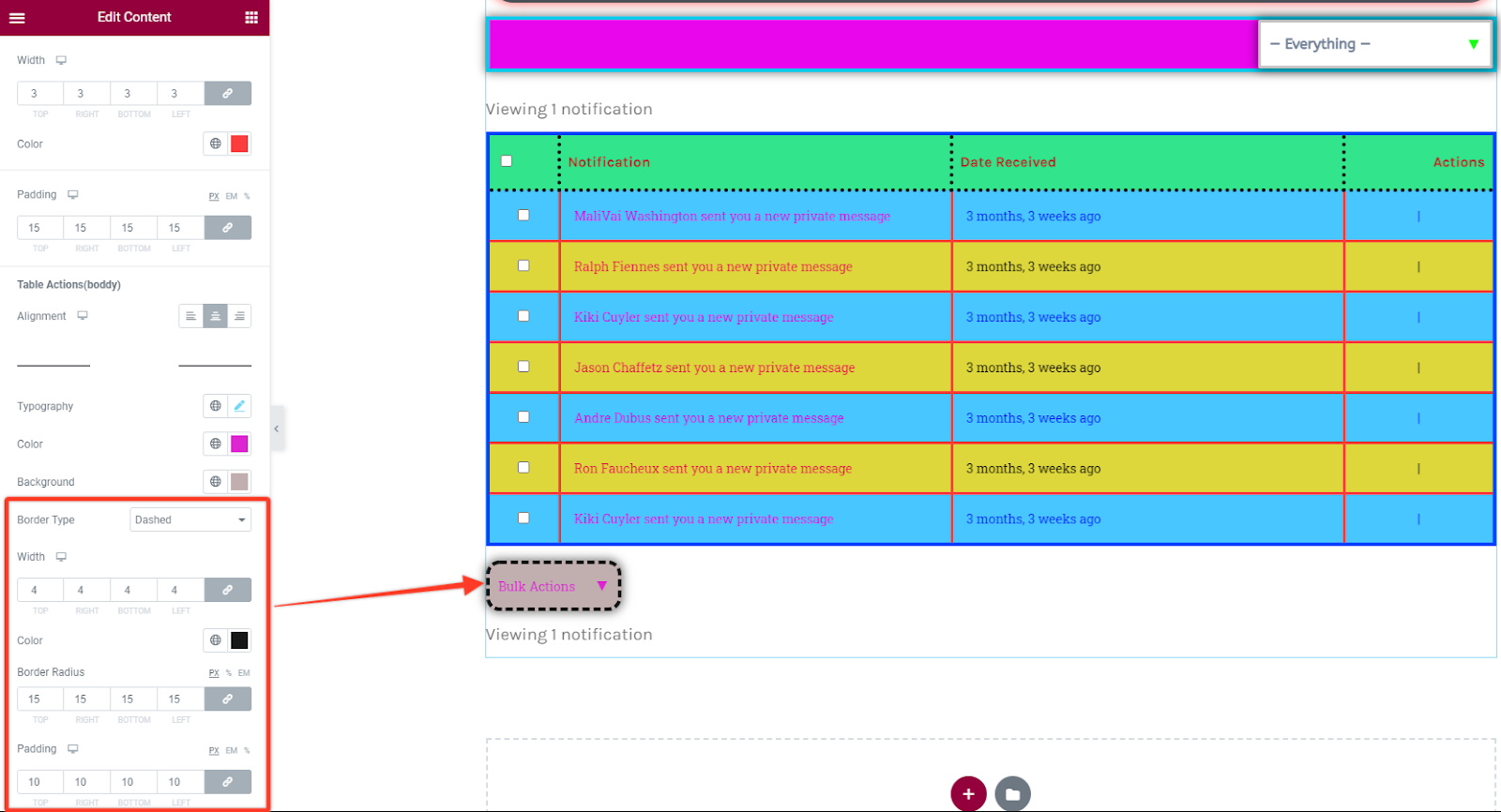
Section titled “Filter Actions Button”Ideally this should take the main button styling options. In any case you want to change its individual styling you can do so in this section.
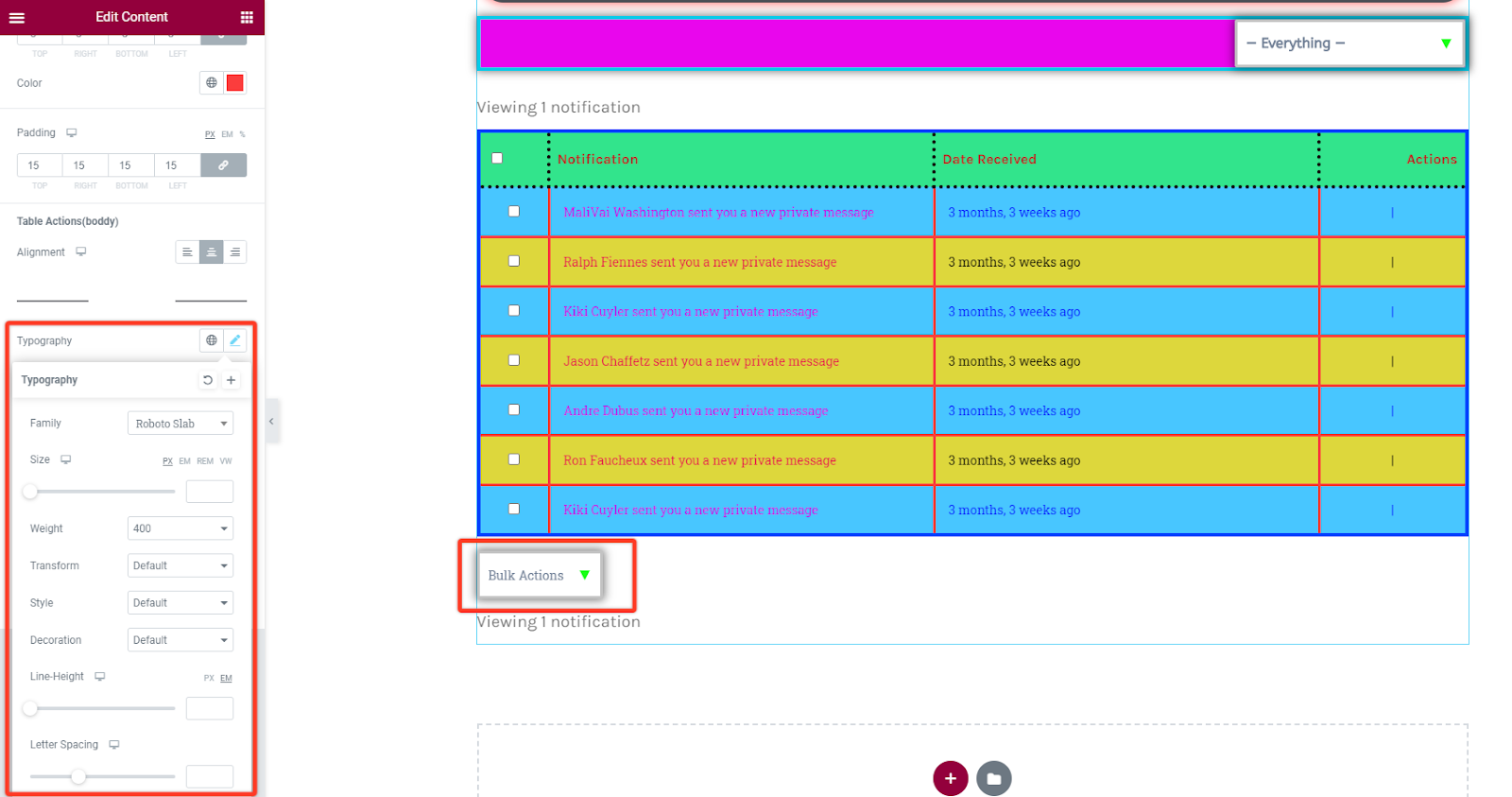
Typography
Under this style option you can change the font settings of the Bulk Actions button . In this case you can change the font family, size, weight, style, line height among others. Alternatively you can choose a global font setting.
Text Color and BG Color
This option enables you to choose your preferred text, and background color for the bulk button.

Border Styling
This option allows you to add borders within the bulk action button. You can add different border types like solid, dotted, dashed, double among others. Then define the width size of your border in the button and choose a preferred color for the border.